

A Client Portal for Projects, Invoices, and Payments
Give clients one secure place to see project progress, time, expenses, retainers and invoices, then pay an invoice online through your own Stripe account.
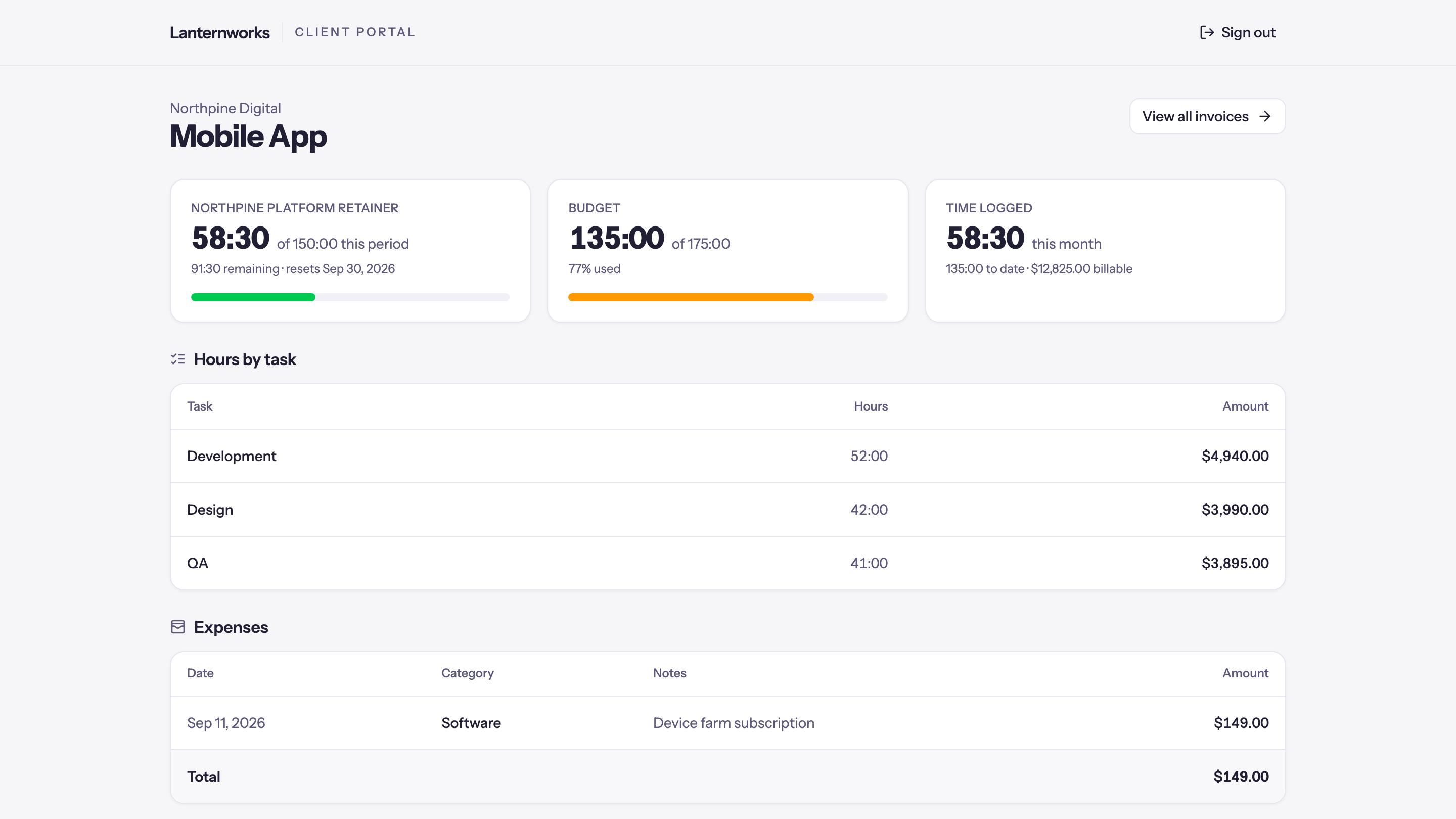
The awkward part of finishing client work is often explaining it. The project lives in one tool, the invoice arrives by email, the time breakdown is a spreadsheet, and the retainer balance is whatever somebody last wrote down.
Quanta's new client portal puts that information in one place. Invite a client and they can see the projects, time, expenses, retainers and invoices you choose to share. If you connect Stripe, they can pay an eligible invoice without leaving the flow, and save a card so their retainer invoices pay themselves.
The client portal and card payments are in beta. They work today, and we're refining them with the first agencies who use them, so expect some changes as we go.
It looks like your business and stays deliberately separate from the workspace your team uses every day.
One link instead of a status email
Clients sign in through a secure link sent to their email address. There is no password for them to remember and no new account setup to explain.
The portal leads with what matters to that client. Invoices awaiting payment sit at the top, then the project's status side by side: retainer usage this period, budget used, fixed fee billed and time logged, whichever apply. A client with one project lands on that project. A client with several gets a list with one status line per project. Invoices are always easy to reach, including their status, due date, PDF and payment history.
Inside a project, the client can see any combination of:
- tracked time and hours by task
- approved expense totals or individual expense lines
- fixed-fee and hourly budget progress
- team member names and time-entry notes
- current retainer usage, rollover and recent periods
Recent time appears on the project, and View all time entries opens the complete shared history as a proper table. Clients can sort by date, person, task, hours or amount, filter by person or task from the column headers, search notes, resize and hide columns, and pick a date range with the same presets as Quanta's detailed report. Long notes show in full on hover. The link carries every choice, so a client can send a colleague exactly the view they were looking at, and the CSV download honours the same sort and filters.
You decide what each client sees
The portal starts with workspace defaults under Administration → Workspace Settings → Client Portal. Those defaults cover projects, time, expenses, retainers, budgets, names, notes and billable amounts.
Each client inherits the workspace settings. Each project then inherits the client settings. At either level you can change what is shared, so a workspace can establish a sensible default and make one client or project more private, or share a budget with just the one client who asked, without rebuilding every setting.
That matters because "show project progress" does not always mean "show every row behind it." You can share an approved expense total while keeping individual expenses private. You can show hours without rates or amounts. You can limit time to approved entries, invoiced entries, or everything the client is allowed to see. Task and expense sections disappear when the project does not use those features, and an empty retainer section is never shown.
Invoices remain visible even when projects or time are hidden. You can also turn the entire portal off for a workspace or one client; existing sessions and invoice share links stop working with it.
Take invoice payments through your Stripe account
Connect Stripe under Integrations → Stripe and eligible invoices gain a Pay invoice button. The client pays the full outstanding balance through Stripe Checkout, and the money goes directly to your connected Stripe account.
When the payment succeeds, Quanta records it on the invoice, updates the balance, shows it in payment history and emails your workspace. The payment can then follow the rest of your Quanta payments into QuickBooks Online or Xero when either integration is connected.
Online payments inherit an enabled-by-default client setting and can be switched off for one client or one invoice. The invoice stays available to review and download when payment is disabled.
Quanta's platform fee is 0.5% of the payment, taken from the amount deposited to your Stripe account. Stripe's own processing fees are separate. The client pays the invoice balance shown to them; no surcharge is added at checkout.
Retainer invoices and auto-pay
A retainer invoice opens with the retainer itself: its price, start date and billing, what's included, what happens beyond that, this period's usage and the retainer's other invoices. Each tax sits on its own line, on the retainer and in the invoice totals, and Stripe Checkout says which taxes the amount includes.
When auto-pay is on for the retainer, the same invoice asks how the client would like to pay: pay now and save the card, save the card and be charged when the period starts, or pay once without saving it. Once a card is saved, every retainer invoice after it is charged when it goes out, and the client can remove the card from the link in any invoice email. The card is entered on Stripe's checkout page and kept by Stripe, which is PCI DSS Level 1 certified, on your connected account; Quanta only stores the brand, last four digits and expiry.
Retainers That Pay Themselves covers the settings, what you see on the retainer, and what happens when a card is declined.
Share one invoice without inviting the client
Sometimes a client needs an invoice, not a portal. Every invoice can create a secure share link that opens only that invoice, its PDF and its payment option when online payment is enabled.
Sent invoices and payment reminders carry the same link, so a client can pay straight from the email. You can revoke a link at any time, and it never exposes the rest of the client's projects or invoices.
Built for the client side of the relationship
The portal uses the same dates, currencies and business rules as the workspace behind it, but it does not simply reproduce the internal app. Private controls are omitted, empty sections disappear, and status language is written for the person receiving the work.
That distinction carries through the details. Time can be limited to approved work. Retainer balances use the same live calculation your team sees. PDF downloads, CSV exports and invoice payments follow the same visibility rules as the page on screen. Portal pages are kept out of search engines, and invoice share links do not leak through browser referrers.
Turn it on
Open Administration → Workspace Settings → Client Portal, choose the workspace defaults, and enable the portal. Then open a client, confirm their portal settings and invite a contact. If you want online payments, connect Stripe before sending the first invoice.
Start with one client whose work you know well. Preview portal on the client opens their portal exactly as they will see it, with payments switched off, so you can check every project and invoice before sending the invitation.
Questions, or something your clients need to see that the portal does not cover yet? Email support@quanta.is.
The Quanta team