Retainers That Pay Themselves
Your client saves a card once from a retainer invoice, and every retainer invoice after it is charged when it goes out. Review each draft first, or let a fixed-price retainer run on its own.
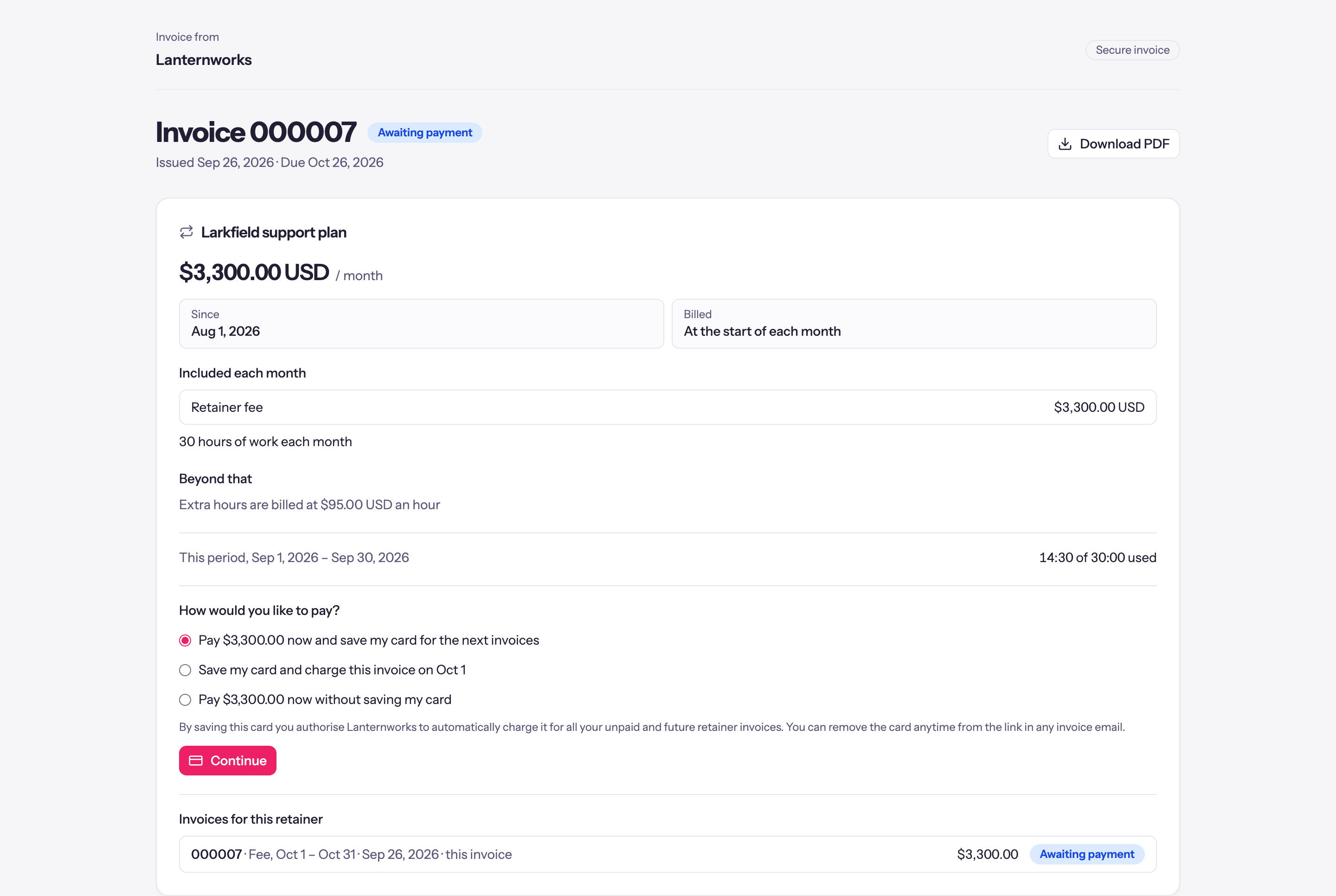
A retainer is the same invoice every month. Quanta already drafts it for you, and the client portal already lets your client pay it by card. What was still manual was the part in between: waiting for the client to open the email, find a card and pay it again, every month.
Retainer auto-pay closes that gap. Your client saves a card once, from a retainer invoice, and every retainer invoice after it is charged when it goes out. The money goes to your own Stripe account, and the payment lands on the invoice the same way a card payment always has.
Auto-pay is in beta, like the client portal it builds on. It works today, and we're refining it with the first agencies who use it.
Your client sets it up from the invoice
There is no separate sign-up page and nothing extra to explain. The retainer invoice you send already shows the deal, in your client's words: what it costs, what's included, what happens beyond that, and this period's usage. Under that, it asks how they'd like to pay.
- Pay now and save my card pays this invoice through Stripe Checkout and keeps the card for the next ones.
- Save my card and charge this invoice on the start date appears when the invoice is for a period that hasn't started yet. Nothing is charged until that day.
- Pay now without saving my card is still there for clients who'd rather pay each invoice themselves.
The wording above the button says exactly what saving the card allows, and your client can remove the card at any time from the link in any invoice email. A saved card is never charged before the period an invoice covers has started.
Where the card is kept
Quanta never sees or stores the card number. Your client enters their card on Stripe's own checkout page, and Stripe, a PCI DSS Level 1 certified payment provider, keeps it on your connected Stripe account. Quanta holds only Stripe's reference to the card, plus the brand, the last four digits and the expiry date, so you and your client can tell which card is on file.
You choose how hands-off it is
Each retainer has an Auto-pay setting on its form, next to the rest of its billing.
- Off keeps things as they were: clients pay from the invoice, or you record the payment.
- Charge when sent drafts the invoice as usual so you can review it. Sending it charges the saved card.
- Fully automatic sends and charges each period's invoice with no review. It is only offered when the amount is the same every period, so a retainer that bills extra hours or sweeps in expenses always gets a look from you first.
You can see every charge
The retainer's page shows the card on file, who saved it and when, and every charge with its status. Remove card stops the automatic charges straight away. Only your client can save a card again, from their next unpaid invoice.
Before a card is on file, the Payment card names the invoice that will ask for it, and Copy invoice link gives you its link to paste wherever you talk to your client. To send it again, use the email button on that invoice's row under Invoices. If a saved card expires or is declined, a banner at the top of the page says so and Request new card emails your client the invoice to replace it. Either way your client lands on the invoice, sees what they're paying, and saves their card there.
When a card is declined
Cards expire and banks decline. When a charge fails, your client gets an email with a Pay invoice button and a link to update the card, and you get one too. Quanta tries the card again three days after the first attempt and once more at seven days. After that the invoice falls back to your normal overdue reminders, so nothing is chased twice.
Taxes, spelled out
Retainer invoices carry the client's tax like any other invoice. The retainer on the invoice now lists each tax on its own line, GST and QST for example, with the total the client will pay each period, and the invoice's totals do the same. When a client pays by card, Stripe Checkout says which taxes the amount includes.
Turn it on
Auto-pay works on any retainer, on every workspace. You need four things in place:
- Retainers ticked under Administration → Workspace Settings → General → Features.
- The client portal switched on under Administration → Workspace Settings → Client Portal, with online payments allowed for the client.
- Stripe connected under Integrations → Stripe.
- A retainer with Auto-pay set to Charge when sent or Fully automatic.
Then send the retainer's next invoice. Your client saves their card when they pay it, and the invoices after it take care of themselves.
Quanta's platform fee is 0.5% of each payment, the same as any other card payment through the portal, and Stripe's own processing fees are separate. Your client pays the invoice amount; no surcharge is added.
New to retainers in Quanta? Retainers in Quanta covers describing the deal, overage, rollover and prepaid blocks. Questions, or a retainer that doesn't fit? Email support@quanta.is.