Send Your Invoices to Xero (Beta)
Connect your Xero organisation and Quanta pushes each invoice you send, and each payment you record, into Xero. Totals match to the cent. It is in beta and on for every workspace.
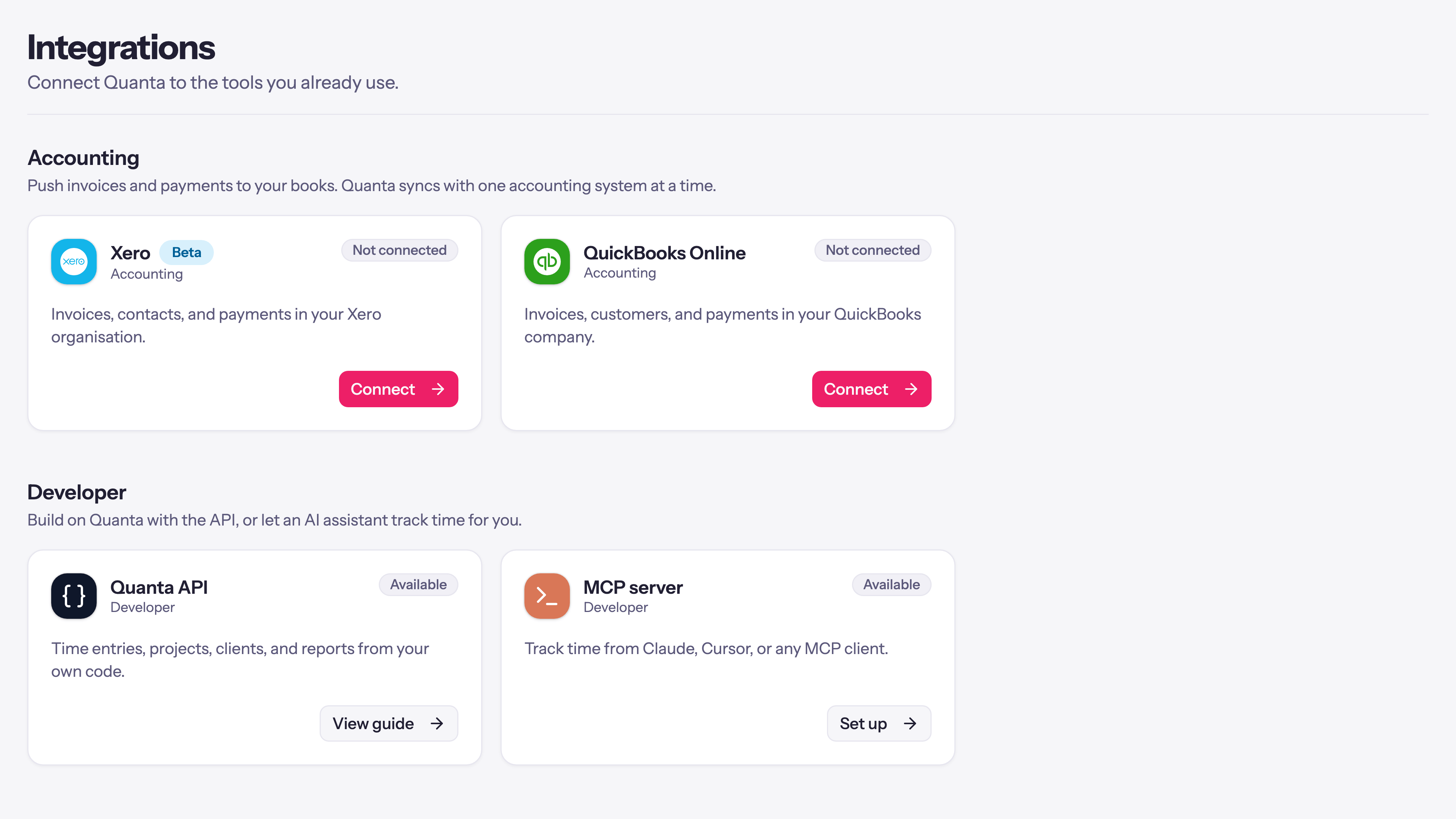
You bill your clients in Quanta. You keep your books in Xero. Until now that meant typing every invoice into Xero a second time, or exporting and importing and then chasing the mismatches. Our new Xero integration does it for you: connect your Xero organisation once, and from then on every invoice you send and every payment you record lands in Xero on its own.
It is in beta, and it is on for every workspace. Here is what that means and how it works.
Why beta
The integration is new. It has been tested end to end against Xero's demo organisation, including the awkward cases: partial payments, invoices with several tax lines, rounding, voids, contacts that already exist under a slightly different name. What it has not had yet is months of real books behind it, so we are calling it beta and asking you to tell us about anything that looks off. Press Report a problem at the top of the Xero page, or write to support@quanta.is. Nothing about the beta label limits what it does.
If you already use our QuickBooks Online integration, nothing changes for you. A workspace syncs with one accounting system at a time, so QuickBooks stays connected until you choose to switch.
Connect once, per workspace
Open Settings, then Integrations, then Xero, and press Connect. Xero asks you to sign in and pick which organisation to connect, then sends you back to Quanta. Pick the organisation carefully: switching to a different one later clears the links between Quanta and Xero, since a contact or invoice id in one organisation means nothing in another.
Once connected, a short Setup needed checklist asks for the two things Quanta cannot guess:
- Default revenue account, the Xero account invoice lines post to unless their item type says otherwise.
- Payment account, the bank account payments are recorded against. If you record payments in Xero yourself, turn off payment sync instead.
Quanta reads the accounts and tax rates that already exist in your organisation, so every choice is a pick from a list of what your books already use. Finish the checklist and syncing begins.
Invoices flow one way, on send
Quanta stays the source of truth. Xero never pushes an invoice back and never overwrites what you built here. The sync is one direction only, Quanta to Xero.
By default Auto-sync invoices on send is on: the moment you send an invoice, or mark it as sent, Quanta pushes it to Xero in the background as an approved invoice on the matching contact. Sending is never held up by Xero. The invoice goes to your client immediately and the sync follows a few seconds later. Prefer to push by hand? Turn the switch off and use Sync to Xero on each invoice instead.
Every invoice shows where it stands with a small badge:
- Not synced, it has not been pushed yet
- Synced, it is in Xero and matches
- Edited, you changed it in Quanta since the last sync; Re-sync to Xero when you are ready
- Error, something went wrong, and the message on the invoice is the real one from Xero
If the invoice has Attach detailed time entries switched on, the same breakdown is attached to the Xero invoice, so whoever opens it in Xero sees the hours behind the total.
Once a Xero invoice has a payment on it, Xero locks its line amounts. Quanta respects that: a description or date edit still syncs, and an amount change on a paid invoice is refused with a message saying so, rather than silently leaving the two sides different.
Totals match to the cent
Xero rounds every line to the cent and adds them up. Quanta rounds once, over the whole invoice. On most invoices the two agree. On some, seven lines of 3.7 hours at 89.99 for instance, they differ by a cent, and Xero refuses a stated line total that does not match its own arithmetic.
So Quanta does not argue with Xero's rounding. When the sums differ, it adds a line called Rounding carrying the cent or two of difference, and it states each line's share of the tax so the tax total matches too. The subtotal, the tax and the total in Xero are the ones your client saw on the invoice, every time. If Xero ever computes a different total, the invoice shows an error rather than sitting in your ledger with the wrong number.
Contacts, matched or created
When an invoice syncs, Quanta resolves its client to a Xero contact. A client you have linked by hand wins. Otherwise Quanta looks for an existing contact with exactly the same name, ignoring case, because linking to the wrong contact is expensive to unwind. If there is none and Auto-create contacts is on, Quanta creates one with the client's name, email and currency.
When the names do not line up, "Rivertown Design Co." here and "Rivertown Design" in Xero, open the client and use its Xero tab to search your contacts and link the right one. From then on every invoice for that client goes to that contact.
Tax rates and revenue accounts, mapped once
Copying a tax amount keeps a total right, but it does not help Xero track what you owe. So Quanta maps to your organisation's own tax rates under Mappings:
- Default tax rate for invoices that carry tax but no specific tax profile.
- Tax rate per tax profile, so a GST profile, a VAT profile and an export profile each land on the right Xero rate.
- Non-taxable line rate for exempt lines, which defaults to Xero's own No Tax.
Two-part taxes work. A Quebec profile with GST 5% and QST 9.975% maps to a single Xero rate with both components, and Xero splits the amount between them itself.
Revenue works the same way. Every line posts to the Default revenue account unless its item type is mapped to another under Revenue account per item type, so consulting, design and expenses can each hit their own income account.
Payments follow the invoice
With Sync payments to Xero on, a payment you record in Quanta is applied to the matching Xero invoice against your chosen payment account, with the same date and reference. Partial payments post as partial payments. A receipt that settles several invoices posts one payment per invoice.
Order does not matter. Record the payment first and send the invoice afterwards, and the payment follows the invoice across as soon as the invoice lands. If a payment cannot be posted, the invoice shows the error and Re-sync to Xero retries both.
Edit or delete a payment in Quanta after it was posted and the invoice is flagged so you know Xero still holds the old one. Xero payments are yours to reconcile, so Quanta tells you rather than deleting them behind your back.
Voids stay in step
Void an invoice in Quanta and the Xero copy is voided too. Xero refuses to void an invoice that still has a payment applied, and when that happens the refusal shows on the invoice so you can remove the payment in Xero and try again.
The options, in one place
Under Sync settings you will find:
- Auto-sync invoices on send, described above.
- Let Xero assign invoice numbers, if your numbering lives in Xero. Quanta's own number then travels in the invoice's reference so the two can still be matched.
- Sync payments to Xero and the Payment account.
- Auto-create contacts.
What the beta does not do yet
- Nothing comes back from Xero into Quanta. Payments you record in Xero stay in Xero.
- Xero has no sub-customers, so there is no per-project split on the invoice. Tracking categories are the natural home for that and are on the list.
- Item types are mapped to accounts by you, not matched by name.
- There is no "View in Xero" link on the invoice yet.
Tell us which of these you need first.
Turn it on
It is available now. Open Settings, then Integrations, and press Connect on the Xero card. The integration is on for every workspace that invoices in Quanta, and the connection is made by an administrator who has the Xero integration permission.
If your books live in QuickBooks Online instead, that integration has been live since July and works the same way.