

Log Meetings from Google Calendar and Outlook
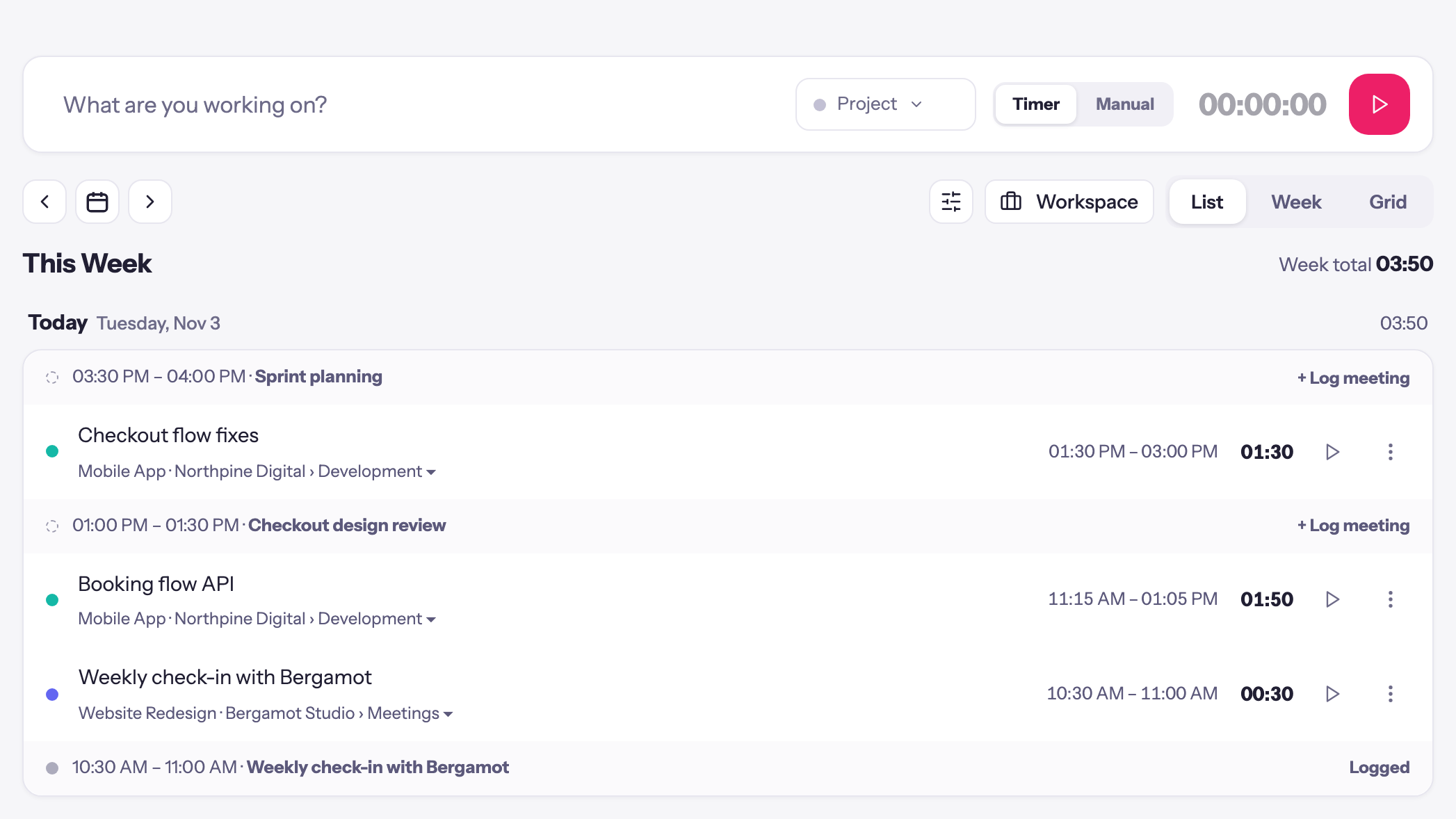
Connect Google Calendar or Outlook Calendar and your meetings show up in the timer, next to your entries. Click one and the entry is filled in for you. Nothing is logged until you save it. Available now on every plan.
Meetings are the time most likely to go unlogged. You go from a client call straight into the next thing, and on Friday you are trying to remember whether the check-in ran 30 minutes or an hour. Your calendar already knows. Now Quanta can read it.
Connect Google Calendar or Outlook Calendar, and your meetings appear in the timer, next to the entries you have already logged that day. Click a meeting and the entry is filled in for you: the title, the day and the times. Check it and save it. Nothing is logged until you do.
Both are available now, in every workspace, on every plan.
Connect your calendar
Each person connects their own calendar. It takes a minute.
- Open Integrations in the sidebar. Your calendars are under Calendars.
- Choose Google Calendar or Outlook Calendar, and press Connect Google Calendar or Connect Outlook Calendar.
- Sign in with Google or Microsoft and allow Quanta to read your calendar.
- Back in Quanta, tick the calendars you want under Calendars to show, and press Save calendars.
Outlook works with work and school accounts on Microsoft 365, and with personal Outlook.com accounts.
Your meetings, next to your entries
Open the Timer. In the List and Week views, each day shows your meetings in among your entries, at the time they happened. They are muted, with a dashed dot, so they read as suggestions rather than entries.
Quanta leaves out what you would never log: all-day events, cancelled meetings, meetings you declined, and time marked as free.
Your meetings are only shown to you. When a manager opens your timer, they see your entries, not your calendar.
One click to log it
Click + Log meeting on a meeting and Quanta fills in the entry bar: the meeting's title as the description, the day, and its start and end times. Pick a project and task if it needs them, change anything you like, and save it.
Once it is saved, the meeting shows Logged, and clicking it opens the entry. Nothing is ever logged on its own, so a meeting you did not bill for simply stays a suggestion.
If a timer is running, the meeting says Stop the timer to log a meeting. That keeps a running timer and a meeting from overlapping.
Recurring meetings remember the project
Log one occurrence of a recurring meeting, like a weekly client check-in, and the next one already suggests the same project and task. The longer you use it, the less you pick.
Workspaces that log durations
If your workspace logs durations rather than start and end times, meetings show up too, after the day's entries, earliest first. Clicking one fills in the title, the day and the length of the meeting, so an hour-long call becomes a one-hour entry.
More than one account
Plenty of people have a work calendar and a personal one, or a calendar for each company they work with. Press Connect another account to add more Google or Outlook accounts, each with its own choice of calendars. When the same meeting is on two of your calendars, it shows once.
Outlook at work
Some companies only let an IT admin approve new apps for Microsoft 365. If yours does, Microsoft asks for an admin's approval the first time someone connects. Once your admin approves Quanta, everyone at the company can connect their own calendar.
What Quanta reads
Quanta only reads your calendar. It never creates, changes or deletes an event.
- What it reads. Each meeting's title, start and end time, whether it is all-day or marked free, your own response, and the recurring series it belongs to.
- What it keeps. The entries you log from meetings, each with a reference to the meeting so it shows as Logged. Your calendar connection is stored encrypted.
- Who sees it. Only you. Meetings are not shared with your team or anyone else.
Google has reviewed and approved how Quanta uses Google Calendar data. Our privacy policy has the details, in section 6.
Disconnecting
Press Disconnect next to an account on the Google Calendar or Outlook Calendar page. Its meetings stop appearing in the timer straight away. Entries you already logged from it are kept.
If access to an account stops working, for example because it was removed on the Google or Microsoft side, the page says so and offers Reconnect.
Try it
Open Integrations in the sidebar and connect your calendar. Then open the timer and log your next meeting with one click.