

Import Your Harvest Account into Quanta, Invoices Included
Connect Harvest with a personal access token and Quanta brings the whole account across: clients, projects with their rates and budgets, people, time, expenses with receipts, and every invoice and payment. No CSV to export. Run it again whenever you like: it only adds what is new, and never overwrites what you have changed in Quanta.
Moving off Harvest has always had one hard limit. Harvest will export your time as a CSV, and Quanta has imported that file for a long while. But a CSV of time entries cannot carry your invoices, your payments, your budgets or your receipts. Harvest hands invoices back as PDFs, and a folder of PDFs is not a billing history.
Quanta can now read your Harvest account directly. You paste a personal access token, look over a preview, and press Start import. Clients, projects, people, time, expenses and invoices all come across, with nothing to export first.
It is built to be run more than once. Import today, keep working in Harvest while you try Quanta, and pull again next week. Each run adds what is new and leaves alone everything you have changed here.
What comes across
- Clients and their contacts, with addresses and currency.
- Projects, set up the way they were in Harvest: the project code and notes, start and end dates, whether it is archived, how it bills (a project rate, task rates or person rates), a fixed fee and its amount, and its budget in hours or money, including monthly budgets and the over-budget alert.
- Tasks, on each project they belong to.
- People. Everyone is added without being invited, so nobody gets an email until you decide to invite them.
- Time entries, with the person, project, task, date, notes, whether it was billable, and the rate it was logged at. Hours are kept exactly as Harvest reports them, so your totals match.
- Expenses, with their receipts.
- Invoices and payments, as a record of past billing: the invoice number, client, dates, status, line items, tax, discount and every payment recorded against it.
Retainers and estimates do not come across. Set retainers up in Quanta afterwards.
Your invoices arrive labelled, and quiet
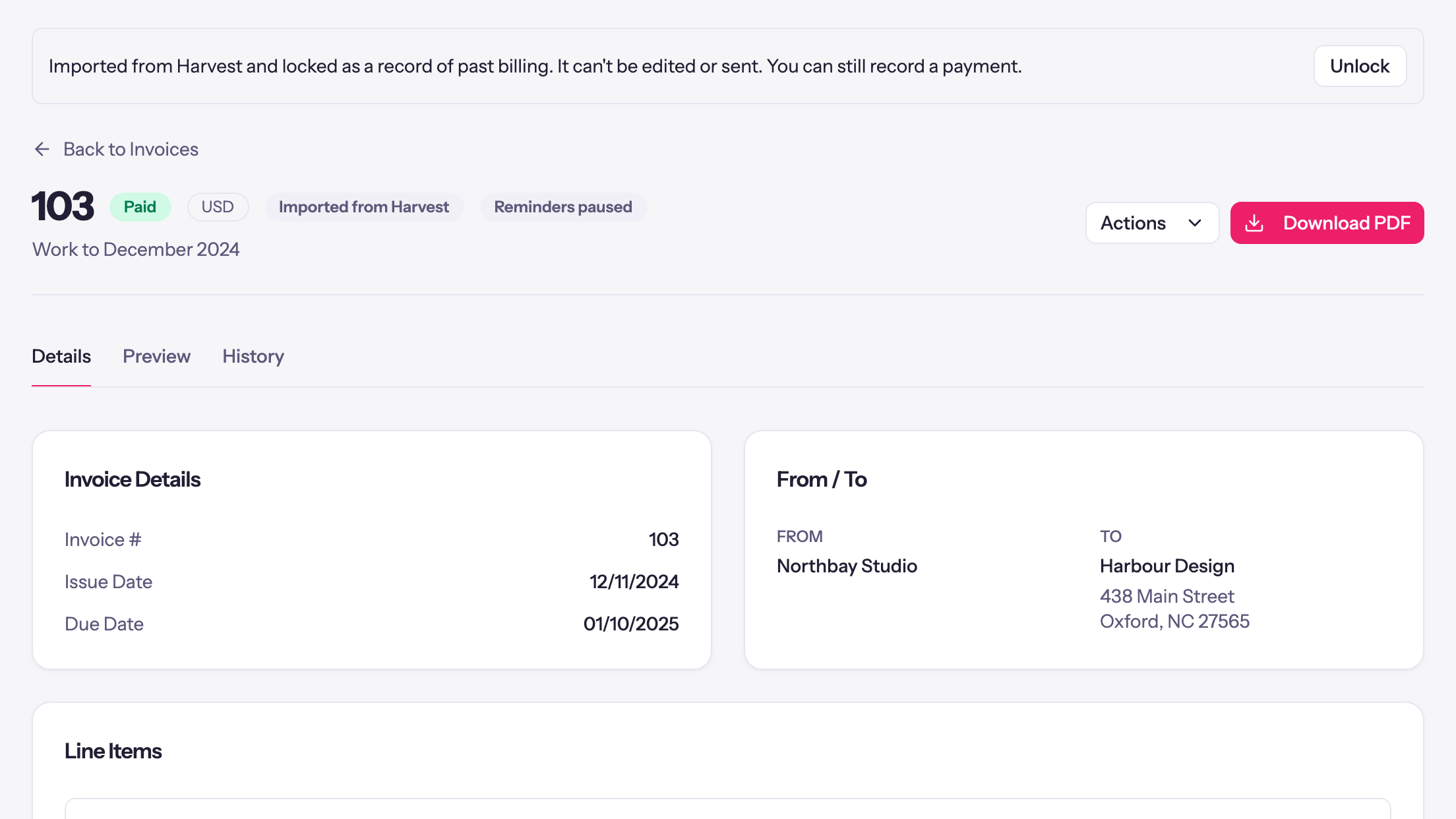
Every invoice the import brings in is labelled Imported from Harvest, on the invoice and in the invoice list, and each keeps the status it had: draft, sent, part paid or paid. An invoice Harvest shows as closed arrives as void. Time that was billed on an invoice in Harvest stays tied to that invoice here, so it is never offered for invoicing a second time.
Nothing reaches your clients because you ran an import. For every imported invoice:
- Payment reminders arrive paused.
- It is never charged to a saved card, and never pushed to QuickBooks or Xero.
- Your client cannot see it. It is not in the client portal and has no share link until you send it from Quanta yourself.
What you can do with one depends on where it stands:
- Paid and closed invoices are locked. They are a record of billing that has happened, so they cannot be edited or sent. You can still record a payment against one.
- Open invoices stay live. A draft, a sent invoice or one that is part paid can be edited and sent from Quanta like any other, because you may still need to chase it.
Both are yours to change. The banner on an imported invoice has an Unlock button, or Lock on one that is open. And Lock imported invoices that are paid or closed, under Imported invoices in Workspace Settings, turns the rule off for the whole workspace.
Connect Harvest
You need to be a workspace admin in Quanta, and the token should come from a Harvest administrator. Harvest only shares what the token's owner can see, so a token from someone else brings an incomplete account, and Quanta warns you when that is the case.
- In Quanta, open Import under Administration. The Import from Harvest card is at the top.
- Press Open Harvest Developers. In Harvest, choose Create new personal access token. Any name will do.
- Copy the token Harvest shows you, paste it into Harvest token, and press Connect. If the token reaches more than one Harvest account, Quanta asks which one.
Quanta keeps the token encrypted and only uses it to read your Harvest account. It never changes anything in Harvest. Disconnect deletes Quanta's copy of the token, and you can revoke it yourself in Harvest at any time.
Look before anything is saved
Press Preview import. Quanta reads the account and shows you what it found, before it writes a single record:
- How many time entries, projects, clients, client contacts, tasks, people, expenses and invoices there are, with time broken down by year.
- Already in Quanta: clients, projects, tasks and people that look like ones you already have. Harvest's records join them instead of making copies. Untick any that are not the same thing and a new one is made.
- Whether Harvest rounded your time. If it did, and Quanta rounds differently, one tick sets Quanta's rounding to match. Entries keep their actual hours either way.
- A choice to lock the entries Harvest shows as approved. Left off, they arrive unlocked so you can tidy up after the import.
Already imported your time from a CSV?
Then you do not have to start again. Quanta recognises the entries your CSV import brought in and leaves them alone. The preview shows this as two numbers under Time already here from your CSV import: how many Harvest entries are already in Quanta, and how many are new and will be added.
The new ones are usually whatever your team tracked in Harvest after you exported. If Quanta finds a lot of new entries inside the period your CSV already covers, it holds the Start import button and tells you, because that would mean counting the same hours twice.
Projects that already exist are filled in, never overwritten. If a project in Quanta has no code, notes, start or end date, or budget, it takes them from Harvest. Anything you have already set stays as it is, and so do two choices that are yours to make in Quanta: how the project bills, and whether it is archived.
Expenses work the same way. One that is already in Quanta, with the same project, category, day and amount, is recognised and not added twice.
Start it and walk away
Press Start import. The work runs on our side, so you can close the page and come back. The card shows which step it is on, from clients through to expenses and receipts, and Quanta emails you when it finishes.
In our tests, a Harvest account with 27,000 time entries, 800 projects and 600 invoices came across in about twenty minutes.
When it is done, the card lists what came in: time entries, projects, clients, people, expenses, invoices, payments and budgets. Nobody has been emailed yet. Invite your team on the same card opens the Users page when you are ready.
Keep both running while you switch
Most teams do not move on a single day. Once an import has finished, the button on the card becomes Pull new entries. Press it whenever you like and Quanta brings across what has been added in Harvest since, along with payments recorded on invoices it already has. Nothing is imported twice.
A pull also follows corrections. If someone changes the hours, notes or day of an entry in Harvest after it was imported, the next pull brings the entry up to date. The exception is an entry you have since edited, locked or invoiced in Quanta: Quanta's version always wins, and the result tells you how many were left alone.
So you can import today, let the team keep tracking in Harvest while they get used to Quanta, and pull one last time on the day you switch over.
Change your mind
Every import can be taken back out. Under Recent imports on the same page, Undo this import removes what that import created: its entries, expenses, invoices, payments, projects and clients. Details it filled in on projects you already had are cleared again. Anything you have built on since stays where it is, and Quanta tells you if something is holding an undo back, such as a payment you recorded in Quanta against an imported invoice.
If an import is interrupted, everything up to that point is kept and Resume carries on from where it stopped.
Coming from somewhere else?
The CSV import is still there, on the same page, and it works with an export from almost any time tracker. The step-by-step guide walks through it.
If you are still deciding, the Quanta vs Harvest page covers pricing and what is different.
Start your migration for free, no credit card required.