Workspace settings
Administration → Workspace Settings: organization, timezone, currency, features, default rates and rounding, time tracking mode, the first day of the week, required fields, invoicing, Microsoft sign-in, export and closing the account.
Administration → Workspace Settings holds the settings that apply to everyone in the workspace. It needs the Settings permission under Administration. Its tabs: General, Rates, Timesheet, Invoicing, Client Portal, Sign-in and Data. Each section has its own Save.
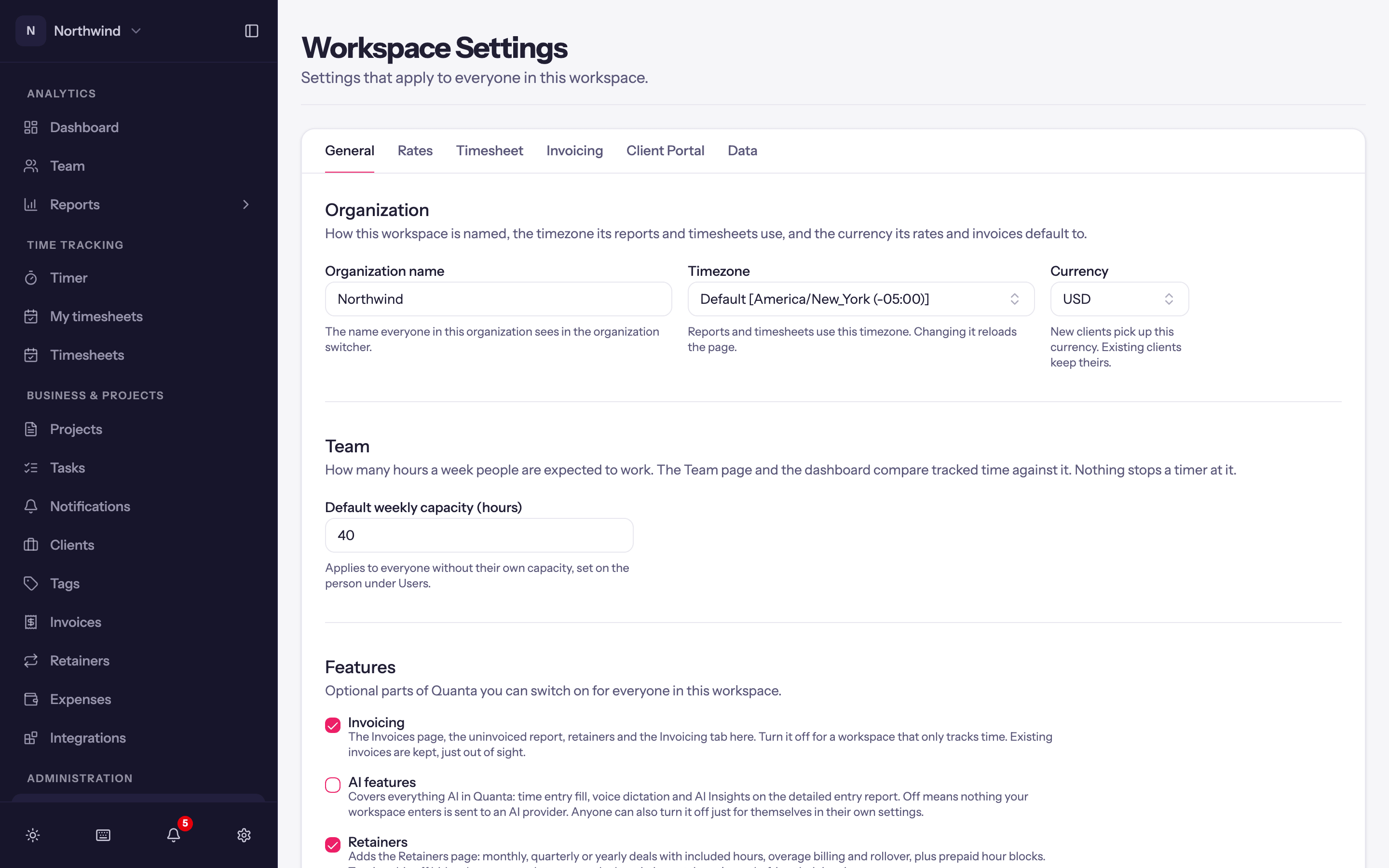
General
Organization
- Organization name. What everyone sees in the workspace switcher and on invoices.
- Timezone. Reports and timesheets use this timezone. Changing it reloads the page.
- Currency. New clients pick up this currency; existing clients keep theirs.
Team
- Default weekly capacity (hours). Applies to everyone without their own capacity, which is set on the person under Users. Used by the Team page and dashboard utilization.
Features: optional parts of Quanta you can switch on for everyone.
- Invoicing. The Invoices page, the uninvoiced report, retainers and the Invoicing tab here. Turn it off for a workspace that only tracks time; existing invoices are kept, just out of sight.
- Retainers. On by default. Adds the Retainers page. Turning it off hides the pages and stops new deals; existing retainers keep drafting their invoices.
Project end dates
- Alert project managers a set number of days (1 to 90, 14 by default) before a project ends, so nothing runs past its end date unnoticed. See Start and end dates.
Rates
Default rates. A billable and a cost rate per hour: the last stop when pricing time, used only when the task, the project and the person have no rate of their own. Like every rate, they have a history; see Billing and rates.
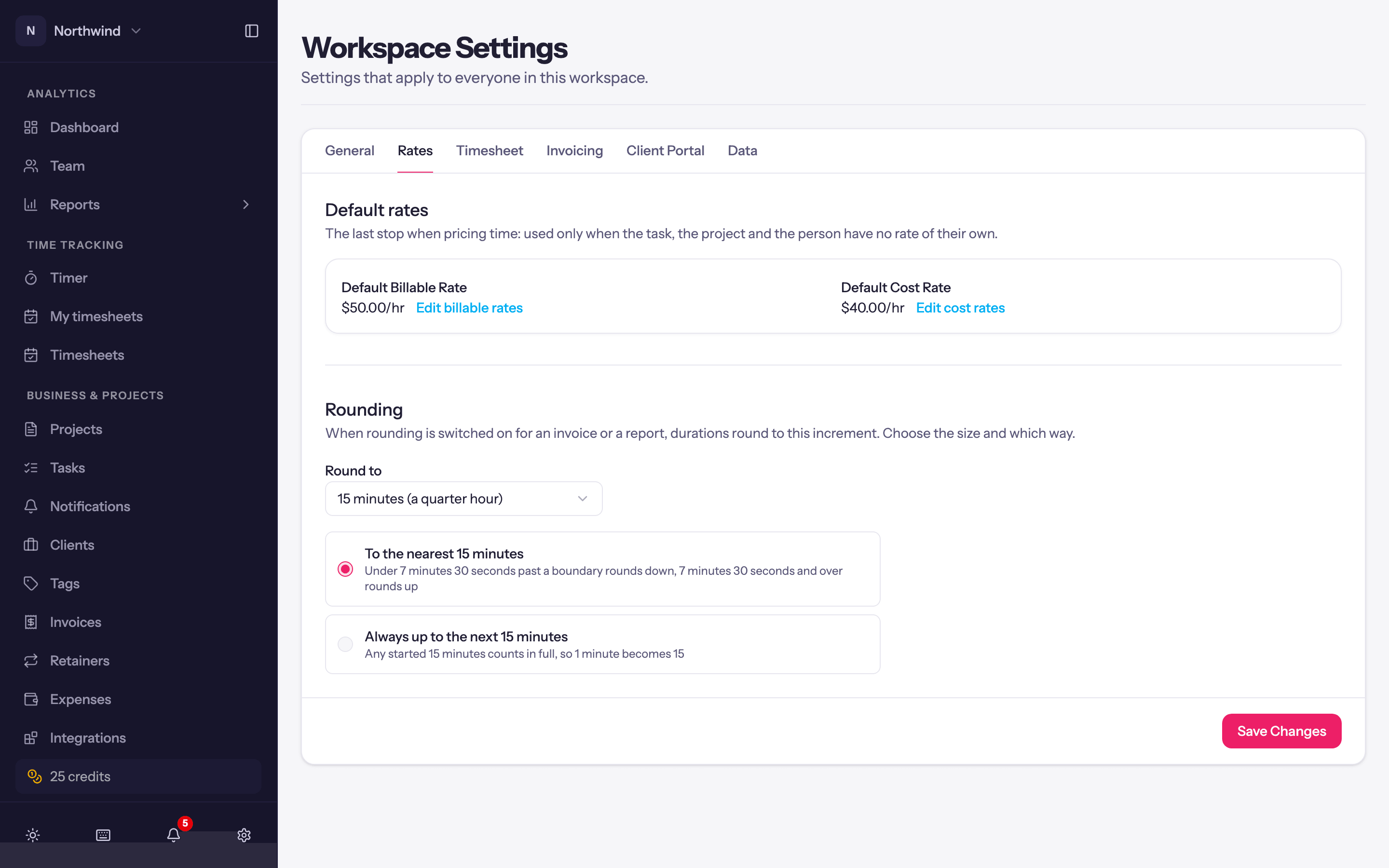
Rounding. The rule every rounding switch in the app follows (the invoice import, the reports and the project page):
- Round to 6 minutes (a tenth of an hour), 10, 12, 15 (a quarter hour), 30 or 60 minutes.
- To the nearest N minutes (under half an increment past a boundary rounds down, half and over rounds up) or Always up to the next N minutes (any started increment counts in full, so 1 minute becomes 15).
Rounding never changes stored entries; it applies when a report, invoice or page has its rounding switch on.
Timesheet
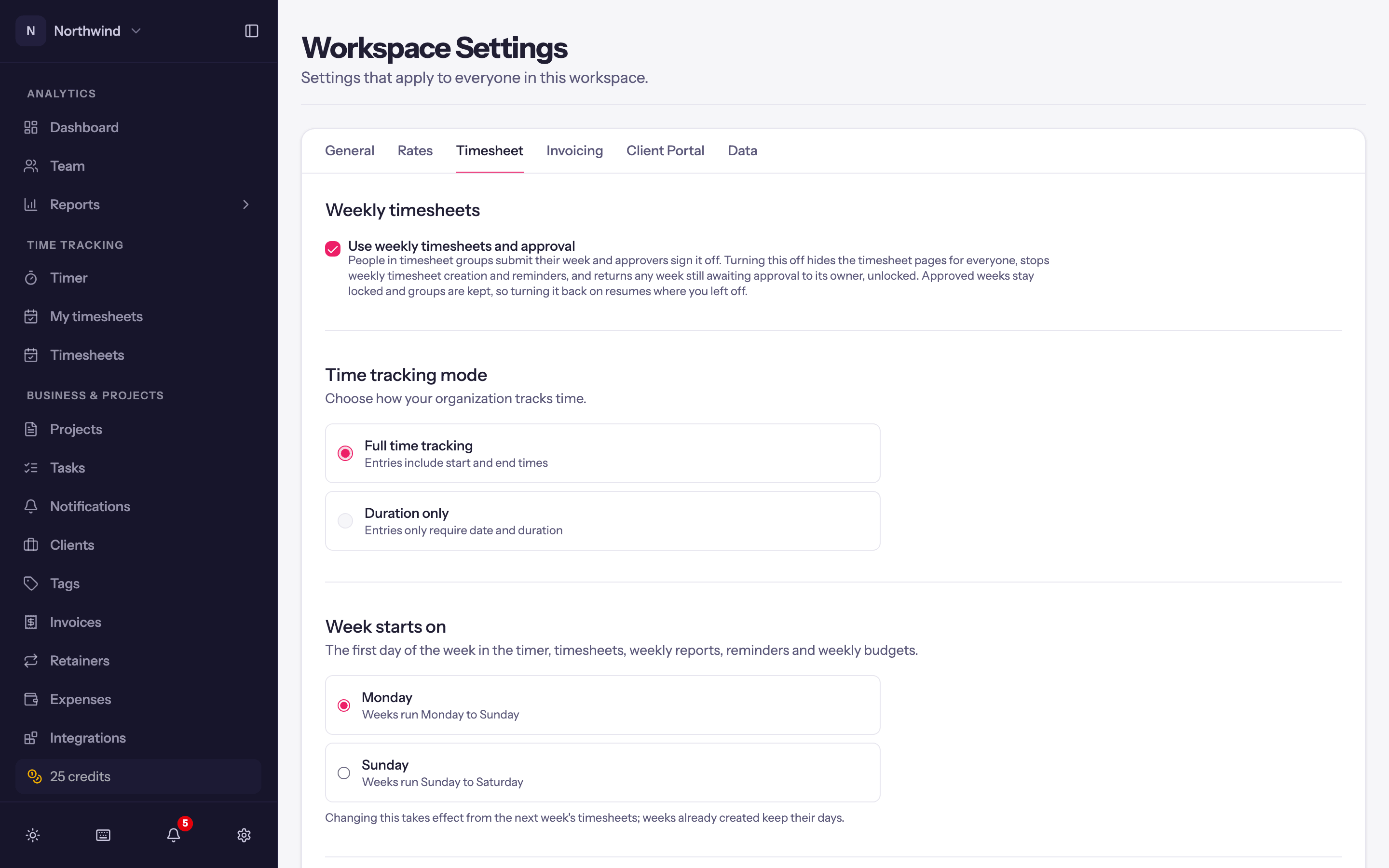
- Weekly timesheets → Use weekly timesheets and approval. People in timesheet groups submit their week and approvers sign it off. See Timesheets & Approvals. Turning it off hides the timesheet pages for everyone, stops weekly timesheet creation and reminders, and returns any week still awaiting approval to its owner, unlocked; approved weeks stay locked and groups are kept.
- Managers can approve their own time. Shown while weekly timesheets are on. In groups approved by project, lets a project manager approve their own hours on the projects they manage. Off (the default), their hours go to another manager on the project or to the group's approvers. Admins can always approve their own time.
- Time tracking mode. Full time tracking (entries include start and end times) or Duration only (entries only require date and duration).
- Week starts on. Monday (weeks run Monday to Sunday, the default) or Sunday (Sunday to Saturday). The first day of the week everywhere: the timer's week and grid views, the list's week grouping, weekly timesheets, This Week and Last Week in reports, team capacity, weekly budgets and weekly reminders. Changing it takes effect from the next week's timesheets; weeks already created keep their days.
- Required fields. What a time entry must have before it can be saved: A project, A task, A description. The entry bar, grid, desktop app and the MCP server all enforce these.
Invoicing
Four sections, all covered in Invoice settings. Hidden while Invoicing is off under Features.
- Invoice. Billing address, logo, business and tax numbers, default payment term, date format, payment instructions and tax profiles.
- Online invoices. Whether invoice emails carry a link to view and pay the invoice online, and whether that link lists the client's other unpaid invoices.
- Client emails. Sender name, Reply-to email and Email footer, payment reminders and the payment thank-you.
- Line items. How lines imported from projects are worded.
Client Portal
Use the client portal lets clients you invite sign in and see the projects you share with them; Portal content defaults set what every client sees unless you restrict it per client or project. The portal is in beta. See Setting up the portal.
Sign-in
Require Microsoft sign-in: everyone in the workspace, admins included, signs in with their Microsoft account, and email and password and Google sign-in stop working here. Only an admin signed in with Microsoft can turn it on. See Sign in with Microsoft.
Data
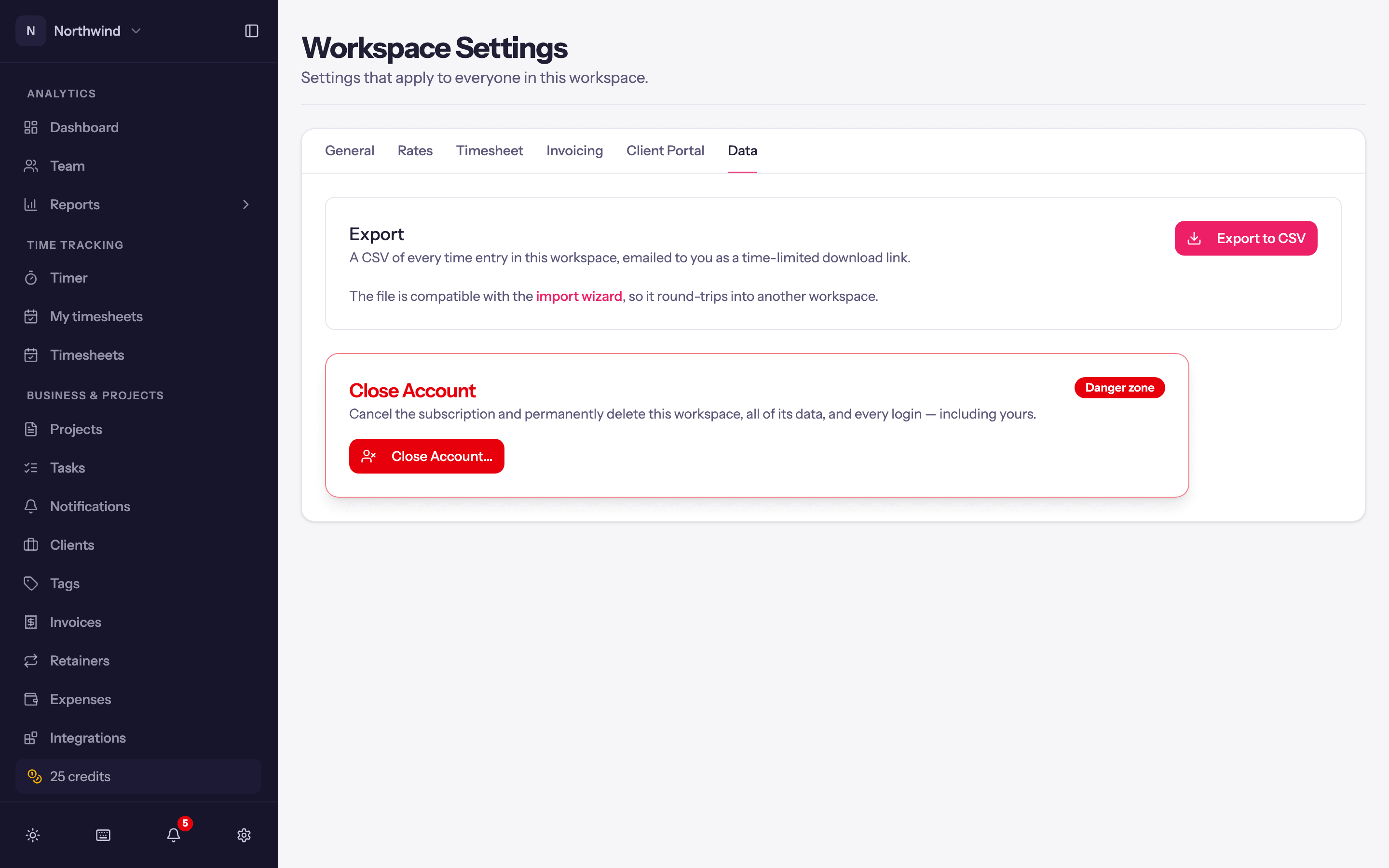
- Export. A CSV of every time entry in this workspace, emailed to you as a time-limited download link. The file is compatible with the import wizard, so it round-trips into another workspace.
- Close Account (Danger zone). Cancels the subscription and permanently deletes this workspace, all of its data, and every login, including yours. Read the confirmation carefully; it cannot be undone. Export anything you need first. To wipe data but keep the workspace, use Purge All Data under Import instead; see Importing data.