Importing data
Bring time entries and expenses in from a CSV, map columns and people, review what will be created, undo an import, export everything, or purge the workspace.
Administration → Import brings history from another tracker (Harvest, Toggl, Clockify, a spreadsheet) into Quanta, with a Time entries and an Expenses importer. Taking data out is under Workspace Settings → Data (Export).
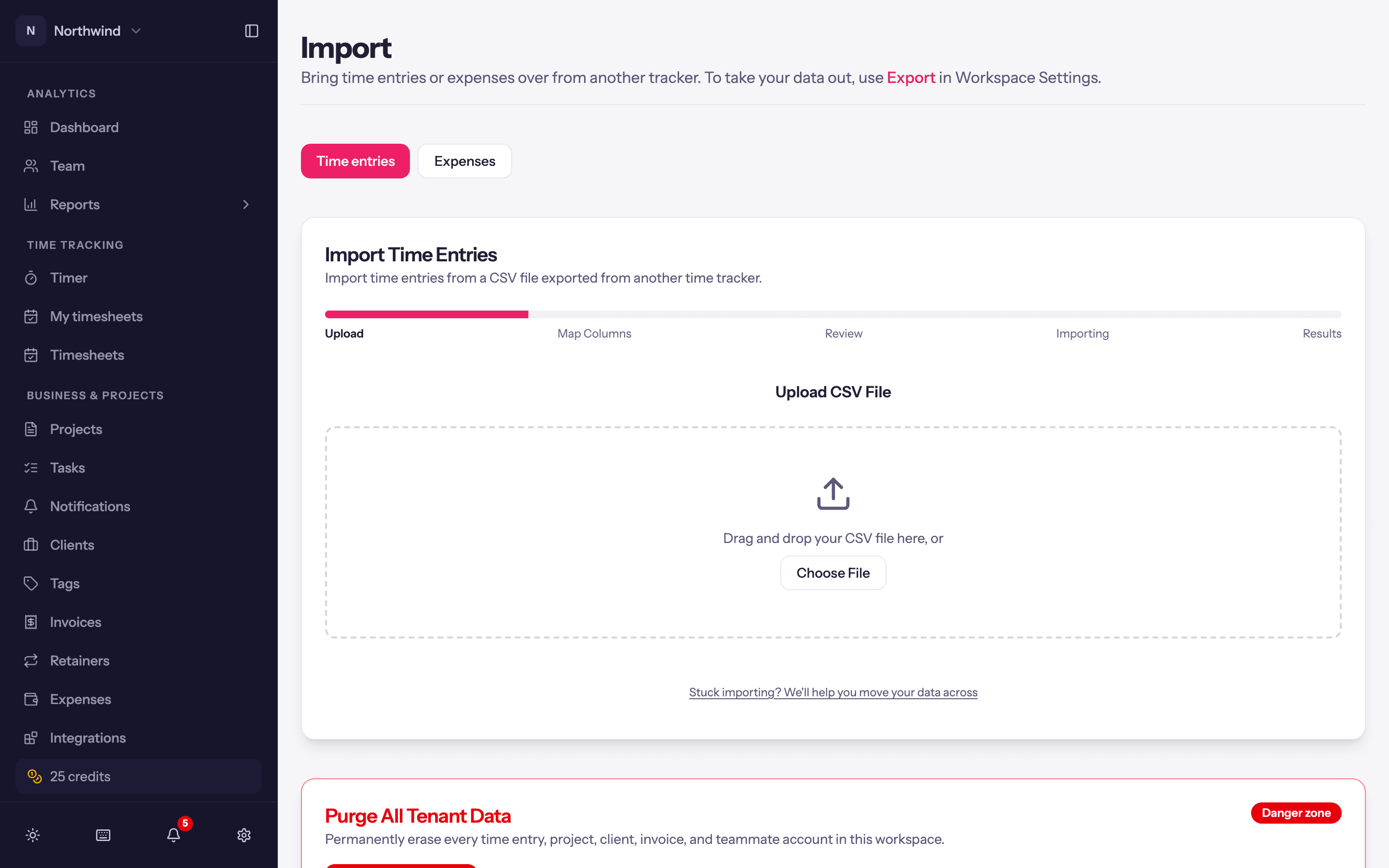
Export a CSV from your current tool first. Anything with one row per time entry works; the wizard maps whatever columns it finds.
Importing time entries
Upload. Drag the CSV in or Choose File. Files up to 250 MB are accepted; big files are parsed in the browser and show progress.
Map Columns. For each column in your file, pick what it is: Date (required), Duration, Start Time, End Time, Project, Project Code, Client, Task, Tags, Description / Notes, User, Billable, Invoiced, Approved, Billable Rate, Cost Rate or Currency, or Skip this column. Common headings are recognised automatically. If the dates could be read as day/month or month/day, a Date format panel asks which it is for the whole file.
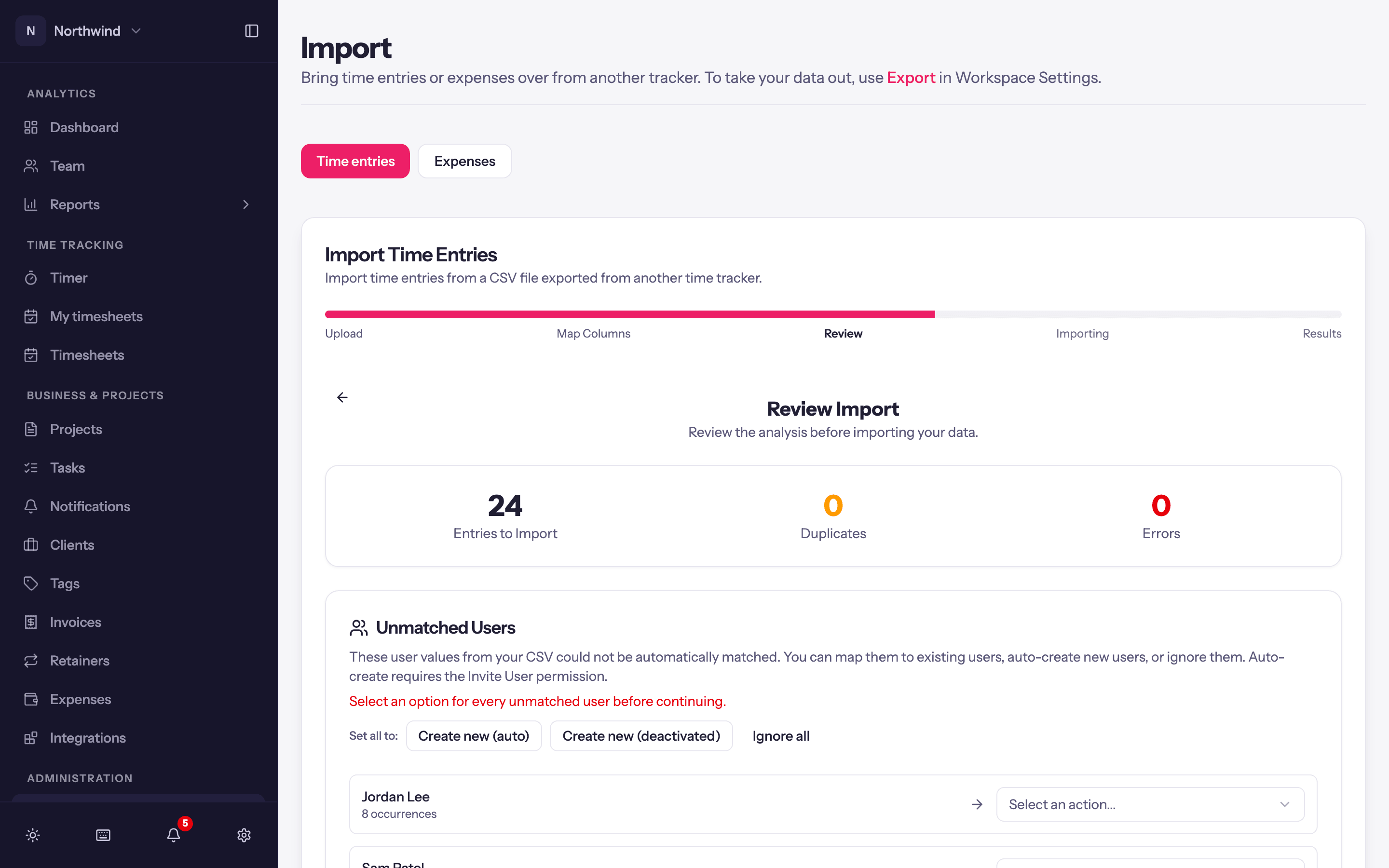
Review. Quanta analyses the file and shows:
- Entries to Import, Duplicates and Errors. Duplicates are rows matching an entry that already exists (same user, date, project, task, duration and notes); Skip duplicate entries is on by default. Rows with errors are listed and skipped.
- Unmatched Users: names in the file that do not match a person in the workspace. For each, map to an existing user, create a new one, or ignore. Set all to applies one choice to everyone: Create new (auto), Create new (deactivated) for people who have left, or Ignore all. Send invites to created users (on by default) emails each new person an invitation so they can set a password. Member rates sets a billable and cost rate per person once, applied to every new project they belong to; leave a field blank to inherit the project rate.
- The entity tree: every client, project and task that will be created, with toggles to skip any of them or map them onto records you already have. Bulk settings at the top set Currency, Billing (Hourly, Fixed fee or Non-billable), Visibility (Public or Private), whether New tasks are billable, and Deactivate projects idle for N days. Mapping rows onto an existing project keeps how that project bills; the review warns when billable rows are about to land on a project that does not bill by the hour.
- Shared tasks: task names that appear on more than one project. Share one and it becomes a single library task every project links to.
Importing. The import runs on the server. You can leave the page; it keeps running and the page picks it up again when you come back.
Results. Counts of Entries Created, Users Created, Projects & Clients, Shared Tasks Created, Tags Created and Duplicates Skipped, with Import Another File.
Date-only rows land at noon in the workspace timezone. Names keep their casing.
Undo an import
Every import is recorded under Recent imports. Undo this import removes exactly what that import created while keeping anything the workspace has used since: a project with time logged after the import keeps its place, and so does a client with newer projects. People created by the import stay (deactivate them under Users if needed). Entries already on an invoice block the undo until those invoices are voided.
Importing expenses
Expenses on the Import page takes a CSV with Date, Project, Amount and a Person (full name, or first and last), plus optional Client, Project code, Category, Notes / description and Currency. Review matches projects and people the same way, lets you Mark all as approved, and reports Expenses created, Duplicates skipped and Users created.
Export
Export All Time Entries under Workspace Settings → Data emails you a CSV of every time entry as a time-limited download link. The file is compatible with the import wizard, so it round-trips into another workspace.
Purge all data
Below the recent imports, the Danger zone has Purge All Data…: permanently erase every time entry, project, client, task, tag, rate, invoice and teammate account in the workspace, keeping only your own login, the workspace settings and the subscription. It is for starting over after a test import. It cannot be undone, and it waits for any running import to finish.
Need a hand?
Migrations are fiddly. The Import page has Want a hand with this? with a mail link; send the file and where you got stuck, and we will get it in properly.