Subscription and billing
The free trial, the Individual, Team and Business plans, paying, managing the card and invoices, and what happens when a subscription ends.
Administration → Subscription shows your plan and lets you change it. It needs the subscription management permission.
Trial
Every new workspace starts on a Free Trial with every feature. The sidebar shows N days left in trial and links here. Subscribe any time during the trial; nothing is charged until you do.
Plans
| Individual | Team | Business | |
|---|---|---|---|
| For | One person | Your whole team, up to 50 people | Teams of 51 to 100 |
| Price | $10 per month | $40 per month, flat. No per-seat fees. | $199 per month, flat |
| Features | All of them | All of them | All of them |
The plans differ in seat count, and Business adds priority support and help moving from Harvest or Toggl. All three include unlimited time tracking, unlimited projects and clients, invoicing, expenses and reports.
During the trial you can invite up to 100 people, so pick the plan that fits your team when you subscribe. The Subscription page greys out any plan too small for your team.
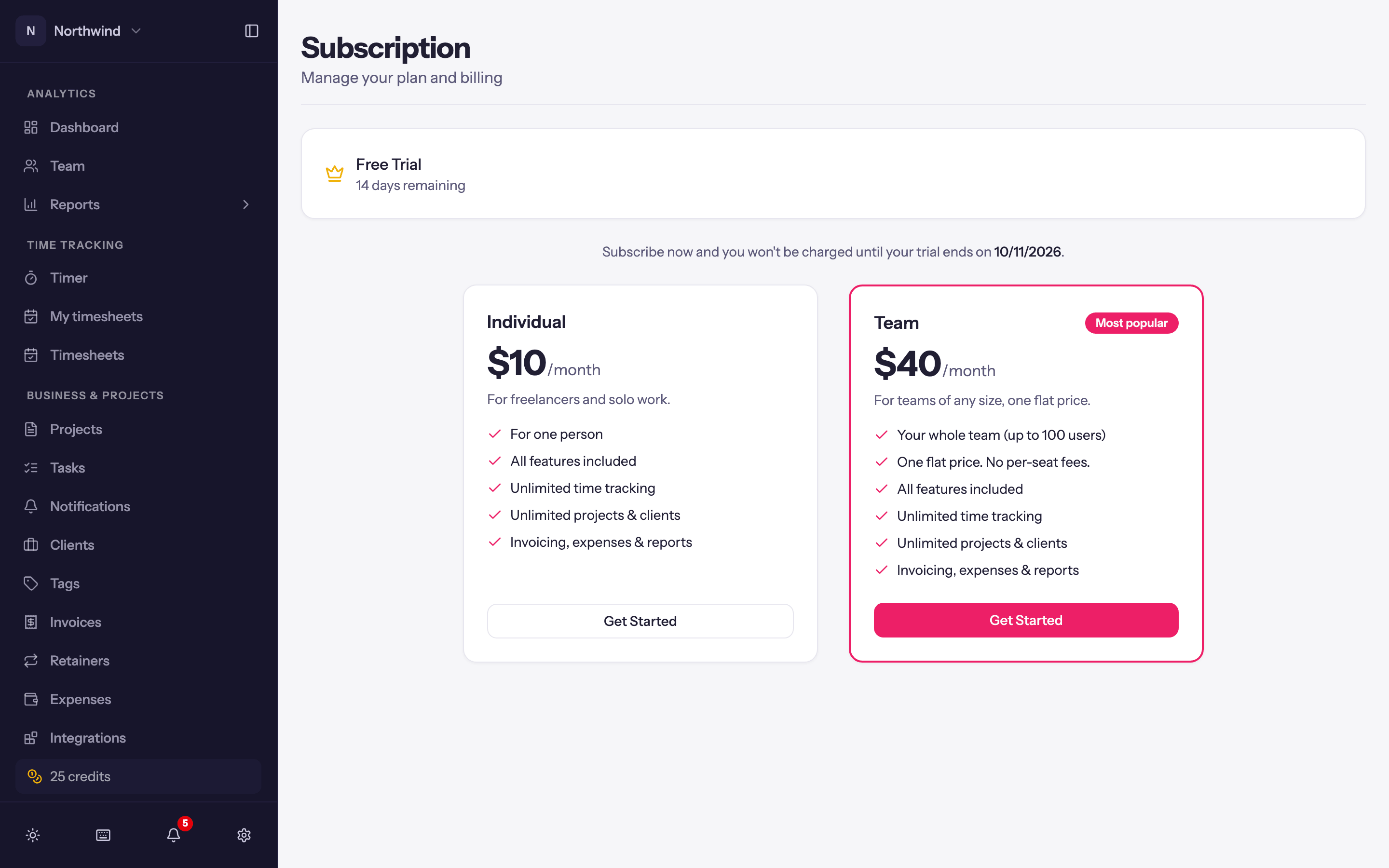
Pick a plan and click Get Started; you are taken to a secure checkout for card details and returned to Quanta with the plan active (Payment successful! Your subscription has been activated.).
Some early workspaces were offered a one-time Lifetime plan; if yours was, it appears here too.
Changing plan
Upgrades happen in place. Individual can move up to Team or Business, and Team can move up to Business. Upgrade to Team or Upgrade to Business shows the exact charge for the rest of the current period, your card on file is charged, and the billing date stays the same.
Manage Billing
Manage Billing opens the billing portal, where you can update the card, download past invoices and receipts, or cancel. A cancelled subscription stays active until the end of the period you have paid for; the page then shows Subscription scheduled for cancellation with a link to keep it.
When a subscription ends
The workspace becomes read-only: everyone sees Your subscription has ended on sign-in, with Resubscribe, an export of the time entries, and a switcher to any other workspaces they belong to. Admins stay active, nothing is deleted, and resubscribing picks up exactly where you left off.
Closing the account
To delete the workspace entirely, use Close Account under Workspace Settings → Data. See Workspace settings.