Billing and rates
The Pricing tab: hourly, fixed fee or non-billable, where an entry's rate comes from, and how rate history and re-pricing work.
The Pricing tab of the project sheet answers two questions: does this project's time have a price, and if so, what is it?
Billing
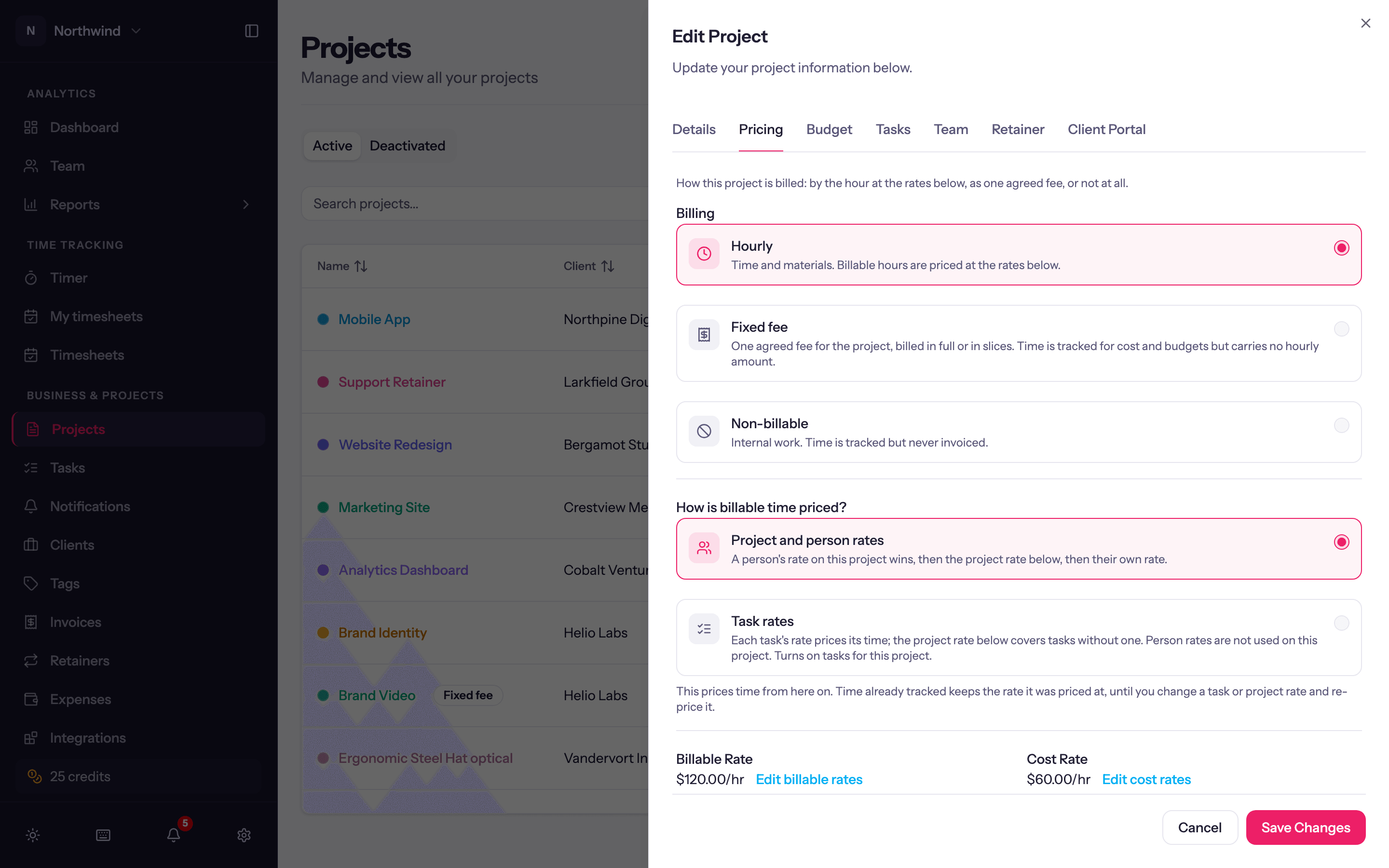
| Mode | What it means |
|---|---|
| Hourly | Time and materials. Billable hours are priced at the rates below and can be pulled onto invoices. |
| Fixed fee | One agreed fee for the project, billed in full or in slices. Time is tracked for cost and budgets but carries no hourly amount. The Project fee field takes the agreed amount; bill it from an invoice or record what was billed elsewhere on the project's Fee Billing tab. |
| Non-billable | Internal work. Time is tracked but never invoiced. The Pricing tab takes a cost rate (and no billable rate), so internal time still counts what it cost. |
Switching an existing project to Hourly asks How should existing time entries be updated?: apply to new entries only, or to entries after a cut-off date. Re-pricing runs in the background; locked and invoiced entries are never touched.
A fixed-fee project cannot be chosen while a retainer draws from that project; wrap up the retainer first.
How billable time is priced
On an hourly project, choose one of two pricing models:
- Project and person rates (the default). For each entry Quanta looks for a rate in this order and uses the first it finds: the person's rate on this project (set on the Team tab), then the project rate, then the person's own rate (set under Users), then the workspace default rate (Workspace Settings → Rates).
- Task rates. Each task's rate prices its time; the project rate covers tasks without one. Person rates are not used. Choosing this turns tasks on for the project.
Cost rates follow the same chain and give reports and the dashboard their profit numbers.
Rates and rate history
Every rate in Quanta, whether on the workspace, a person, a project, a project member or a task, is a timeline: a list of rows, each with an amount and a start day (and, implicitly, an end day where the next row starts).
- When you create a project, the Pricing tab shows plain Billable Rate and Cost Rate fields. The first rate covers all prior time.
- When you edit a project, each rate shows its current value with an Edit billable rates or Edit cost rates link that opens the rate history panel. There you can New rate from a chosen Starts on day (or All prior), move a row's start, change an amount, or delete a row and let its neighbour take over. Every change saves at once and re-prices the open time it touches. Locked and invoiced time, and rates typed by hand onto an entry, keep what they have.
The same panel exists for a person (Users → edit), a project member (Team tab), a task (Tasks tab) and the workspace default (Workspace Settings → Rates).
To see why a particular entry has the rate it has, open it from the Detailed report: a line under the rate reads, for example, "$120.00/hr from the project member rate, from Mar 1, 2026", or "typed on this entry".
Overriding a single entry
In the full time entry editor, tick Manually set under Rate overrides to type a billable or cost rate for that entry alone. Manual rates survive every later rate change.
Rounding
Rounding is not part of the rate. Invoices, reports and the project page each have a rounding switch that rounds durations to the increment and direction set under Workspace Settings → Rates. See Workspace settings.