Project budgets
Six budget shapes, low limits, resets, who sees the numbers, alerts, and what On Track, At Risk and Over Budget mean.
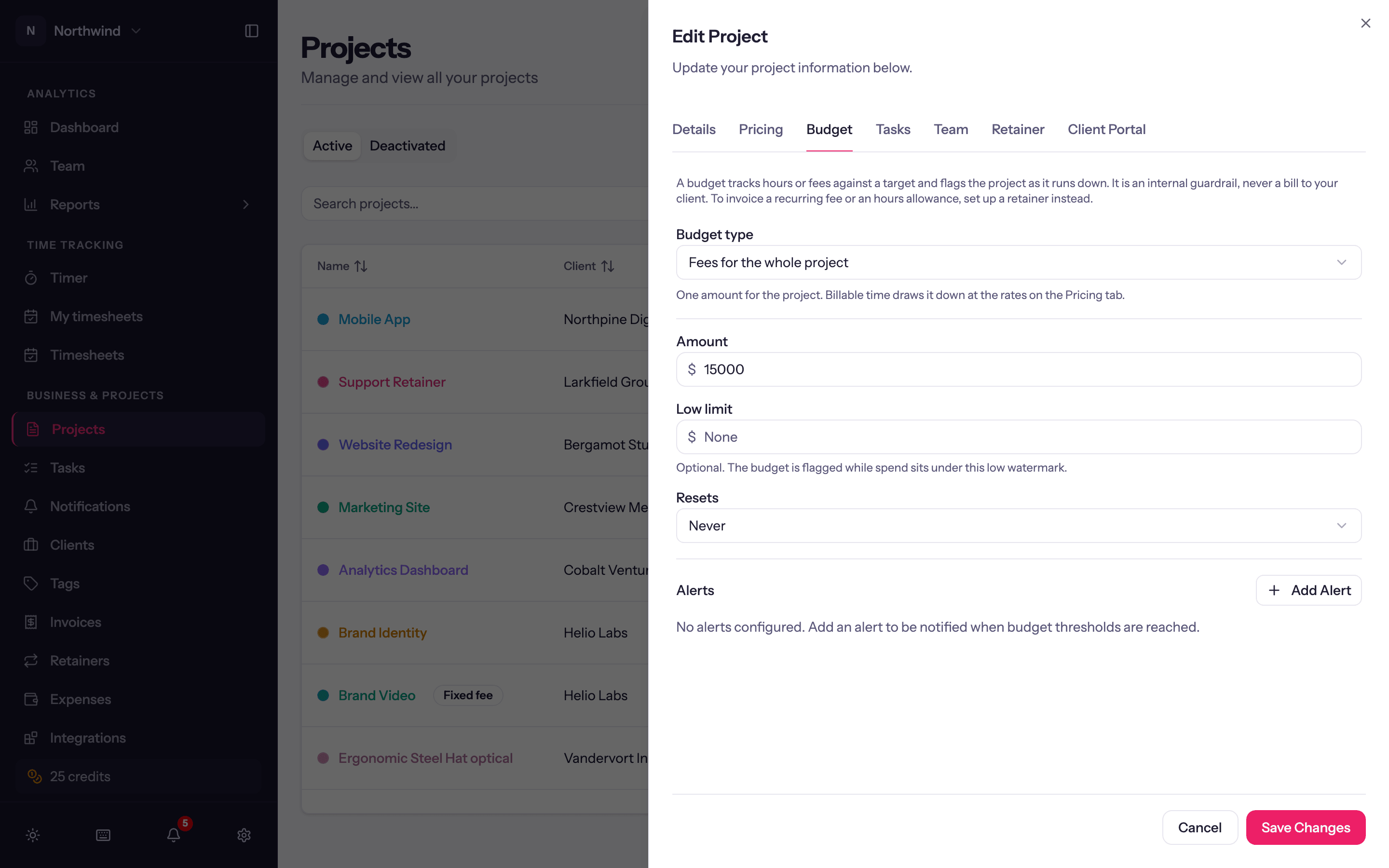
A budget tracks hours or money against a target and flags the project as it runs down. It is an internal guardrail, never a bill to your client: to invoice a recurring fee or an hours allowance, set up a retainer instead.
Budgets live on the Budget tab of the project sheet and are summarised on the project page and in the Budget report.
Choose a shape
Budget type offers:
| Type | Measures | Good for |
|---|---|---|
| No budget | Internal or open-ended work | |
| Fees for the whole project | Money, one amount for the project | "We quoted $15,000" |
| Fees for each task | Money, an amount per task | Phases quoted separately |
| Hours for the whole project | Hours, one amount | "200 hours, then we talk" |
| Hours for each task | Hours per task | Design 40h, Development 120h |
| Hours for each person | Hours per team member | Retainers where each person has an allowance |
Money budgets need the project to carry rates: on an hourly project, spend is each entry's hours times its billable rate. On a fixed-fee project, pick Fees for the whole project and the budget is the fee itself; time draws it down at the rates on the Pricing tab, so you can see how much of a flat fee the hours have consumed, while invoices and revenue stay unchanged. Fees per task do not apply to fixed-fee projects.
Changing the type later asks Change the budget type?: budgets for the old type are kept but paused (they stop counting in reports and alerts) and come back if you switch back. Logged time is never affected.
Amounts, low limits and resets
For each budget (one for the project, or one row per task or person):
- Amount. The target.
- Low limit (+ Range). Optional. Also set a low watermark, so under-servicing gets flagged: while spend sits under it the budget reads Under Low Limit instead of looking healthy. It must be below the amount; a low limit of 0 means no low limit.
- Resets. Never (one allowance for the life of the project), or Weekly, Biweekly or Monthly. A resetting budget only counts entries inside the current period, and the report shows the reset day.
Tasks can be excluded from a project budget with the Counts toward budget switch on the task; internal review, say.
Who sees what
Who sees a project's budgets is a project setting, on the Team tab of the project sheet, not a switch on each budget:
- Who sees the budget on this project: Managers, Leads, Members or Everyone. They see progress against every budget on the project.
- Who sees revenue on this project: the same choices. A money budget shows its amounts only to people who also see revenue; everyone else sees how full the bar is, never the dollar figures.
Admins see everything. To open budgets on every project at once, give a role View budgets on every project under Administration → Roles. See Project team.
Alerts
Add Alert on the Budget tab adds a threshold (a percentage from 1 to 100) with In-app and Email switches. When spend crosses it, the recipients get a notification. Add several rows for 50%, 80% and 100% if you like.
Status
Budgets are colour-coded everywhere they appear:
| Status | When |
|---|---|
| On Track | Under 75% used |
| At Risk | 75% or more used |
| Over Budget | 100% or more used |
| Under Low Limit | Spend is below the low limit you set |
Keeping the numbers fresh
Spend is cached and updated as entries change. If a budget was created after the entries it should count, or the numbers look stale, click Recalculate budget on the project page's budget card.