Editing entries
Change any part of an entry in place, duplicate or resume it, move it to another day, or delete it.
Entries are edited where you see them. There is no separate "edit mode"; click the part you want to change.
In the timer views
On a row in the list or week view:
| Click | To |
|---|---|
| The description | Retype it. The same @project and #tag shortcuts work here. Add description appears on entries without one. |
| The project line | Pick another project or task. |
| A tag pill, or + tag | Toggle tags on or off, or create one. |
| The time range | Type a new start or end time (full time tracking only). |
| The duration | Type a new duration. In a full-time-tracking workspace the end time moves to match. |
| The date icon | Move the entry to another day (Change the date). |
Changes save when you press Enter or click away. On narrow screens the row opens the Edit entry panel instead, with the same fields in a form.
The menu at the end of each row holds:
- Edit date & times (or Change date in a duration-only workspace).
- Duplicate entry: a copy on the same day, which you can then move or retime.
- Delete entry: asks for confirmation. Deleting is permanent.
The play button (Resume this task) picks the row's description, project and tags back up and starts timing.
In a workspace that tracks duration only, pressing play on one of today's entries continues that same entry, so pausing and coming back adds up in one row rather than leaving a trail of short ones. Entries from another day, locked entries and invoiced entries always start a fresh entry, and workspaces that track start and end times always start a fresh one too.
If another timer is already running when you press play, it is stopped and saved first.
In the grid
Type into a cell; see Grid view. The cell edits the day's total for that project.
The full editor
Admins and anyone with report access can open an entry from the Detailed report or a project's Time Entries tab. This editor has everything above plus:
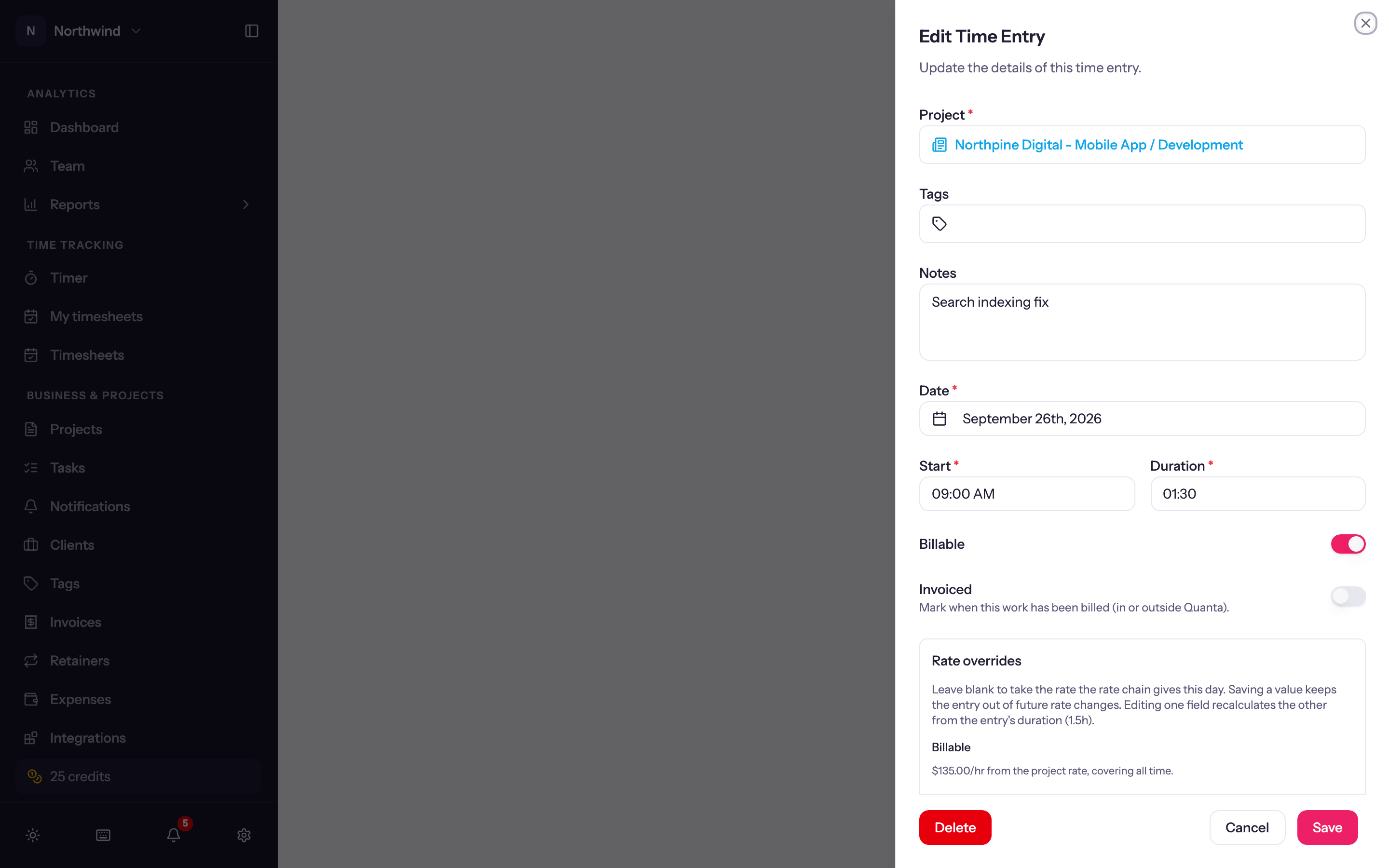
- Billable and Invoiced switches.
- Rate overrides. The rate per hour and total for billing and for cost. Normally these are computed from the rate chain, and a line under them says where the rate came from, for example "$95.00/hr from the project rate, from Jan 1, 2026" or "typed on this entry". Tick Manually set to type a rate for this one entry; rate changes elsewhere then leave it alone. See Billing and rates.
What you cannot edit
Locked, invoiced, approved and settled entries are read-only for everyone except whoever can unlock them. See Locked entries.
Users edit their own entries. Seeing and editing other people's entries needs the report permissions an Admin has; see Roles and permissions.