Tracking Time
Week view
A seven-day overview with one day's entries underneath and a quick-add row.
Applies to:
Everyone
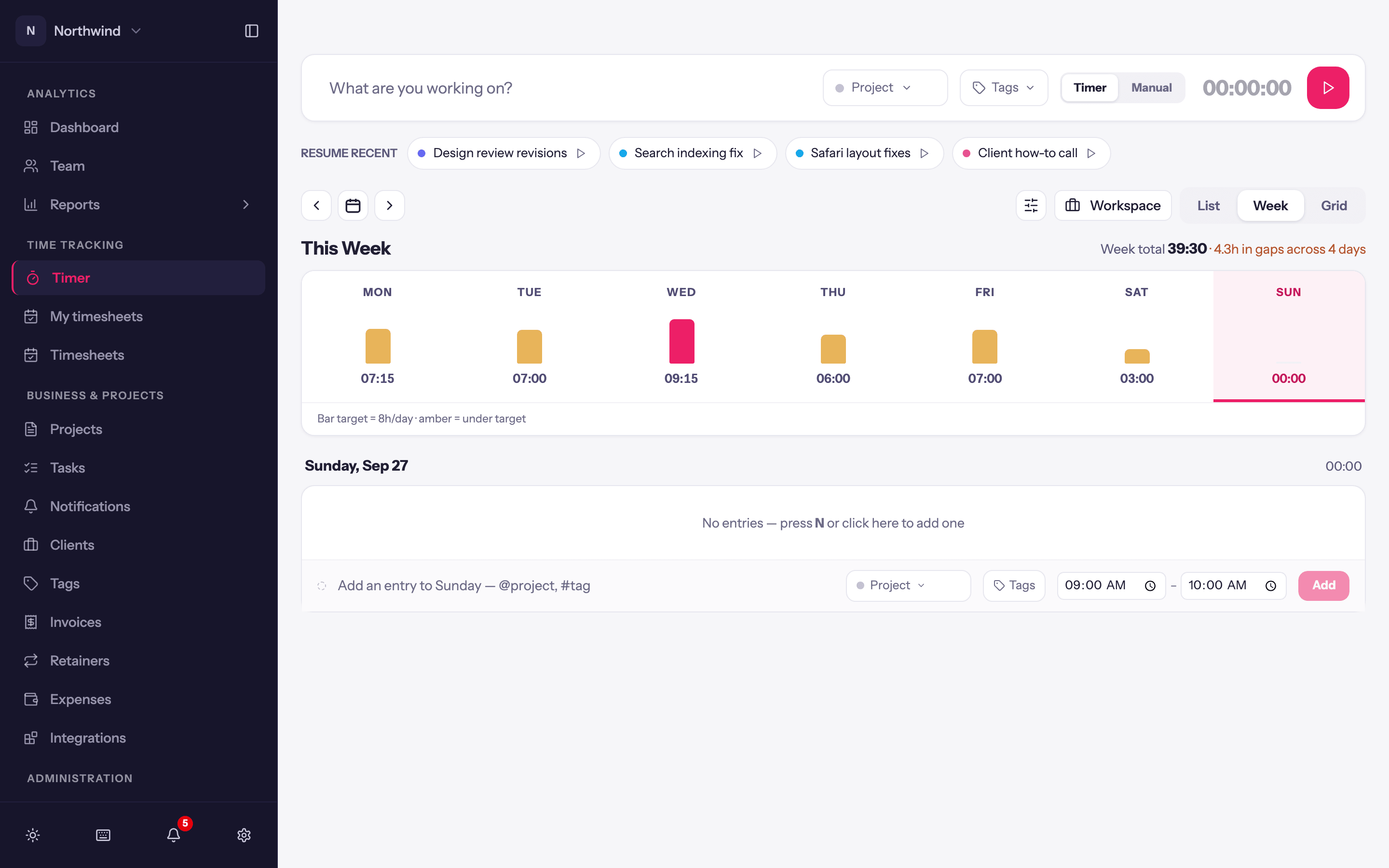
Choose Week in the toolbar. The top of the view is a row of seven bars, one per day of the week, sized by the hours tracked that day. Click a day to select it; its entries are listed below.
What you see
- Day bars. Each bar shows the day's total underneath it. Bars that fall short of your daily target are tinted differently from full days, and the selected day is highlighted. Days with nothing tracked show a stub; click one and the list below invites you to add an entry.
- The selected day's entries. The same rows as the list view, with the same inline editing, resume button and row menu.
- Quick add. For the current week only, a compact row under the entries reads Add an entry to Tuesday: type a description (with the same
@projectand#tagshortcuts as the entry bar), pick a project or task, set a duration (defaults to1:00) and press Enter. The entry lands on the selected day.
When to use it
Week view suits people who review and tidy a day at a time: pick Tuesday, see what is there, fill in what is missing, move on. If you want to see all seven days' hours in one table instead, use the grid view.
Navigation
Previous week, Next week and Jump to date work as in the list view.