Grid view
A timesheet-style table, projects and tasks down the side and the days of the week across the top.
Choose Grid in the toolbar. Every row is a project (or a project's task); every column is a day; every cell is the hours you logged to that project on that day. Type in a cell and press Enter or Tab to save. The week runs from whichever day your workspace starts on, Monday or Sunday (Workspace Settings → Timesheet → Week starts on).
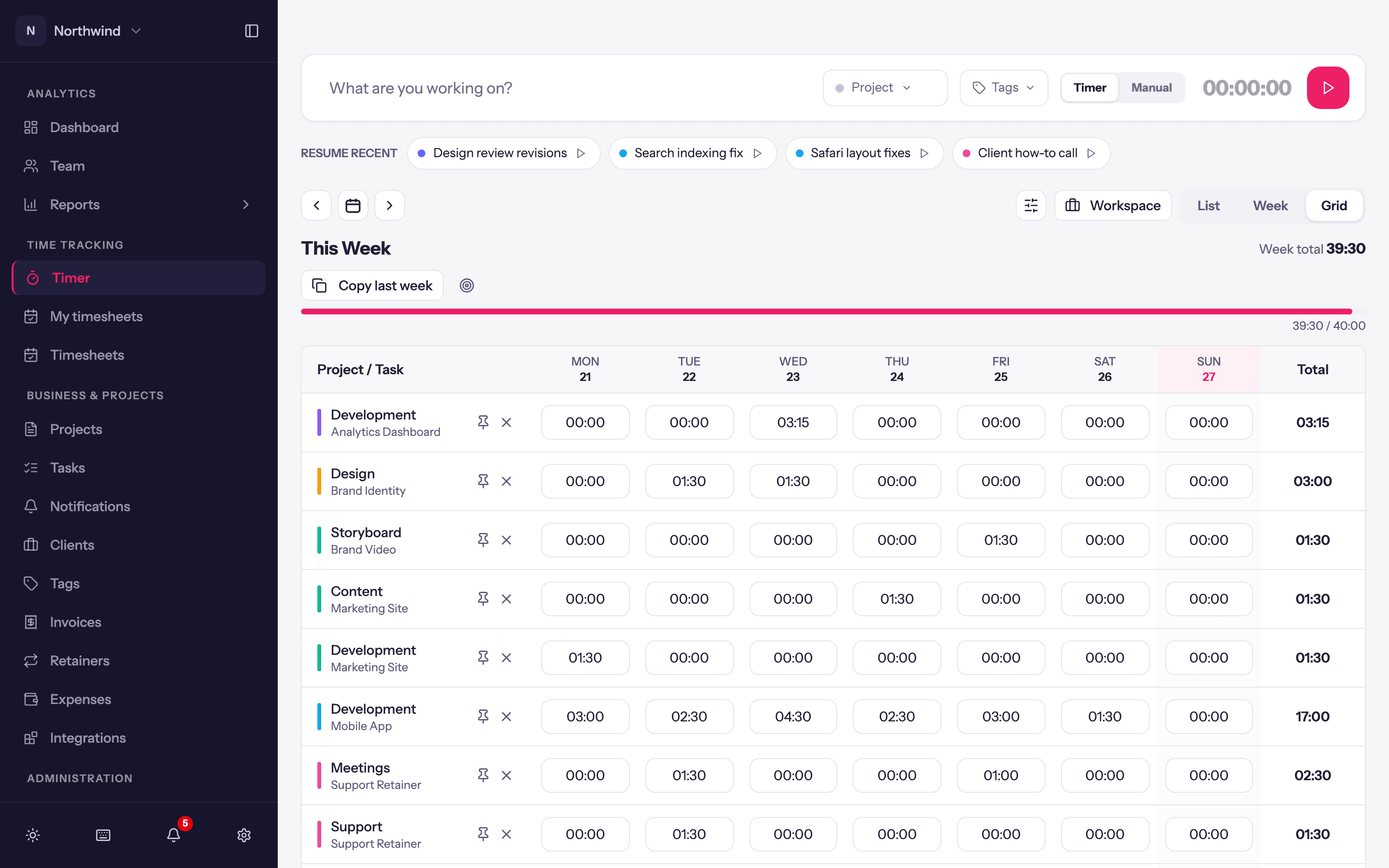
Rows
- Rows appear automatically for anything you tracked this week or last.
- Add project… at the bottom adds a row for a project or task with no hours yet.
- The pin icon on a row (Pin row to every week) keeps it in the grid every week, even when it has no hours. The × removes a row; a row with hours asks first (Remove Row?).
Cells
- A cell holds one number: the total for that project and day. Type
2,2.5or2:30. - If the day already has several entries for that project, editing the cell replaces them with one entry. If those entries carried notes or tags, Quanta asks before merging them (Consolidate Entries?).
- If your workspace requires a description on every entry, the cell editor asks for one (Add a description) before it saves.
- Cells for locked days are read-only.
Totals and targets
- The right-hand Total column and bottom Daily Total row add up as you type; the corner shows the Grand Total.
- Weekly and daily targets (the target icon next to the week total) sets a daily and a weekly goal for yourself. Day totals turn green when they reach the daily target and the week's progress bar tracks the weekly one. Set either to 0 to turn it off. Targets are stored in your browser, not on the server.
Copy last week
Copy last week fills every empty cell in the visible rows with the same weekday's hours from the previous week. Cells that already have hours are never overwritten, and the dialog says how many hours it is about to copy before it does.
The grid creates duration entries stamped at midday. In a full-time-tracking workspace, switch to the list view afterwards if you want to give them real start and end times.