List view
Entries grouped by day, newest first, with gaps you can fill and earlier weeks a click away.
The list is the default view and the one most people live in. Choose it with the List button in the toolbar.
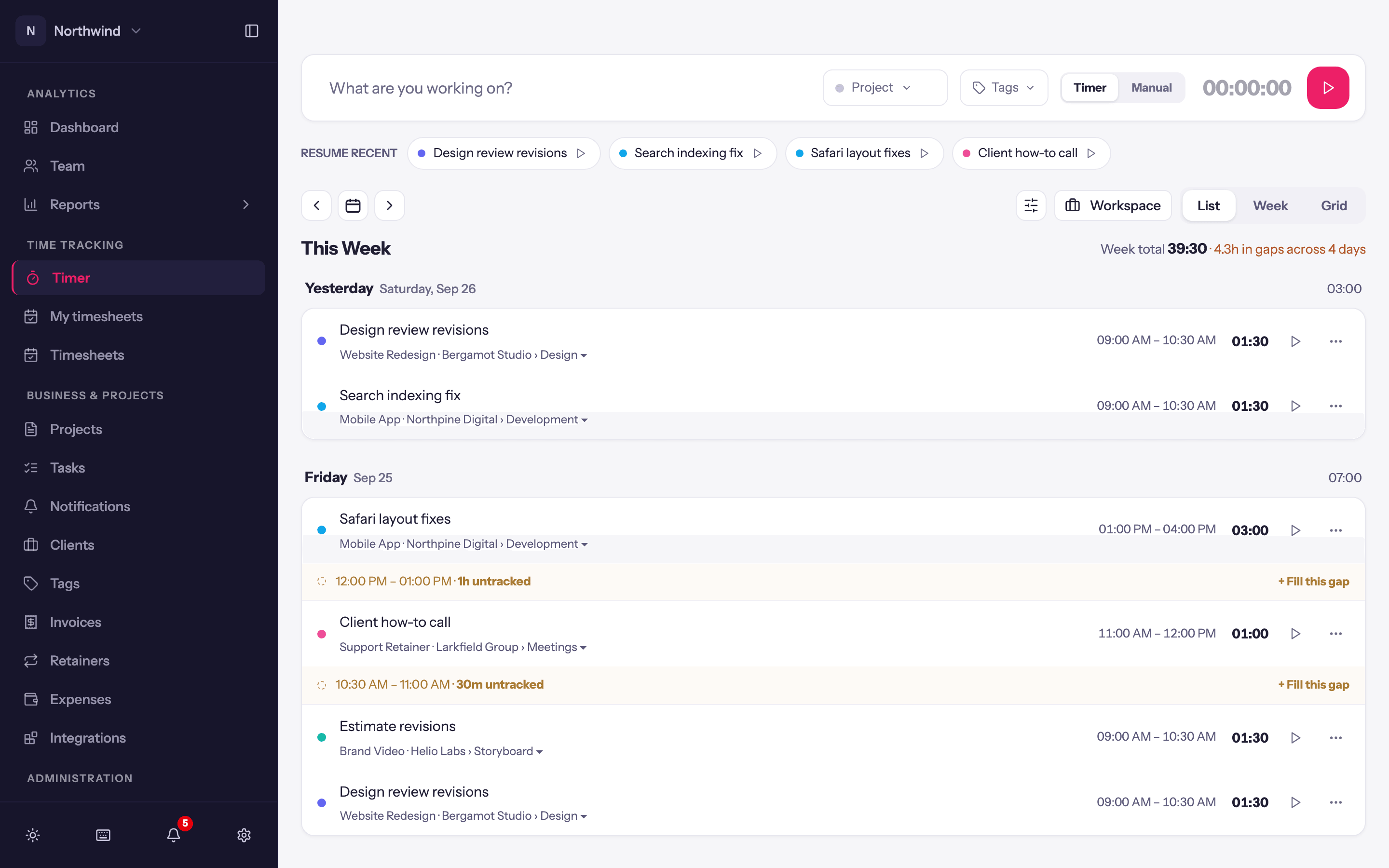
Reading the list
- Entries are grouped under Today, Yesterday and then weekday headings, newest day first. Each day heading shows the day's total; each week heading shows the Week total.
- A row shows the description, the project · client › task line, tag pills, the time range (or nothing in a duration-only workspace) and the duration. A small icon on the right says where the entry came from: Tracked on the web, Tracked on desktop, Imported or Created through the API.
- Locked and billed entries show a lock badge; hover it for the reason. See Locked entries.
Gaps
In a full-time-tracking workspace, the list points out stretches of the working day with nothing tracked: a muted row reading, for example, 12:49 PM – 05:55 PM · 5.1h untracked, and the week heading adds up the gaps. Click + Fill this gap and the entry bar is pre-filled with that start and end time; add a description and project and save. Turn this off under Display settings → Gap detection.
Moving around
- Previous week / Next week and Jump to date in the toolbar move the whole page. ← This week brings you back.
- Scrolling to the bottom of the current week offers Load earlier weeks.
- An empty day says Nothing tracked here; press N to jump to the entry bar.
- In a workspace set to Duration only, each day lists its newest entry first: an entry moves to the top when you add it or stop its timer. Changing its duration or notes leaves it where it is.
Editing from the list
Click any part of a row to edit that part in place; it saves when you click away. The play button on a row starts a new timer with the same description, project and tags (in a duration-only workspace, on an entry from today it continues that entry instead). The menu at the end of the row has Edit date & times (or Change date in duration-only workspaces), Duplicate entry and Delete entry. Details in Editing entries.