Display settings
Personal switches for the Timer page: resume recent, gap detection, density, formats and your daily target.
The sliders icon in the timer toolbar (Display settings) opens a small panel of preferences. They are yours alone and are stored in the browser you set them in.
Display
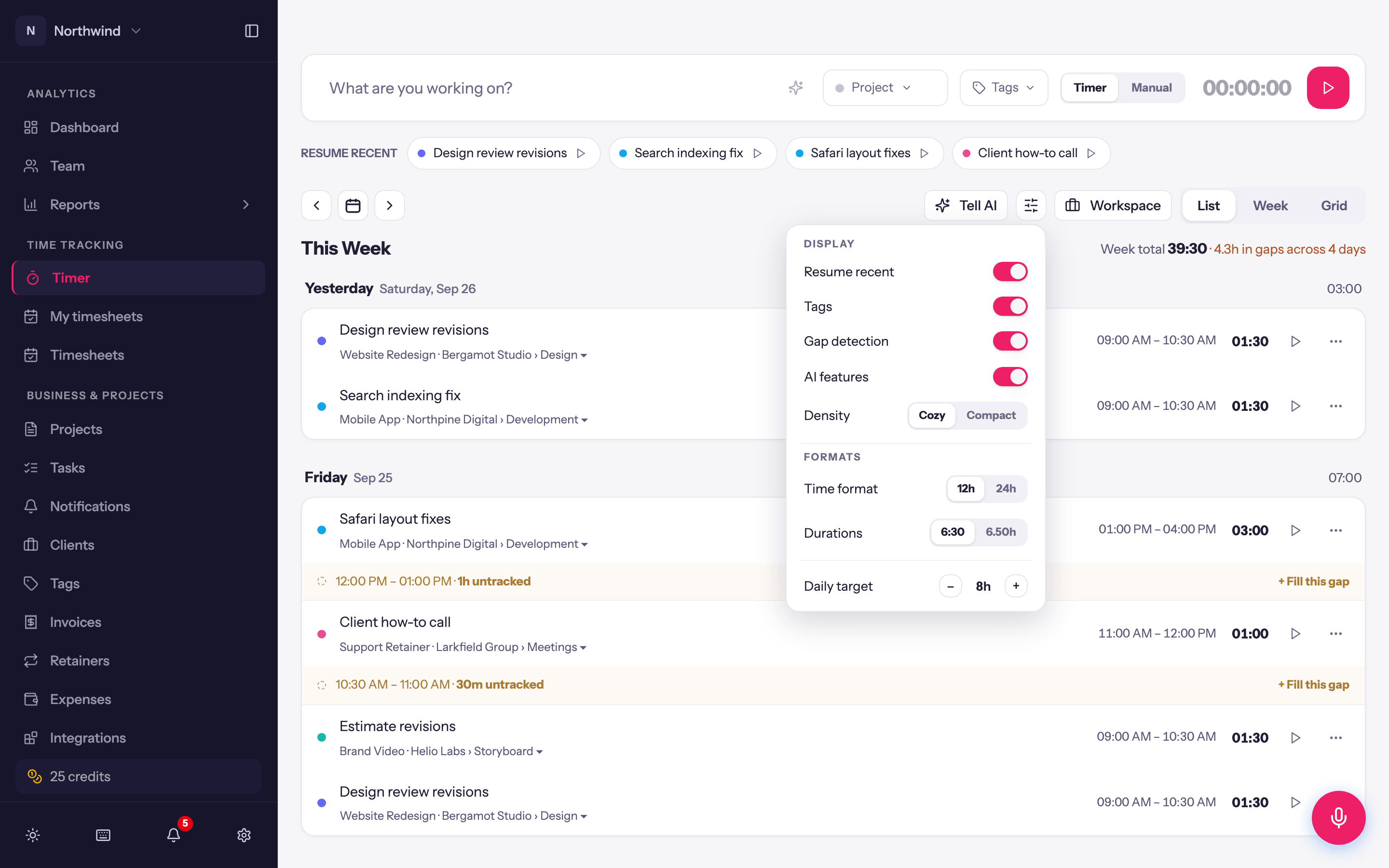
- Resume recent. Shows or hides the RESUME RECENT strip under the entry bar.
- Gap detection. In a full-time-tracking workspace, shows or hides the untracked stretches between entries in the list view, and the gap totals on the week heading. See List view.
- Density. Cozy (default) or Compact rows.
Formats
- Time format. 12h (05:55 PM) or 24h (17:55) for start and end times on the Timer page.
- Durations. 6:30 (hours and minutes) or 6.50h (decimal).
Your account-wide date, time and duration formats for the rest of the app are under User Settings → Time Formats; see User settings.
Daily target
The number of hours you consider a full day, from 4 to 10 in half-hour steps (default 8). It drives the tint of the week view's day bars and the N days under target note on the current week in the list view. It is a personal yardstick, not a rule, and it has nothing to do with the capacity an admin sets for you on the Team page or the minimum hours on a timesheet group.