The timer
The entry bar at the top of the Timer page, in Timer and Manual modes.
The entry bar sits at the top of every timer view. It creates entries; the view below shows them.
Anatomy
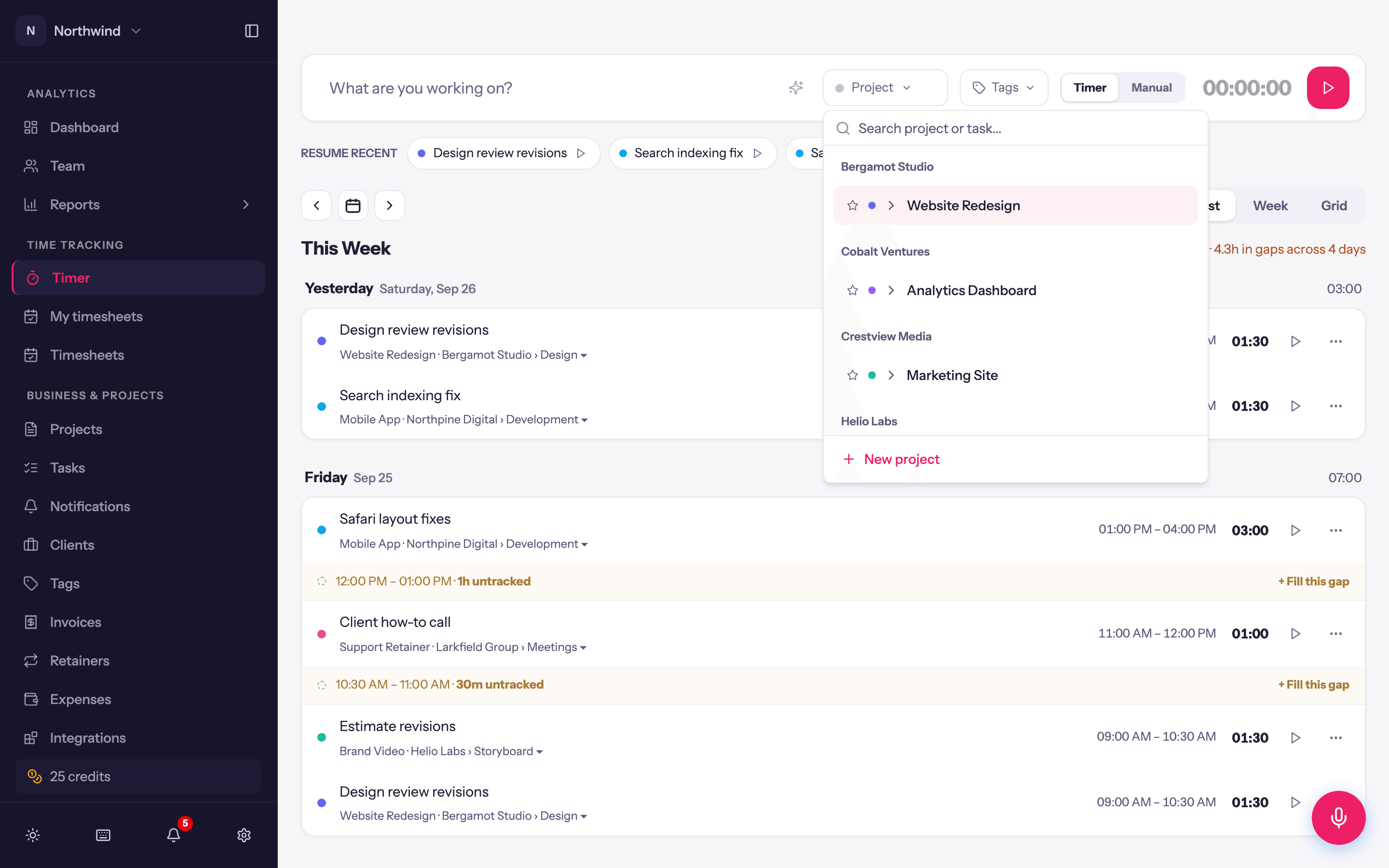
| Control | What it does |
|---|---|
| What are you working on? | The description. Type @ to open the project and task picker, # to add tags. |
| Project | Opens the same picker as @: search by project name or code, expand a project to pick a task, or New project to create one. A project with a code shows it in front of the name, as [ACM-WEB] Website, here and on your entries. Projects pinned in My Workspace and recently used projects come first. |
| Tags | Toggle tags on or off; type a name that does not exist yet to create it. |
| Timer / Manual | Which mode the bar is in. Remembered between visits. |
| 00:00:00 and Start | Timer mode only. The clock, and the Start / Stop button. |
When the description field is empty and focused, a hint reminds you of the @ and # syntax. Pick with Enter or Tab; Esc dismisses the picker.
Timer mode
Press Start (or ⌘ ⇧ S / Ctrl Shift S). While the timer runs:
- The clock counts up. Click it to correct it: a workspace that tracks start and end times asks for a different STARTED AT time, and a duration-only workspace asks how long you have been at it (type
2:15), then carries on from there. - You can still change the description, project and tags; they are saved with the entry.
- Navigating elsewhere in the app does not stop it. The desktop app and the web app share the same timer, so a timer started on one shows up on the other.
- Stop saves the entry. Discard timer (the small button beside Stop) throws it away.
A workspace can require a project, a task or a description on every entry (Workspace Settings → General → Required fields). If yours does, the bar tells you what is missing when you try to stop.
Only one timer runs at a time per person. Starting another, from Resume recent or a row's play button, stops and saves the running one first.
Manual mode
For time you have already worked. The bar shows:
- A date (defaults to today).
- In a full-time-tracking workspace, Start and End times. The bar notes when the end time is on the following day.
- A duration. Type
1.5or1:30for an hour and a half,:45for 45 minutes, or use units:2h 15m,90m. A plain number is always hours, so90is refused rather than saved as 90 hours; no entry can be longer than 24 hours. - Add entry (or press Enter).
You cannot add a manual entry while a timer is running; stop it first.
Resume recent
Below the bar, RESUME RECENT lists your last few distinct description + project combinations. Click one and it fills the bar and starts timing straight away. The Resume this task play button on any entry row does the same for that entry. In a duration-only workspace, resuming something you already logged today continues that entry instead of adding a second row; see Editing entries. Pressing play while another timer runs stops and saves that one first. Turn the strip off under Display settings if you do not want it.
Where the new entry goes
New entries land on today in whichever view you are in. When you fill a gap from the list view, or add from an empty day, the entry is dated to that day instead.