Submitting your week
Send a week for approval, review where it stands, withdraw it if you need to, and fix a week that was sent back.
If you are in a timesheet group, each week you track becomes a timesheet to submit. Track as normal; the submission is a single step at the end.
Submit
Either from the Timer page, where a Submit button sits by the week heading, or from Time Tracking → My timesheets, which lists every week with its status and Submit for approval.
Submitting asks Submit this week for approval? and offers a note for the approver, for example Public holiday Monday, annual leave Thursday and Friday. Once submitted:
- The week's entries lock (the lock badge reads This week's timesheet has been submitted).
- The status becomes Awaiting approval and shows who it is waiting on. In a group approved by project, it counts projects instead, for example 1 of 3 projects approved.
If the week is short of the group's minimum hours, say so in the note; the approver sees the total against the minimum.
Going on leave? Step forward to a future week on the Timer and submit it before you go, even with no hours on it.
Withdraw
Spotted a mistake? Withdraw (on the timer page) or Withdraw submission (on My timesheets) takes the week back while it is still awaiting approval. Your hours become editable again; resubmit when they are right.
Sent back
If an approver sends the week back, its status is Sent back with their reason, the entries unlock, and you get an email linking to that week. Fix them and submit again.
In a group approved by project, a manager sends back their project's hours, and the reason names the project. When you resubmit, a project that was already approved stays approved as long as none of its entries changed; everything else goes back for review. See Approving by project.
Approved
An approved week stays locked. You can still resume (start a new timer from) any entry in it.
My timesheets
Time Tracking → My timesheets is the overview: every week, its hours, its status (Not submitted, Awaiting approval, Approved, Sent back), and who it is waiting on. In a group approved by project, each week also lists its projects as approved, waiting or sent back.
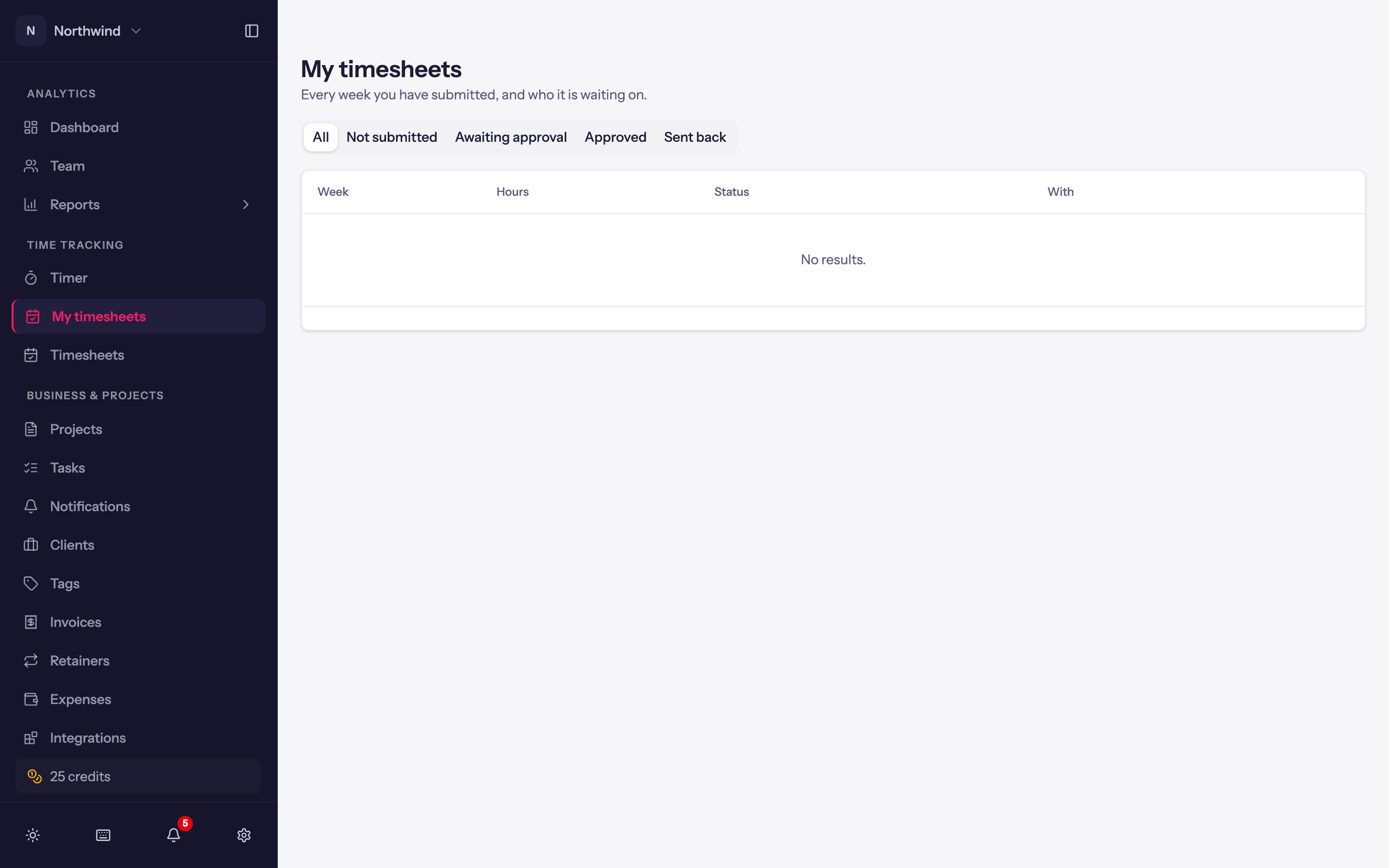
Click a week (or Review in its row menu) to see it the way your approver does: where it stands, the hours on each day, each project with its status and who approved it or sent it back and why, and every entry with its notes. From there:
- Open in timer takes you to that week in the timer. On a week that was sent back it reads Fix in timer.
- Submit for approval (or Resubmit on a week that was sent back) submits it without leaving the page.
Open in timer is in the row menu too.
Timesheet groups
Set up who submits weekly timesheets and who approves them: members, approval by group or by project, approver levels, minimum hours, start week and reminders.
Approving timesheets
Review the weeks of the people you oversee, entry by entry, approve them, or send them back with a reason.