Approving timesheets
Review the weeks of the people you oversee, entry by entry, approve them, or send them back with a reason.
If you are an approver on a timesheet group (or an Admin), Time Tracking → Timesheets lists the weeks waiting on you. In groups approved by project, project managers approve their project's hours on the By project view instead; see Approving by project.
The page
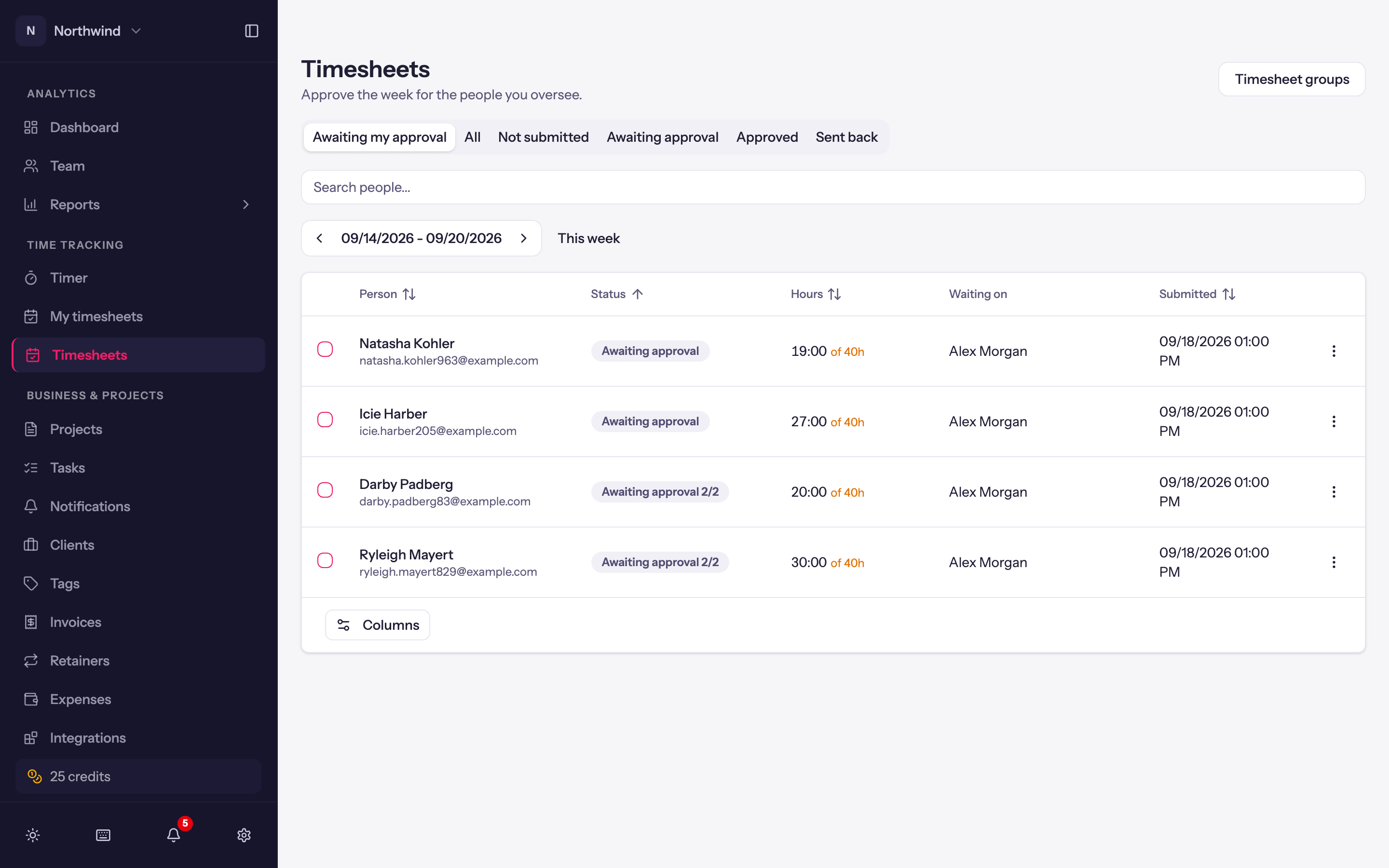
- Awaiting my approval is the default filter (By project comes first in a workspace with a group approved by project). The other views are All, Not submitted, Awaiting approval, Approved and Sent back. This week jumps to the current week, with Previous week / Next week beside it.
- Each row: the person, the week, hours against the group's minimum, the note they attached, and the level it is waiting at for two-level groups.
- Select several with the checkboxes (or all of them with the box in the header) to Approve or Remind in bulk. Admins can narrow the list to one timesheet group with the All groups filter, so reminding a whole group is: pick the group, select all, Remind.
Reminding people
Any week on your list that isn't approved, and isn't your own, can be nudged by email:
- Remind to submit, in the row menu of a week that hasn't been submitted (or was sent back), emails the person.
- Remind approvers, on a submitted week, emails whoever it is waiting on.
- Remind n selected does the same for every selected week at once.
A toast says how many people were emailed. A week reminded in the last hour is skipped, so a double click doesn't send twice. The row then shows Reminded with how long ago.
Reviewing a week
Review opens the week in a panel with the person's name and the week's dates:
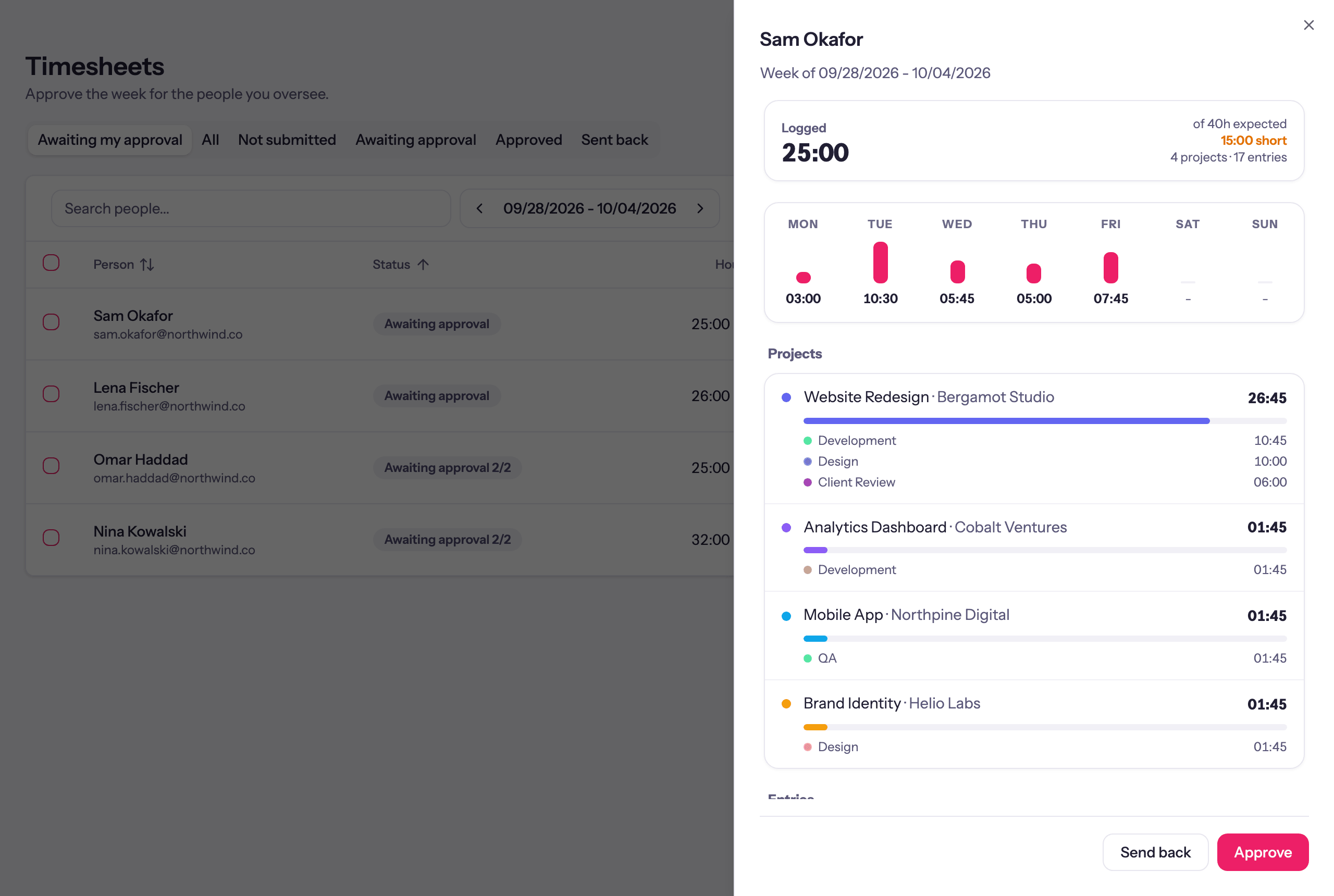
- Logged hours against the group's expected hours, how many short it is, and how many projects and entries it covers. Their submission note, if they left one.
- A day strip with the hours on each day. Click a day to list only that day's entries; Show the whole week clears it.
- Projects: each project's hours and share of the week, down to the task. On a week approved by project, each also shows its status and who it is waiting on or was approved by.
- Entries: every entry, grouped by day, with its project, task and notes (or No notes).
So you can check that every day is accounted for, that the hours landed on sensible projects, and what the work actually was. If you can manage other people's time, Open their week in the row menu takes you into their timer views instead, with a banner reading Viewing their name and Back to my timesheet to return.
Then either:
- Approve. The week stays locked. In a two-level group, the second level now sees it.
- Send back. Asks Why are you sending this back? (for example Friday is missing a project). The owner gets the reason, the week unlocks, and it comes back to you when they resubmit.
After approval
Approved weeks are locked, and Approve and Send back only apply to submitted weeks. If an approved week genuinely needs correcting and your role allows it, Reopen in its row menu asks Reopen this week?: the person can edit their hours again and must resubmit, starting from the first approver. Entries already on an invoice stay locked. Otherwise ask an Admin. Locked weeks still count in every report.