Timesheet groups
Set up who submits weekly timesheets and who approves them: members, approval by group or by project, approver levels, minimum hours, start week and reminders.
Time Tracking → Timesheets has a link to Timesheet groups (also at Administration → Workspace Settings → Timesheet). Adding someone to a group creates a weekly timesheet for them; the group also says who approves those weeks.
Create a group
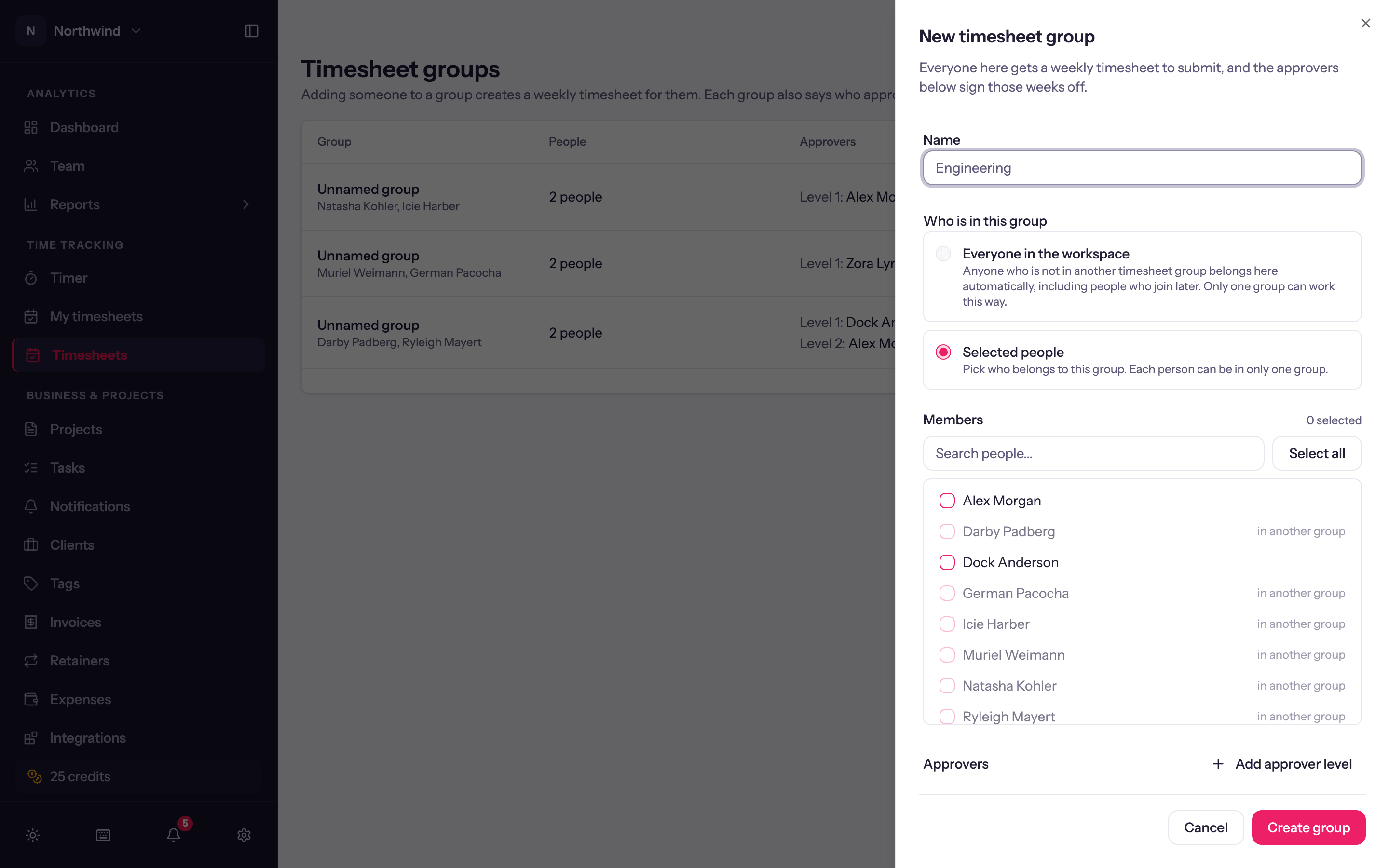
Click New group and give it a Name, for example Engineering.
Who is in this group. Everyone in the workspace makes it the default group: anyone not in another group belongs here automatically, including people who join later. Only one group can work this way. Otherwise choose Selected people and pick Members; each person can be in only one group.
Who approves. The group's approvers sign off each person's whole week. Project managers splits each week by project: every project's managers approve the hours on their project, and the week is approved once every project is. See Approving by project.
Approvers. Pick one or more people per level; any one of them can sign off. Add approver level adds a second level: the week then needs both sign-offs before it counts as approved. Approvers do not have to be Admins; the Timesheets page appears for anyone who is somebody's approver. A group with no approvers can only be actioned by Admins.
In a group approved by project this is a single list, Approvers for everything else: they approve time with no project, time on projects without a manager, and a manager's own hours when nobody else manages the project.
Minimum hours. The number of hours a full week is expected to contain (0 to 168). Shown against each submitted week so approvers can spot short ones.
Starts week of. Weeks from this date to now are created for the members right away, so leave it on the current week unless they have history to submit. If members have unlocked entries before that week, saving asks Lock those earlier entries?: Lock and continue freezes them as they are, or Change the start date instead.
Email a reminder to anyone who has not submitted, on a chosen day of the week (default Friday).
Managing groups
The list shows each group's members, approvers (Single or two levels; None. Only admins can action these weeks.), and whether it is the Default. The row menu offers Edit, Pause (stops creating new weekly timesheets and sending reminders until you Resume) and Delete.
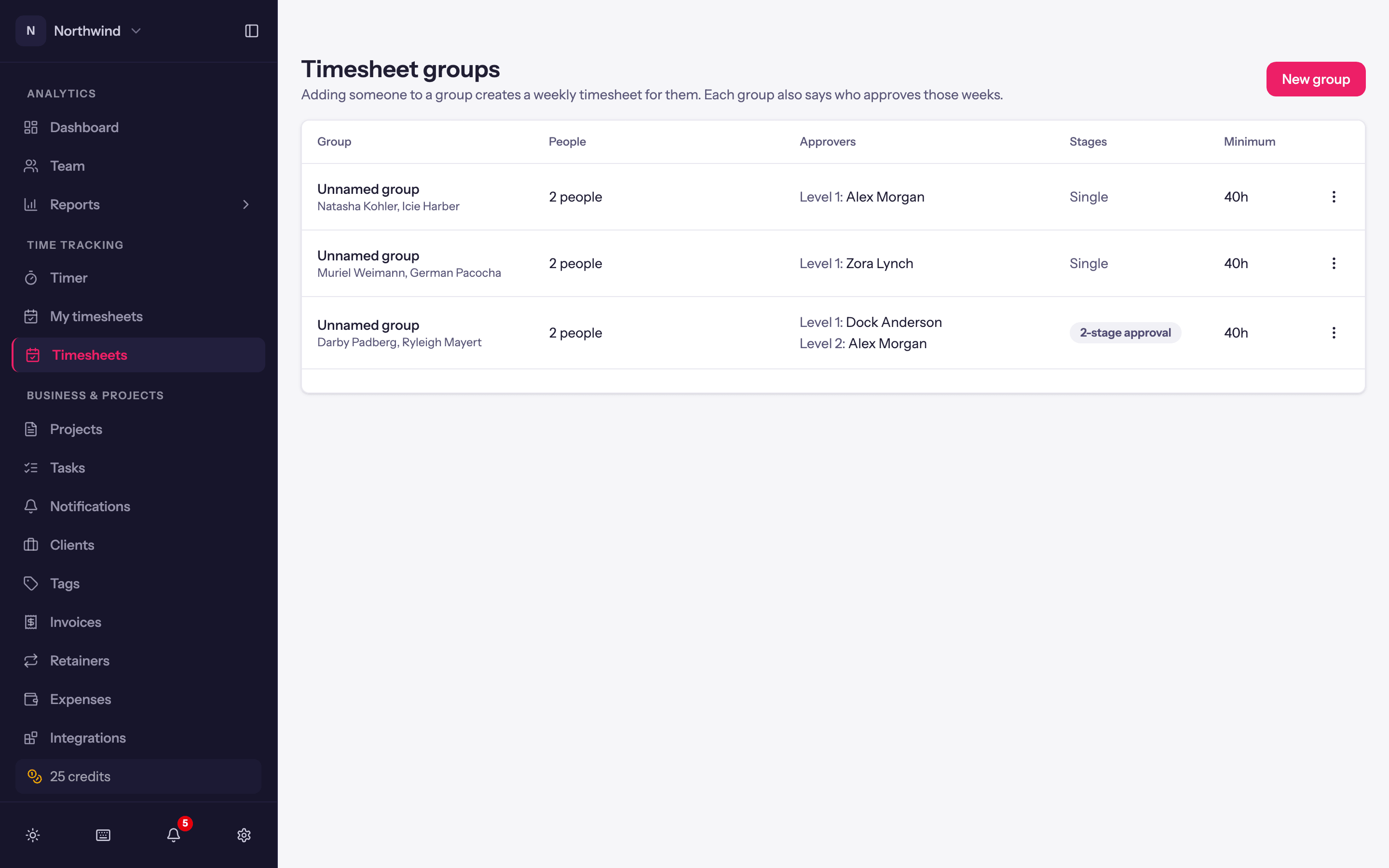
Moving someone between groups or changing a start date affects which weeks exist for them. Approved weeks are never reopened by a group change.