Quotes
Price a job before you start, send it for a yes on a link, then bill it as one invoice, in parts, or as a project that tracks the work against what you quoted.
A quote sets out the work and the price before you start. You send it, the client accepts or declines it on a link, and once it is accepted you bill it: in one invoice, in parts, or by turning it into a project that tracks the work against what you quoted.
Quotes live under Business & Projects → Quotes. They need Invoicing on, and people need the Quotes permission to see them. An admin can turn quotes off under Workspace Settings → General → Features → Quotes. Turning quotes off hides the page and stops new quotes; the ones you have are kept.
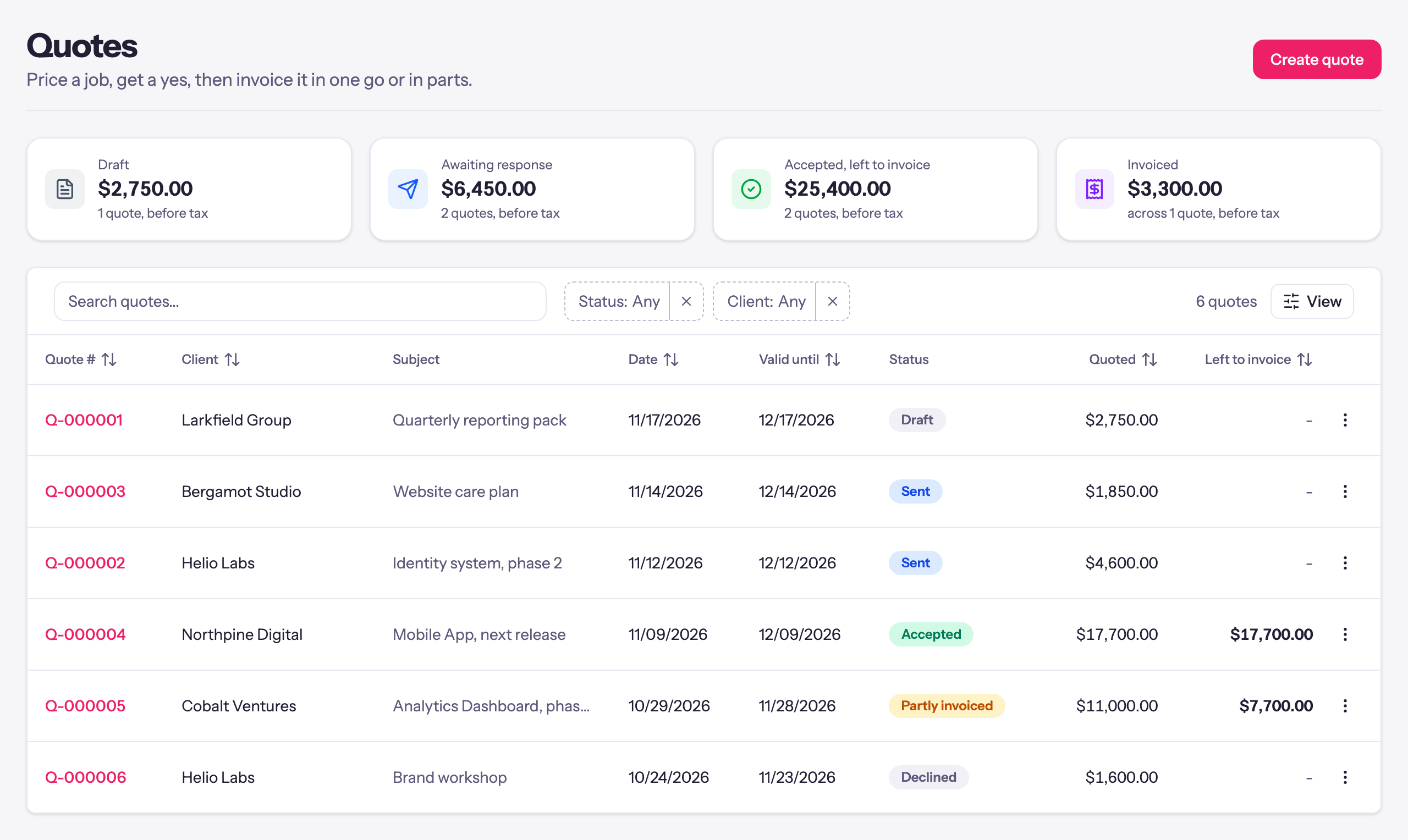
The cards at the top add up Draft, Awaiting response, Accepted, left to invoice and Invoiced, all before tax. Each quote shows one status: Draft, Sent, Expired, Accepted, Partly invoiced, Invoiced or Declined.
Writing a quote
Create quote opens the form.
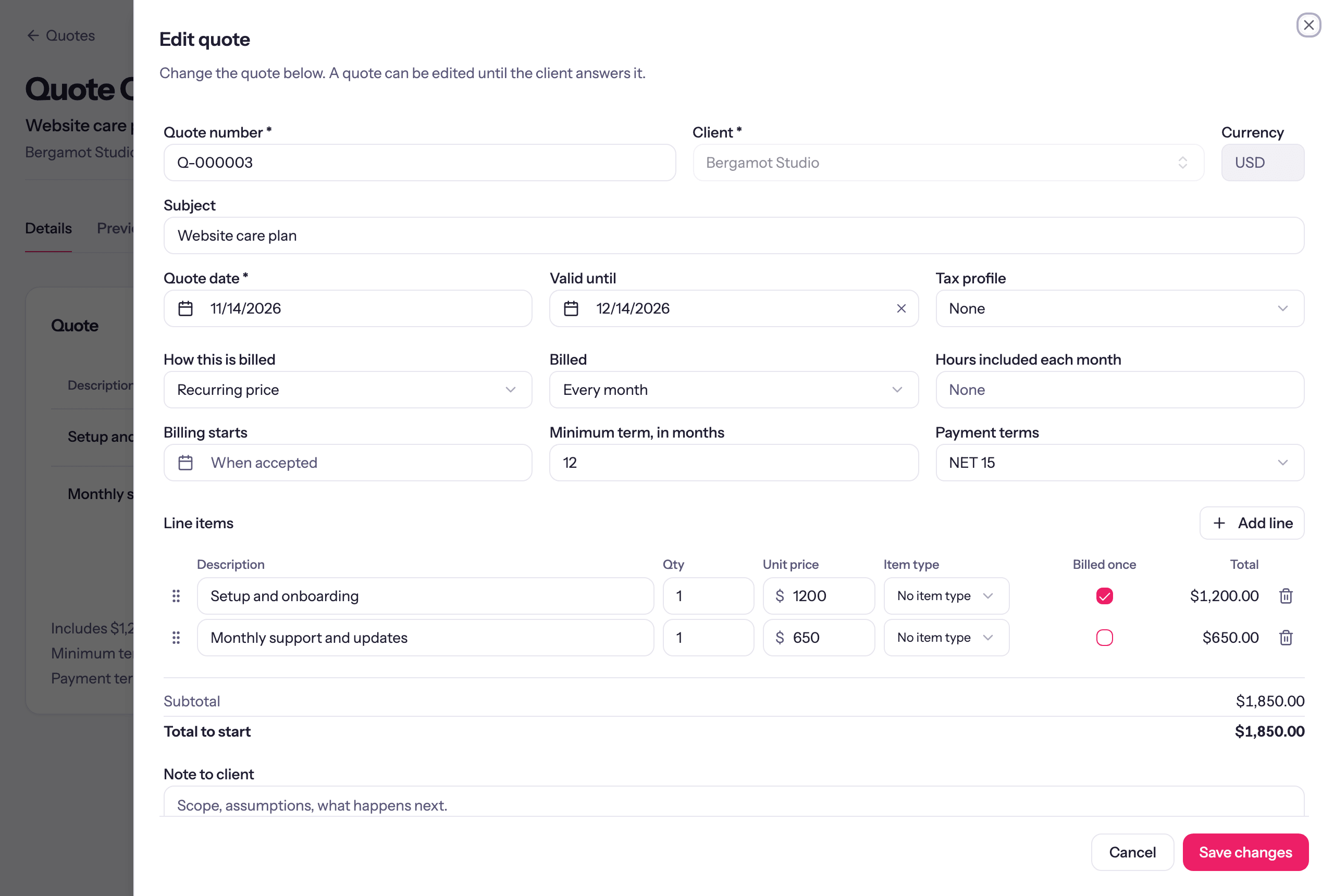
| Field | What it does |
|---|---|
| Quote number | The next number in your quote sequence. Editable. |
| Client, Contact | Who the quote is for. Picking a client brings its currency, tax profile and payment terms. |
| Subject | What the quote is for, such as Website rebuild. |
| Quote date, Valid until | The client can accept up to and including the valid until day. Leave it empty for no end date. |
| Tax profile | As on an invoice. See Tax profiles. |
| How this is billed | One-time price, Estimate, billed by the hour, Prepaid block of hours or Recurring price. See below. |
| Payment terms | Not stated, Due on Receipt, NET 15 to NET 90, or Day of following month: the same choices as an invoice. The quote prints them, and invoices made from it carry them. |
| Line items | A description, quantity and unit price on each line. An Item type shows when your workspace has item types, and a Taxable switch when a tax profile is set. Add line adds one. |
| Note to client | Printed at the bottom of the quote and shown on the client's link. |
The arrow next to Create quote offers Create and send.
How this is billed
The choice changes the fields beside it and the sentences printed under the total, so the client reads exactly what they are agreeing to.
- One-time price. A set price for the job. Deposit on acceptance asks for a percentage up front: the quote prints the amount, and Create invoice on the accepted quote opens on that percentage.
- Estimate, billed by the hour. The total is an estimate and the work is billed as it is done. Hourly rate is optional; when set, the quote says the work is billed at that rate. Tick Fixed price on any line that is a set price among the hours, such as an audit or a licence: the quote then says how much is fixed and how much is estimated.
- Prepaid block of hours. The client pays up front for Hours in the block. Rate for extra hours prices time past the block.
- Recurring price. The lines are billed every period: Billed is Every month, Every quarter or Every year. Optionally set Hours included each month (or quarter, or year), a Rate for extra hours, Billing starts and a Minimum term. Tick Billed once on a line such as a setup fee and it is charged at the start only; the total then reads Total to start.
Sending it
Send quote opens the send sheet: Recipients, CC, Subject (left empty, it is the quote number and your workspace name), Message, and Attach the quote as a PDF. The email carries a link to the quote.
To send it some other way, Actions has Download PDF and Copy client link. Anyone with the link can view and answer the quote. Turn off client links stops every link already sent; sending again makes a new one.
The client's answer
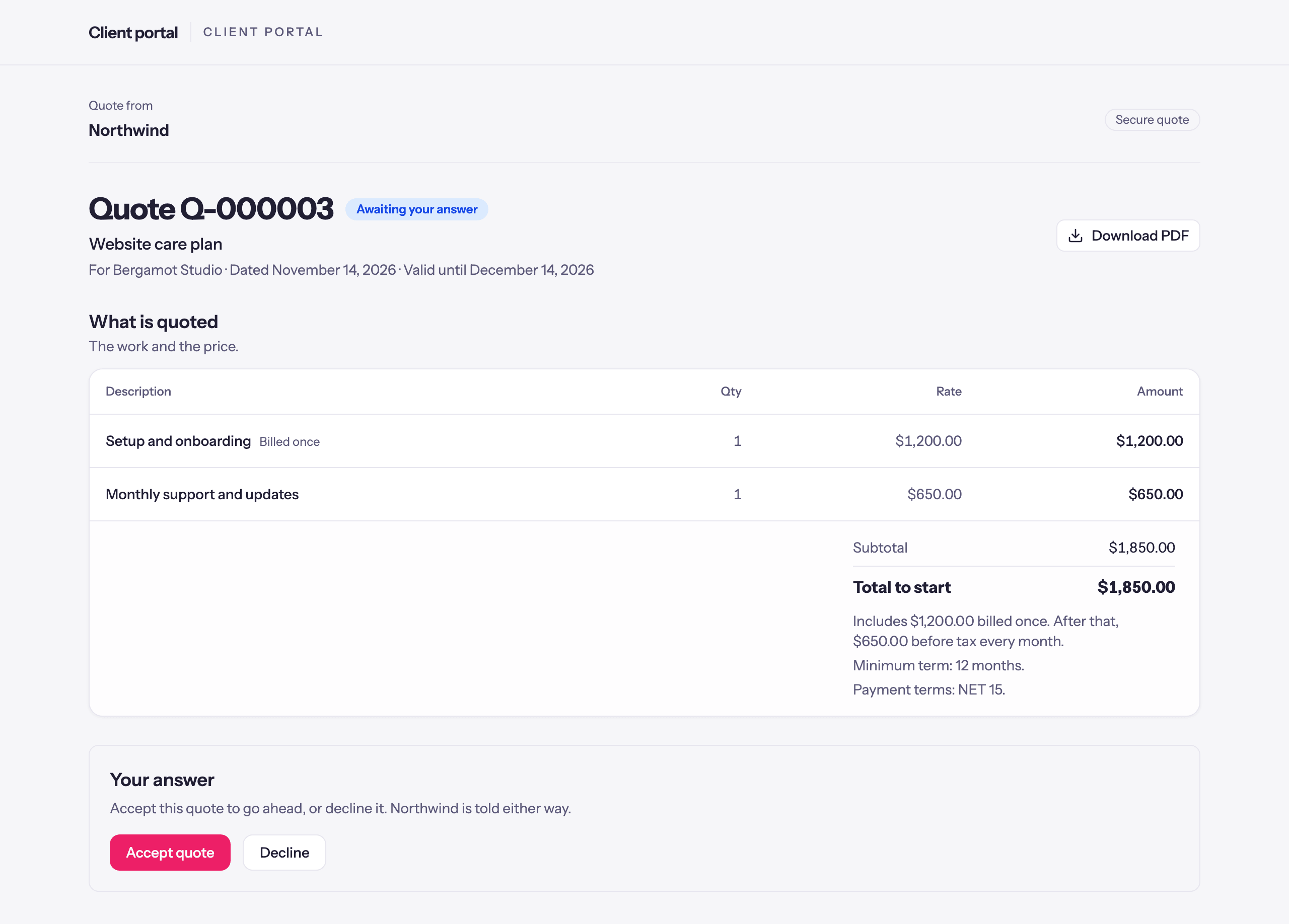
On the link the client sees the lines, the total and the billing terms, and can Accept quote (they type their name and Confirm and accept) or Decline with an optional reason. Whoever last sent the quote gets an email either way, and the answer shows under Activity on the quote.
If the client says yes or no outside the link, use Actions → Mark accepted (enter who accepted) or Mark declined. These are recorded as entered by you, and no email goes to the client.
After the valid until day the client can no longer accept on the link and the quote reads Expired. Actions → Change valid until opens it again.
Changing a quote
A quote can be edited with Edit until the client answers it. After an answer, Actions → Revise (back to draft) returns it to a draft and clears the answer; send it again once it is changed. Duplicate copies it as a new draft. A quote that has become a project can no longer be revised.
Billing an accepted quote
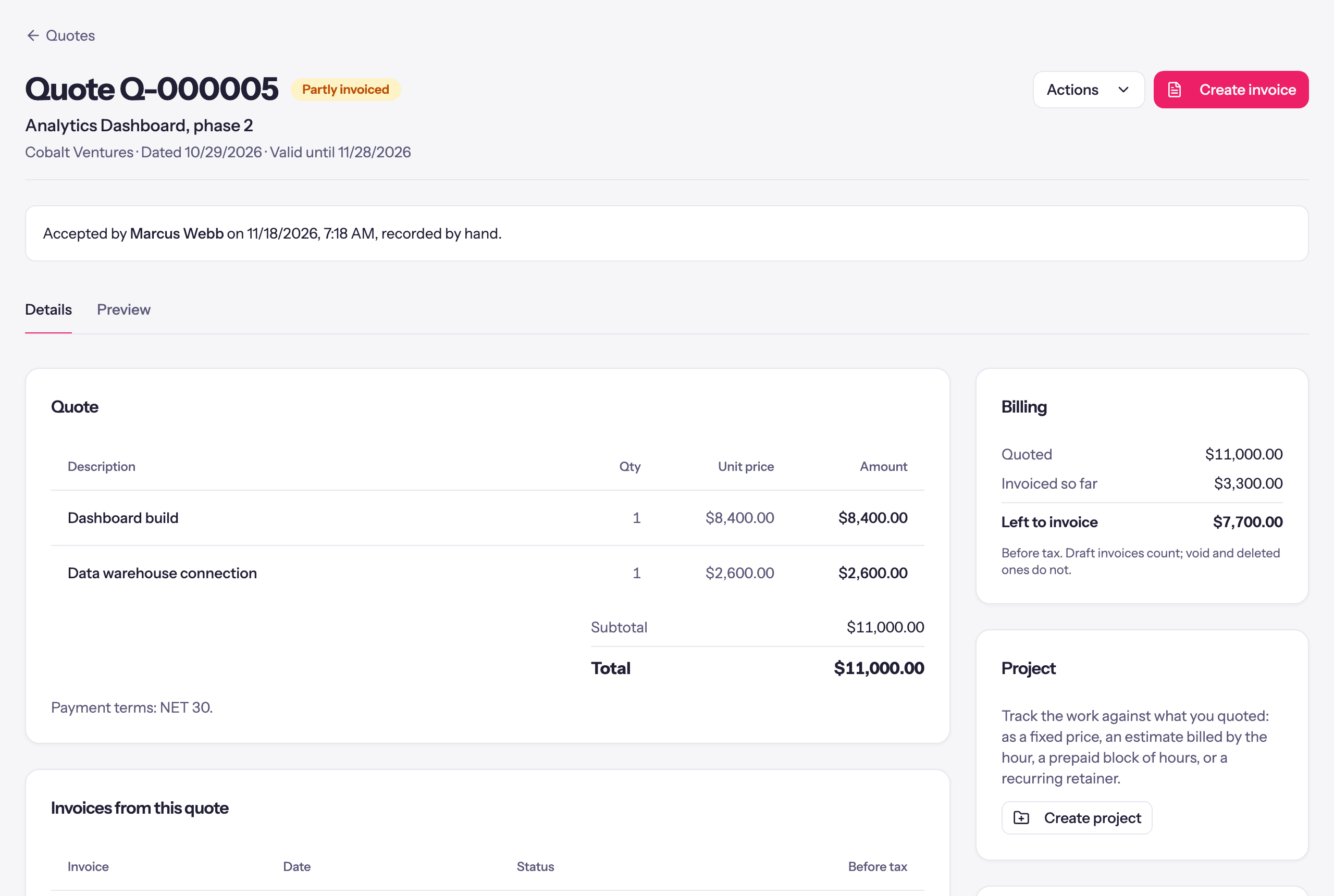
An accepted quote shows Quoted, Invoiced so far and Left to invoice, before tax, and lists Invoices from this quote. Draft invoices count; void and deleted ones do not.
Create invoice makes a draft invoice linked to the quote. Choose what to invoice:
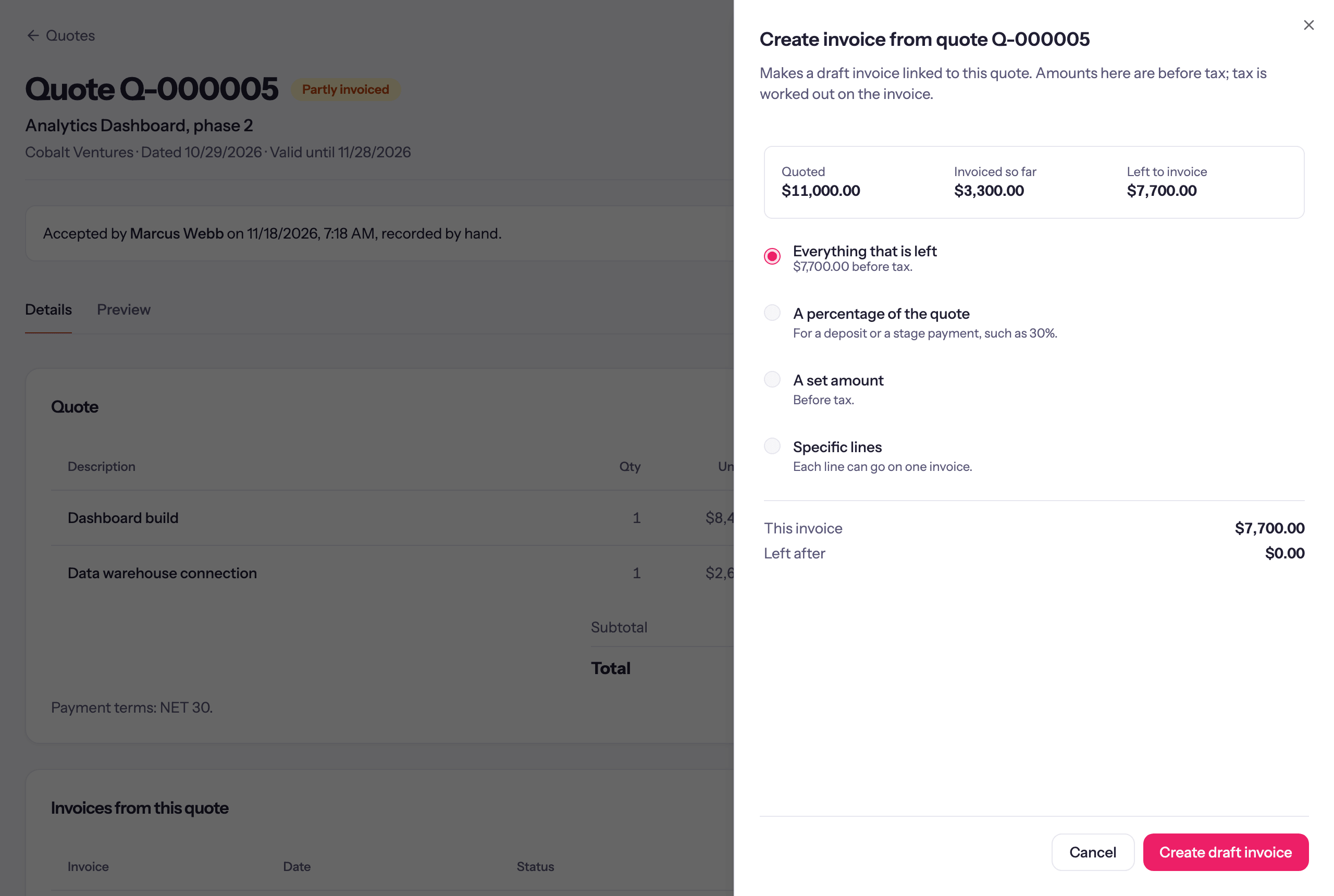
- Everything that is left
- A percentage of the quote, for a deposit or a stage payment such as 30%
- A set amount, before tax
- Specific lines, each of which can go on one invoice
Create draft invoice makes the draft; review and send it as any other invoice. Once the whole quote is invoiced, Actions → Create another invoice bills anything extra against it.
Turning a quote into a project
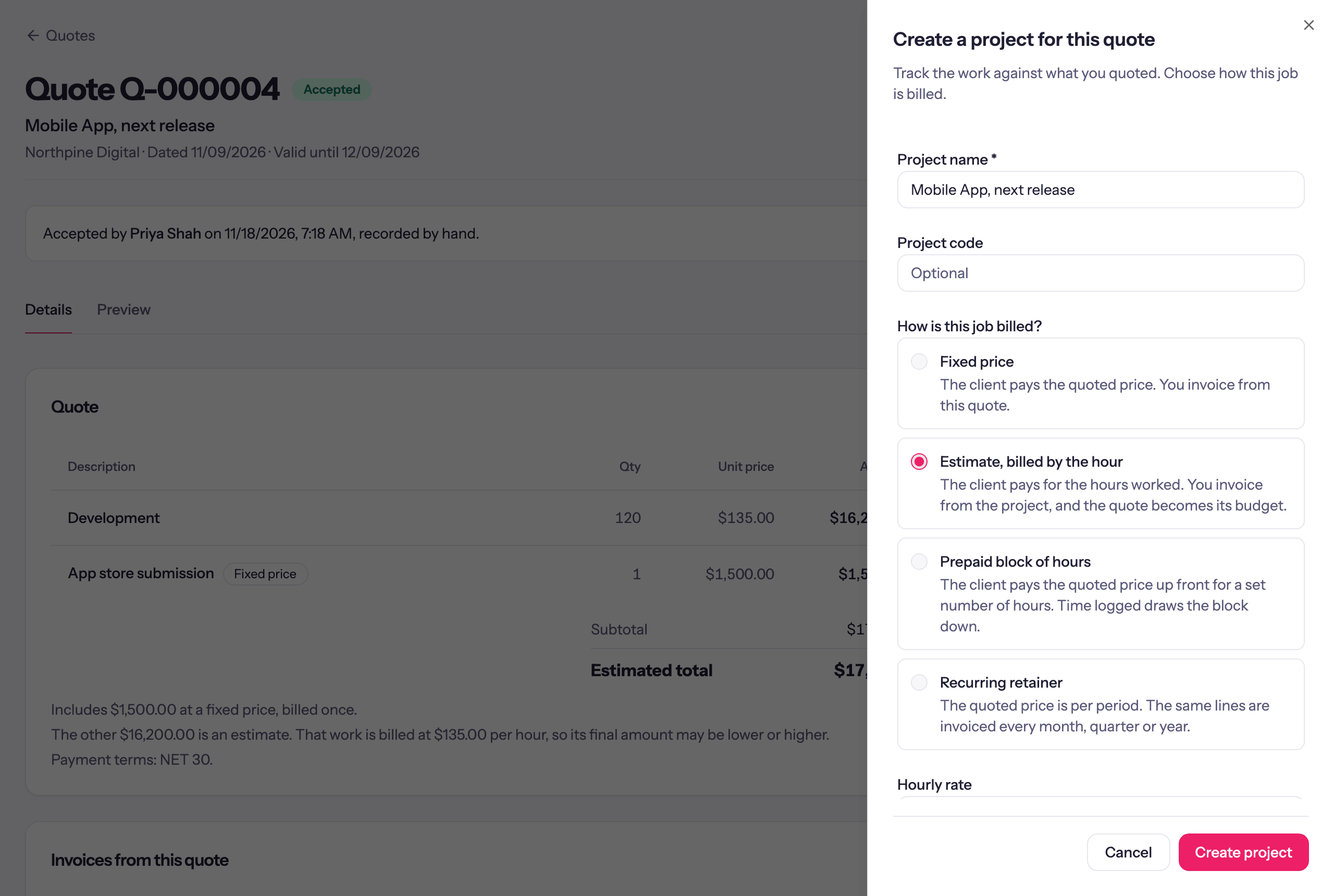
Create project tracks the work against what you quoted. Choose How is this job billed?:
| Choice | What happens |
|---|---|
| Fixed price | A fixed-fee project for the quoted price. You keep invoicing from the quote, and its invoices count toward the project's fee. |
| Estimate, billed by the hour | An hourly project whose budget is the quoted hours. You invoice from the project as the work is done. Lines marked Fixed price are drafted as their own invoice straight away. |
| Prepaid block of hours | A prepaid block for the quoted price. Billable time on the project draws the hours down; time past the block bills at your rates. |
| Recurring retainer | A retainer that invoices the quote's lines every month, quarter or year. Lines billed once are drafted as their own invoice. |
The sheet starts on the quote's own billing and carries its rate, hours, start date and payment terms. Fill in Project name, and optionally a Project code, a start date (Start date, or Starts for a block or retainer) and an End date. For an estimate, Hourly rate prices the hours; without one, time is priced at each person's own rate, and you can also set the project's rate, or a rate for each person on it, from the project afterwards.
An estimate can't become a project once it has invoices from the quote.
More work on an existing project
When a client accepts a second quote for the same job, choose Add to an existing project instead and pick the project. The sheet says what changes:
- On a fixed-fee project, the fee grows by this quote's total, and you invoice the quote as usual.
- On an hourly project, the budget grows by the quote's hourly lines. Its fixed-price lines are drafted as their own invoice.
- On a project with a retainer, the quote's repeating lines join the retainer from its next invoice.
Only projects for the same client and currency are offered.