Invoicing
Invoice statuses
What Draft, Sent, Partially Paid, Paid, Overdue and Void mean, and which actions an invoice offers.
Applies to:
Admins
An invoice's status is worked out from what has happened to it; you never set it directly.
| Status | Meaning |
|---|---|
| Draft | Created, not yet sent. Editable. Its time entries and expenses are already marked invoiced so they cannot land on a second invoice. |
| Sent | Emailed from Quanta, or marked as sent. The due date is live. |
| Partially Paid | At least one payment recorded, balance still due. |
| Paid | Balance is zero. Reminders stop. |
| Overdue | Not fully paid and the due date has passed, including an invoice with a partial payment. An invoice is overdue from the day after its due day, so one due today is not overdue today. Push the due date out and it goes back to Sent, or to Partially Paid. |
| Void | Cancelled, kept for the record. Its time and expenses become uninvoiced again. |
Viewed
Once your client opens an invoice online, from its link or in the client portal, the invoice shows Viewed and how long ago beside its status. Opens from a browser signed in to your workspace don't count.
Actions on an invoice
At the top of the invoice page:
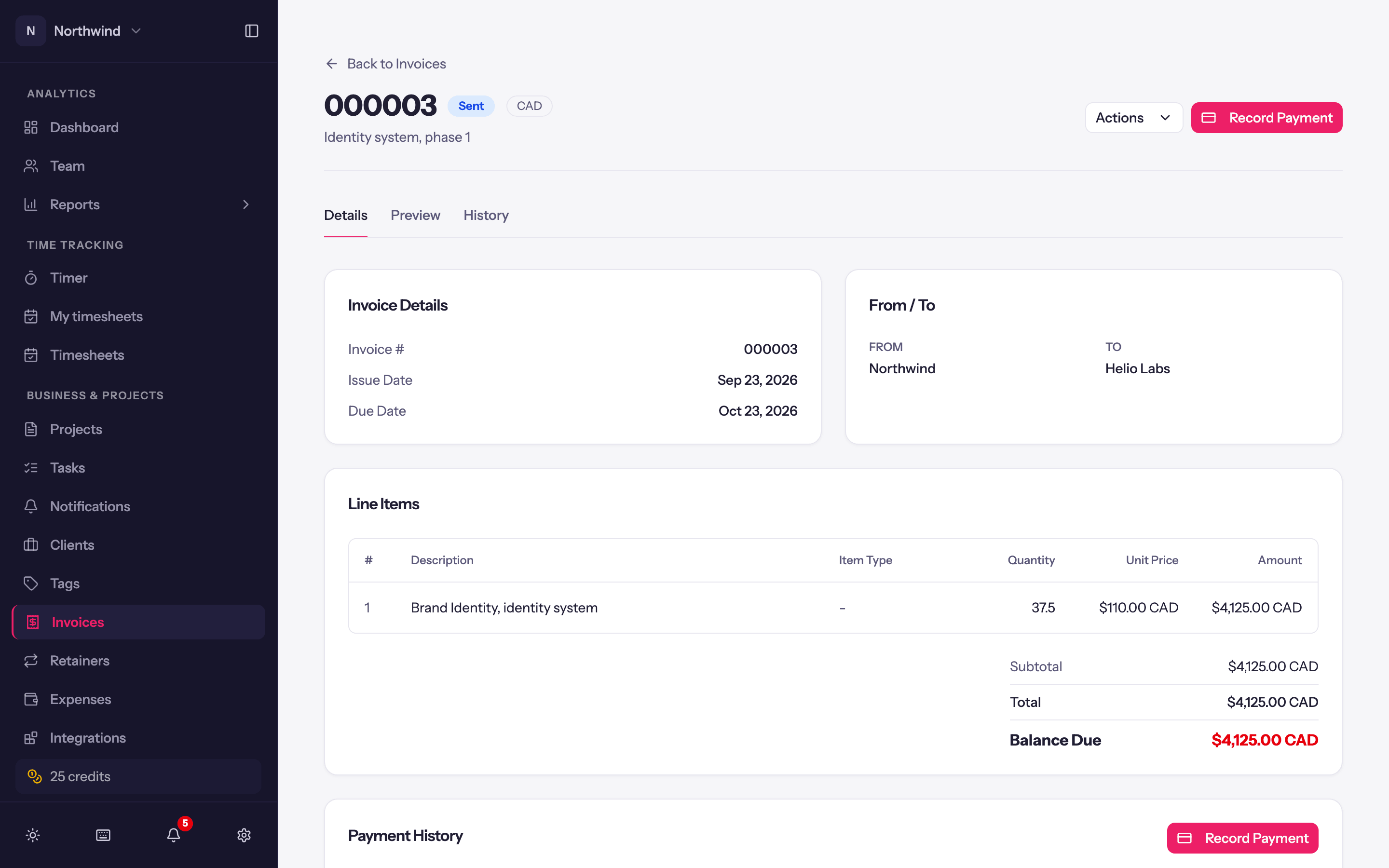
- The main button is the next thing to do: Send Invoice on a draft, Record Payment while a balance is due, Download PDF once it is paid. See Sending invoices and Recording payments.
- Reminders paused appears as a badge when automatic reminders are off for this invoice. See Payment reminders.
The Actions menu groups the rest:
- Invoice: Edit reopens the sheet (editing an invoice that has already synced to QuickBooks or Xero marks it Edited until the next push). Duplicate makes a new draft with the same client, lines, notes and settings and the next number. Mark as Sent for an invoice you delivered some other way.
- Sharing & exports: Download PDF, Export time entries, Send Invoice, Pause reminders (or Resume reminders), and Copy share link / Revoke share link (see Invoice share links).
- Payments: Record Payment and Apply credit.
- QuickBooks or Xero, when connected: Create invoice in… (or Push changes to… once it is there), Pull payments from…, and for QuickBooks Link existing QuickBooks invoice and Review updates from QuickBooks. See QuickBooks.
- Remove invoice: Void invoice asks for an optional Reason, keeps the invoice exactly as it went out, and returns its time and expenses to uninvoiced so a corrected invoice can pick them up. An invoice with payments recorded cannot be voided; delete the payments first. Invoices generated by a retainer are managed from the retainer instead. Delete removes the invoice entirely (also releasing its time and expenses); prefer Void for anything a client has seen.
Tabs
- Details: the invoice as data, with line items, totals, payments applied, balance due, notes, payment instructions and payment history.
- Preview: the PDF as the client receives it (Click to load preview).
- History: every send, resend, reminder and payment thank-you, and each time the client opened it online (Viewed by client). Opens from your own team are listed as Opened by your team.
Accounting status
With QuickBooks or Xero connected, a badge shows Not synced, Synced, Edited or Error, and the Actions menu offers Create invoice in QuickBooks / Xero, or Push changes to… once the invoice is there. See Integrations.