QuickBooks Online
Connect your QuickBooks Online company so every invoice you send, and every payment you record, lands in your books.
Needs the QuickBooks integration permission (Admins have it) and a QuickBooks Online company you can sign in to.
Connect
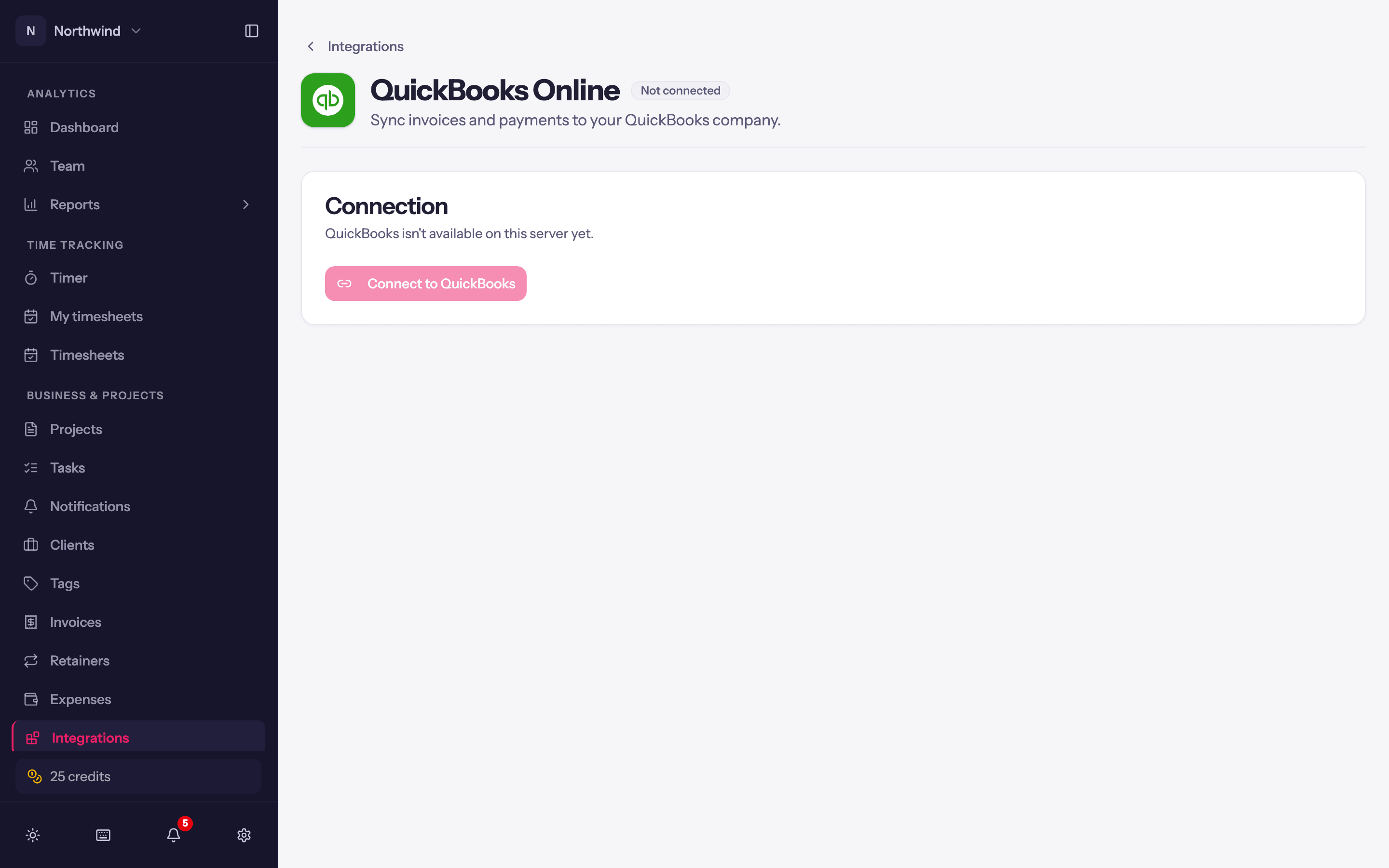
Open Integrations → QuickBooks Online and click Connect to QuickBooks. Sign in to Intuit and choose the company. You are returned to Quanta with Connected to QuickBooks.
Work through Finish setting up QuickBooks, the checklist at the top. It names what is still to choose, chiefly the Default product or service under Mappings. Finish setup saves everything and switches syncing on (Setup finished. Invoices will now sync to QuickBooks.). Nothing syncs until you finish.
Mappings
Which QuickBooks tax rate and products/services invoice lines use.
- Default tax code and Non-taxable line code (or Use default).
- Tax code per tax profile: map each Quanta tax profile to the QuickBooks code that charges the same tax.
- Product / service per item type: leave an item type on Auto-match by name to link it to a QuickBooks product/service with the same name automatically, or choose a specific product to override. A service that sits under a category works. The Default product or service covers lines whose item type has no mapping and no same-name product.
Save mappings stores them.
Sync settings
What Quanta pushes, and how:
- Invoices → Auto-sync invoices on send. When you send or mark an invoice as sent, push it automatically. Off, use Create invoice in QuickBooks in each invoice's Actions menu.
- Let QuickBooks assign invoice numbers. For companies with custom transaction numbers turned off in QuickBooks. With it on, Quanta keeps sending its own number so the invoice is never left without one.
- Payments → Sync payments to QuickBooks. Each payment recorded in Quanta is applied to the synced invoice in QuickBooks. Turn it off if you record payments in QuickBooks yourself.
- Customers → Auto-create customers. A Quanta client with no QuickBooks customer of the same name is created on first sync. Project sub-customers files single-project invoices under a QuickBooks sub-customer.
Save settings stores them.
Day to day
- Each invoice shows Not synced, Synced, Edited (changed in Quanta since the last push) or Error, and its Actions menu has Create invoice in QuickBooks (Push changes to QuickBooks once it is there) for a manual push. A push also sends any payment on that invoice that never reached the ledger.
- QuickBooks has no draft invoices: anything it holds is in your books. So on an invoice you have not sent, the item reads Mark as sent and create in QuickBooks and does both in one step, without emailing the invoice. Use it when you send invoices from QuickBooks.
- The invoice Memo goes to QuickBooks as the private note.
- Clients match to customers by name; override the match on the client sheet under the accounting link. See Managing clients.
Tax totals
Quanta sends QuickBooks the tax code for each line, not a tax amount, so QuickBooks works out the tax itself and your sales tax reports stay right. The two round differently: QuickBooks rounds the tax on each line and adds them up, while Quanta rounds once on the invoice. On an invoice with several taxed lines, the totals can land a cent or two apart.
After each push, Quanta reads the tax back from QuickBooks and updates the invoice to match, so the amount your client pays online is the amount in your books. It only does this when the difference is rounding: at most half a cent for each taxed line. It keeps Quanta's tax when:
- the invoice already has a payment recorded, so a balance your client has settled is never reopened;
- the lines or tax rates in QuickBooks don't match the invoice in Quanta.
The invoice email goes out before the push, so the PDF your client received can show a total one or two cents different from the invoice afterwards. If you edit the invoice later, Quanta works out the tax again and matches QuickBooks on the next push. Invoices synced before this change are updated the next time you use Push changes to QuickBooks on them.
Other currencies
When an invoice's currency differs from your QuickBooks home currency, Quanta sends it with QuickBooks' own exchange rate for the invoice date, the same rate QuickBooks fills in on an invoice you create there. A payment synced from Quanta uses the rate for the payment date. This needs multicurrency turned on in QuickBooks; without it, Quanta won't push an invoice in another currency.
If QuickBooks has no rate for that day, the push stops with an error rather than record the invoice at a rate of 1. Add the rate in QuickBooks, then push again.
A rate you change by hand in QuickBooks stays: pushing the invoice again only replaces a rate of 1.
Pull from QuickBooks
Two switches under Pull from QuickBooks in Sync settings bring work done in QuickBooks back into Quanta. Both are off until you turn them on, and neither changes anything in QuickBooks.
Invoices
With Review and import invoices from QuickBooks on, the Invoices page's Actions menu has Review invoices from QuickBooks. It lists the invoices in QuickBooks; Preview one to see it, then import it as a new Quanta invoice or link it to one you already have. An imported invoice is edited in QuickBooks from then on, and its reminders and online payments start off. On a single invoice, the Actions menu also has Link existing QuickBooks invoice, and Review updates from QuickBooks when the QuickBooks copy has changed.
Payments
With Pull recorded payments from QuickBooks on, a sent invoice linked to QuickBooks has Pull payments from QuickBooks in its Actions menu, and the Invoices page's Actions menu has Pull all payments from QuickBooks to check every linked invoice at once. You need permission to record payments as well as the integration permission.
Quanta imports the payments allocated to each invoice and updates its balance and status. Pulling again skips payments already recorded. If a payment covers several invoices, each linked invoice brings in its share; Quanta keeps one receipt for the payment.
Pulling runs when you ask. It doesn't check for new payments by itself, or reconcile later edits, deletions, refunds or credit notes. If a payment can't be imported, its ID and reason stay visible on the invoice; the other imports are saved.
Disconnect
Disconnect on the Connection card stops all syncing. Reconnecting later asks you to set the mappings again.
Integrations
Push invoices to QuickBooks Online or Xero, log time from Jira issues, build on the public API, and let Claude or another AI assistant track time for you.
Xero
Connect a Xero organisation and Quanta pushes invoices, contacts and payments to it, with the option to land invoices as drafts for approval in Xero.