Xero
Connect a Xero organisation and Quanta pushes invoices, contacts and payments to it, with the option to land invoices as drafts for approval in Xero.
Needs the Xero integration permission (Admins have it). Xero is marked Beta on the Integrations page; Report a problem on the page goes straight to us.
Connect
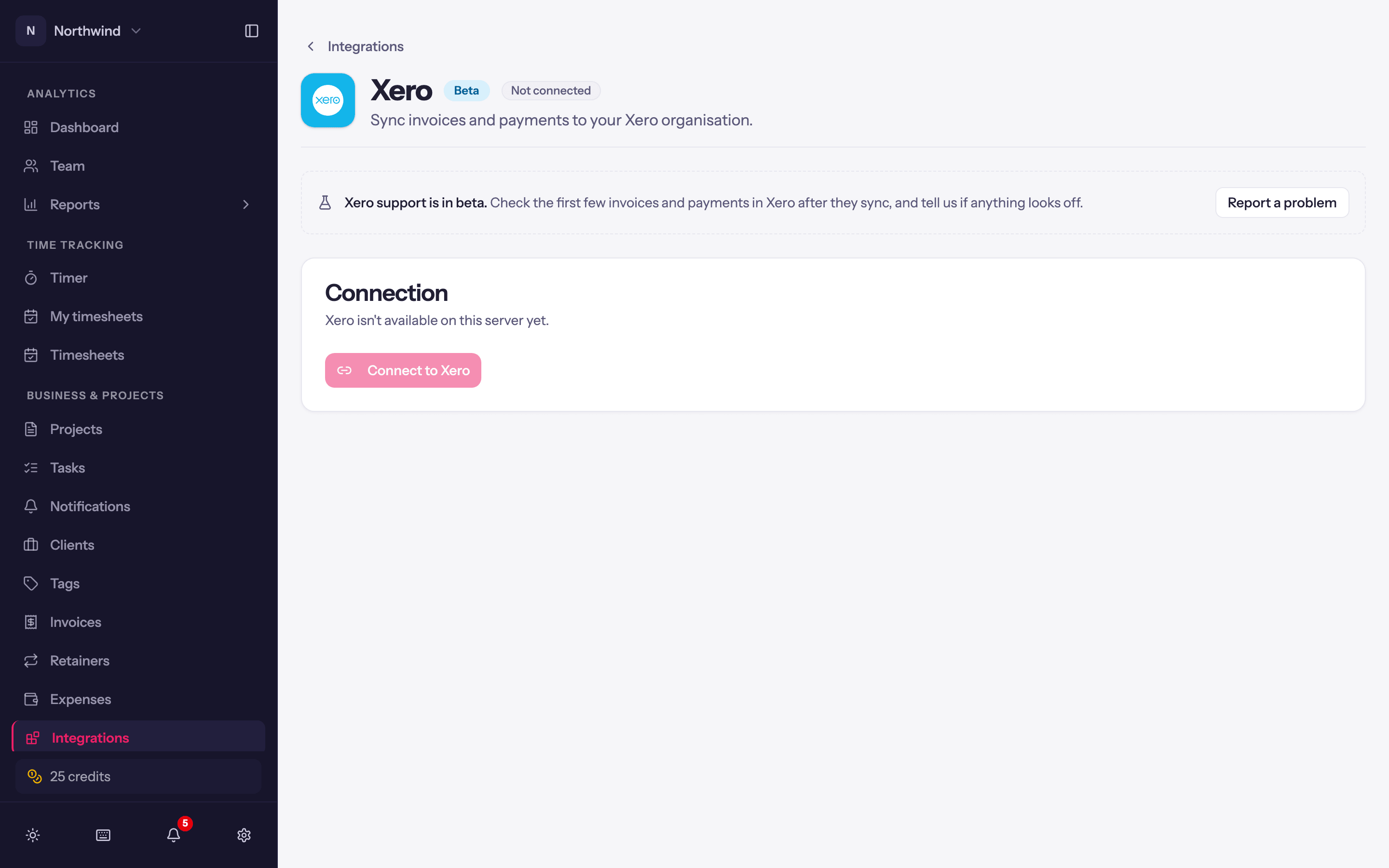
Open Integrations → Xero and connect. Sign in to Xero and choose the organisation. You are returned to Quanta with Connected to Xero.
Work through Finish setting up Xero: the Default revenue account under Mappings and, if payments will sync, the Payment account under Sync settings. Finish setup saves and switches syncing on (Setup finished. Invoices and payments will now sync to Xero.).
Mappings
Which Xero tax rates and revenue accounts invoice lines use.
- Default tax rate and Non-taxable line rate.
- Tax rate per tax profile: map each Quanta tax profile to the Xero tax rate that charges the same percentage. Falls back to the default.
- Revenue account per item type: Xero posts every invoice line to an account. Pick a Default revenue account, then override per item type where your chart of accounts splits revenue.
Sync settings
- Invoices → Auto-sync invoices on send. Push when you send or mark as sent; off, use Create invoice in Xero in each invoice's Actions menu.
- Let Xero assign invoice numbers.
- Create invoices as drafts. Synced invoices land in Xero's Drafts for you to approve there, instead of going straight to Awaiting Payment, and an invoice still in draft in Quanta can be synced too. A payment recorded in Quanta while the invoice is a draft in Xero waits, then applies once it is approved.
- Payments → Sync payments to Xero, into the chosen Payment account. Turn it off if you record payments in Xero yourself.
- Contacts → Auto-create contacts. A Quanta client with no Xero contact of the same name is created on first sync.
Day to day
Same as QuickBooks: a sync badge on every invoice, with Create invoice in Xero (Push changes to Xero once it is there) in its Actions menu, payments carried along with the invoice, and clients matched to contacts by name with an override on the client sheet.
Xero checks every line amount to the cent. Quanta rounds the way Xero expects, and puts any leftover cent on its own Rounding line so the invoice is accepted as sent.
Pull payments into Quanta
For a sent Quanta invoice already linked to Xero, open its Actions menu and choose Pull payments from Xero. You need permission to record payments as well as the integration permission.
Quanta imports the payments allocated to that invoice and updates its balance and status. Pulling again skips payments already recorded. If a payment covers several invoices, pull from each linked invoice to bring in its share; Quanta keeps one receipt for the payment.
This action runs when you click it. It does not import invoices created in Xero, automatically check for new payments, or reconcile later edits, deletions, refunds or credit notes. If a payment cannot be imported, its ID and reason stay visible on the invoice; other successful imports are saved.
Disconnect
Disconnect stops all syncing. Reconnecting later resets the mappings, so note them down first.