Expenses and mileage
Log project expenses with receipts, submit them for approval, reimburse them, and pull them onto client invoices.
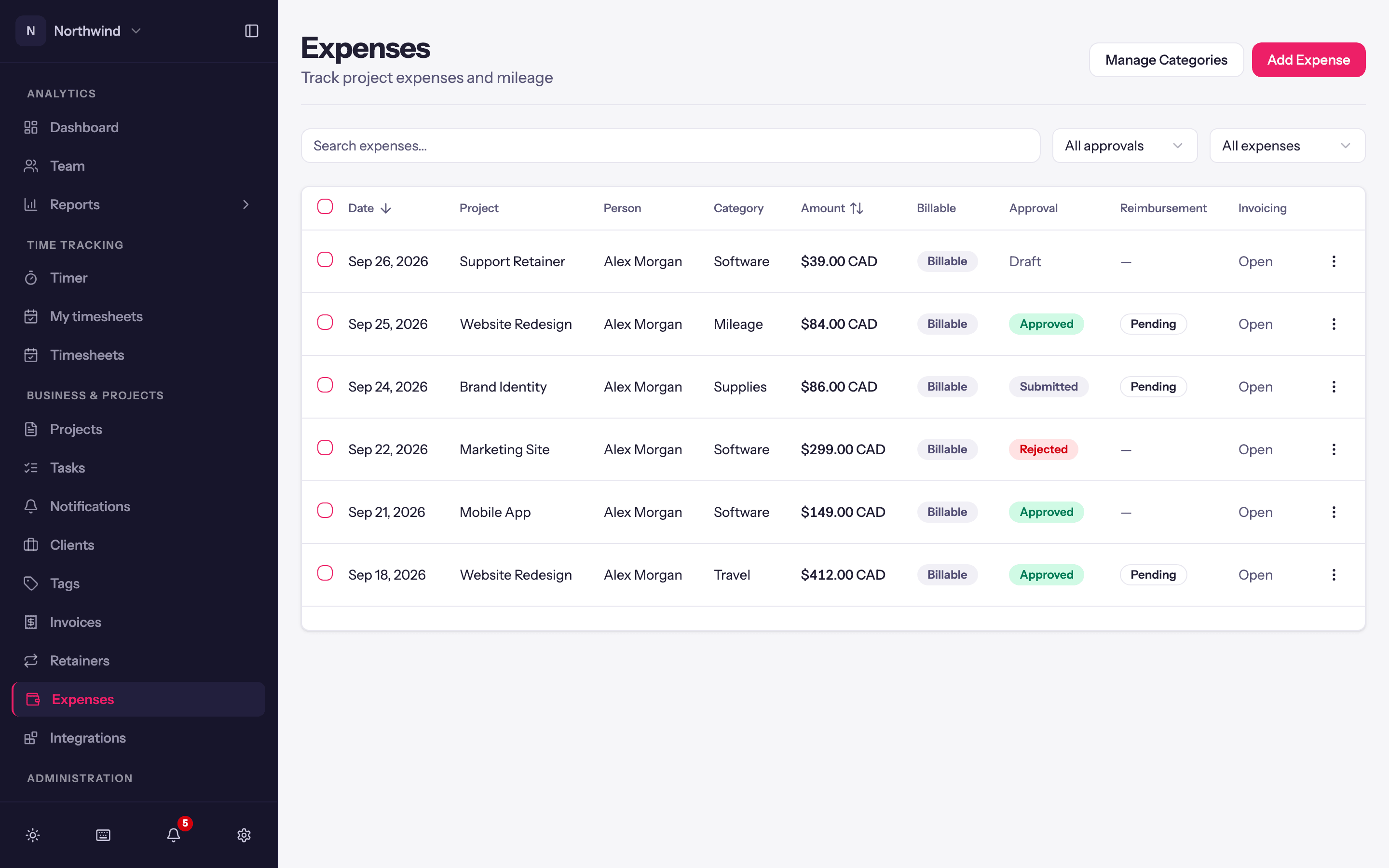
Expenses are costs tied to a project: software, travel, printing, mileage. Anyone with the Expenses permission can log their own; Leads, Managers and Admins approve them; approved billable expenses can be put on an invoice.
Logging an expense
Business & Projects → Expenses → Add Expense (or Add Expense on a project's Expenses tab).
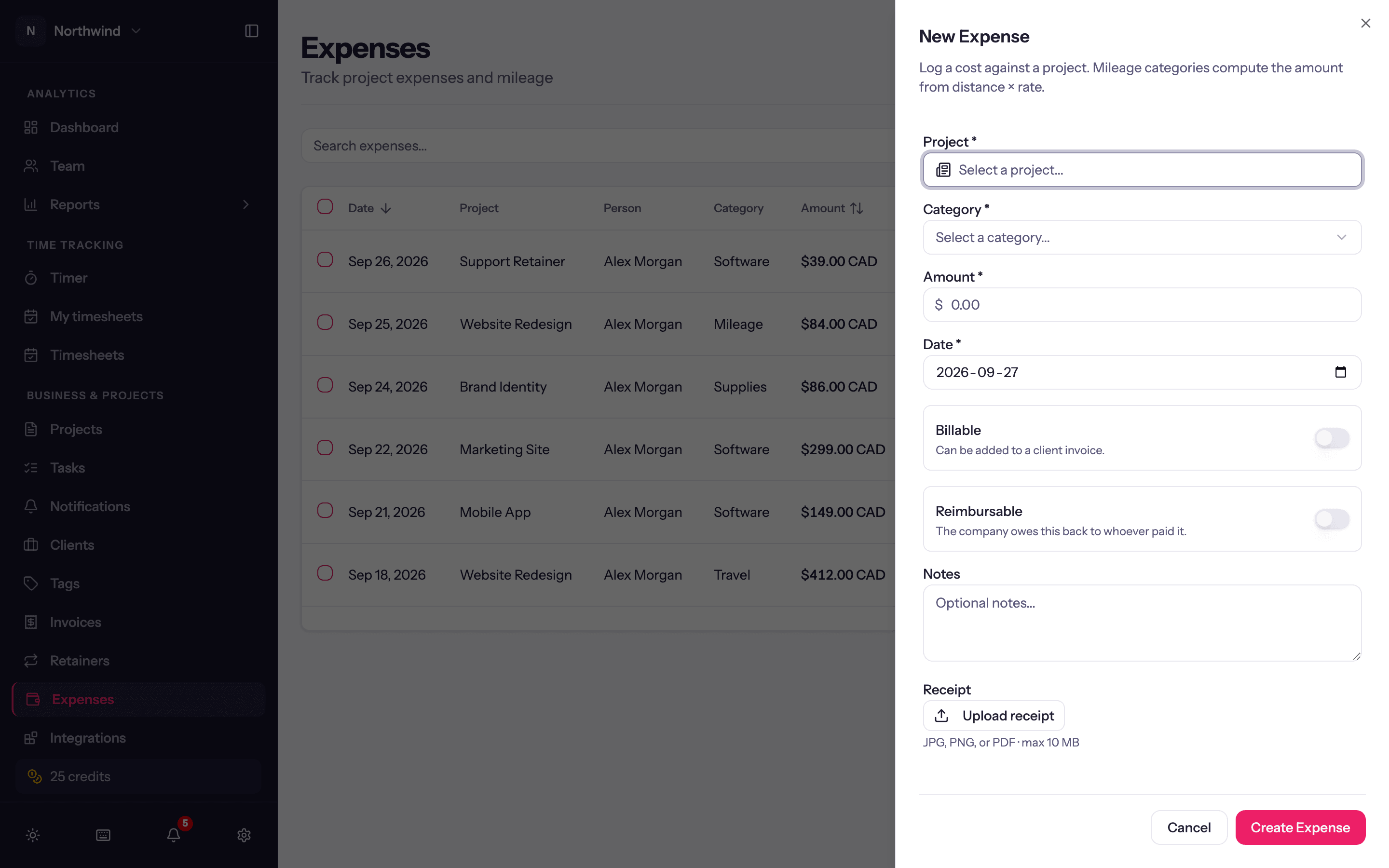
| Field | Notes |
|---|---|
| Project | Required. Only projects that Allow Expenses. |
| Category | Required. See categories. A unit-based category (mileage) asks for a quantity instead of an amount and works out the cost at the category's unit price. |
| Amount | Required for flat categories. |
| Date | |
| Billable | Can be added to a client invoice. |
| Reimbursable | The company owes this back to whoever paid it. |
| Notes | |
| Receipt | JPG, PNG or PDF, up to 10 MB. |
Click Save. The expense starts as a Draft.
Approval
Each expense has an Approval state: Draft, Submitted, Approved or Rejected.
- The owner clicks Submit for approval (or selects several and uses Submit). While it is Submitted they can Withdraw it.
- An approver, meaning an Admin (or anyone with the view-all expenses permission) or a Lead or Manager on the expense's project, clicks Approve or Reject…. Rejecting needs a Reason for rejection; the owner sees it, can Reopen for editing, fix and resubmit.
Add an Approval filter (Draft, Awaiting approval, Approved or Rejected) to see what is waiting on you.
Reimbursement
Reimbursable expenses carry a second state, Pending or Reimbursed. Admins mark them Mark reimbursed once paid out (and Mark reimbursement pending if that was premature). The Reimbursable · unpaid filter lists what is still owed to people.
Billing the client
Approved, billable expenses appear in the invoice importer under What to import → Expenses and land on the invoice as their own lines. Once invoiced, the Invoicing column reads Invoiced instead of Open, and the expense can no longer be deleted. Voiding the invoice makes it billable again. See Creating invoices.
Categories
Manage Categories on the Expenses page (Workspace admins) opens Expense Categories:
- Name, e.g. Meals, Lodging, Mileage.
- Type: flat, or unit-based with a Unit name (km, mile) and Unit price (0.655).
- Active: inactive categories are hidden from the expense form but keep their history.
Deactivating a category keeps existing expenses that use it.
Importing expenses
Expenses from another tool can be imported from a CSV under Administration → Import → Expenses. See Importing data.