Creating invoices
Build an invoice from uninvoiced time, expenses and fees, choose how the lines are grouped, and add tax, notes and payment instructions.
Click Create Invoice on the Invoices page. The invoice sheet has the header fields at the top, an import panel in the middle and the line items and totals below. Nothing is saved until you click Create Invoice at the bottom.
You can also start from a project: Create invoice in the header of any project with a client opens the same sheet with that client chosen and the import narrowed to that one project, which is the quickest route when a client has several projects and you bill them separately.
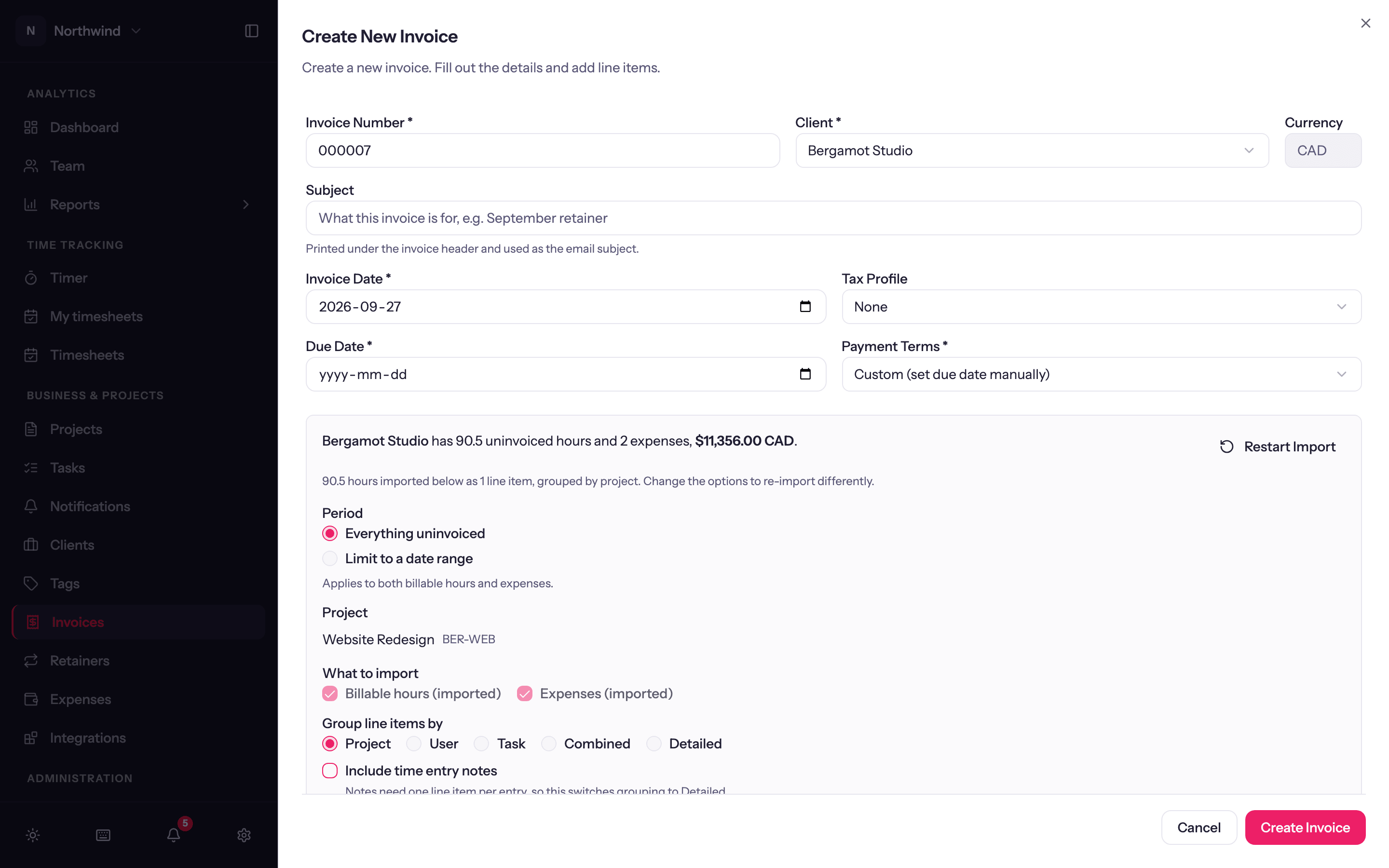
Header
| Field | Notes |
|---|---|
| Invoice Number | Pre-filled with the next number in your sequence. Editable, so you can match an existing numbering scheme. |
| Client | Required. Choosing a client fills in its currency, tax profile and payment terms and loads its uninvoiced work. |
| Currency | From the client. |
| Bill to contact | One of the client's contacts, or No contact. Printed in the To block and used as the default recipient. |
| Subject | Optional, e.g. September retainer. Printed under the invoice header and used as the email subject. |
| PO number | The client's purchase order number, when your workspace has turned on Add a PO number field to invoices (Workspace Settings → Invoicing). Printed on the invoice and sent to QuickBooks or Xero. |
| Invoice Date, Payment Terms, Due Date | Terms pre-fill from the client (or the workspace default); the due date follows and can be overridden. |
| Tax Profile | Adds the profile's tax lines. See Tax profiles. |
Import from tracked work
The import panel lists what the client has waiting to be billed.
Period. Everything uninvoiced, or Limit to a date range. It applies to both billable hours and expenses.
Projects. One row per project, each showing what it has to bill (hours, expenses, a fee). Tick the ones to include; Select all and None are next to the heading. Archived projects are marked. Projects with nothing to bill in the period, and projects with Invoice through Quanta switched off, do not appear.
What to import. Billable hours, Expenses (approved, billable, not yet invoiced) and, for fixed-fee projects, Project fees to bill now with an amount per project so you can bill a slice.
Group line items by. How hours become lines: Project (one line per project), User, Task, Combined (everything on one line) or Detailed (one line per time entry, each keeping its own rate, hours and description). Entries with different rates always create separate lines.
Options: Include time entry notes (switches grouping to Detailed, since notes need one line per entry); Include in line item description ticks for Project, Task, People, Date and Notes; Round durations to nearest 15 minutes (the increment and direction come from Workspace Settings → Rates, so this reads Round durations up to 6 minutes in a workspace set that way); and Email the detailed time entries, which attaches a spreadsheet of the entries behind the invoice when you send it.
Click Import. The lines appear below, and the imported entries and expenses are marked invoiced the moment the invoice is saved. Restart Import clears them and lets you choose again.
Line items
Each line has a Description, an Item type (see Item types), Quantity, Unit Price and a Taxable switch. Add Line Item adds a free-form line for anything not tracked. Drag a line by the handle at its left (or focus the handle and use the arrow keys) to put the lines in the order they should print. Lines generated by a retainer are locked to the retainer; change the deal there, not on the invoice.
Credits and discounts. A unit price can be negative. Add a line, describe it (Goodwill credit, Launch discount), and give it a minus price; it subtracts from the total like any other line and prints on the invoice. A credit larger than everything else on the invoice is refused, since an invoice cannot total less than nothing.
Totals (subtotal, each tax line, total) update as you type. Saving an invoice with no lines asks first (Save an invoice with no line items?).
Notes and instructions
- Payment instructions: bank details or "pay by" wording, printed at the foot of the PDF after the totals and the note, and last in the email. Pre-filled from the workspace setting; any invoice can change or clear its own copy.
- Note to customer: printed at the bottom of the invoice and included in the email. Defaults to Thank you for your business.
- Memo: for your team only; not on the invoice or in the email. Goes to QuickBooks as the private note.
After creating
The invoice opens as a Draft. Nothing is marked sent and no reminders run until you send it. Closing the sheet with unsaved changes asks Discard changes?; choose Keep editing to carry on.
Prefer to start from last month's invoice? Open it and choose Duplicate; you get a new draft with the same client, lines, notes and settings, and a fresh number.