Log your first time entry
Run a timer, add time by hand, or ask your AI assistant to log it.
Everything starts on the Timer page (sidebar → Time Tracking → Timer). At the top is the entry bar; below it, your entries in the view you prefer.
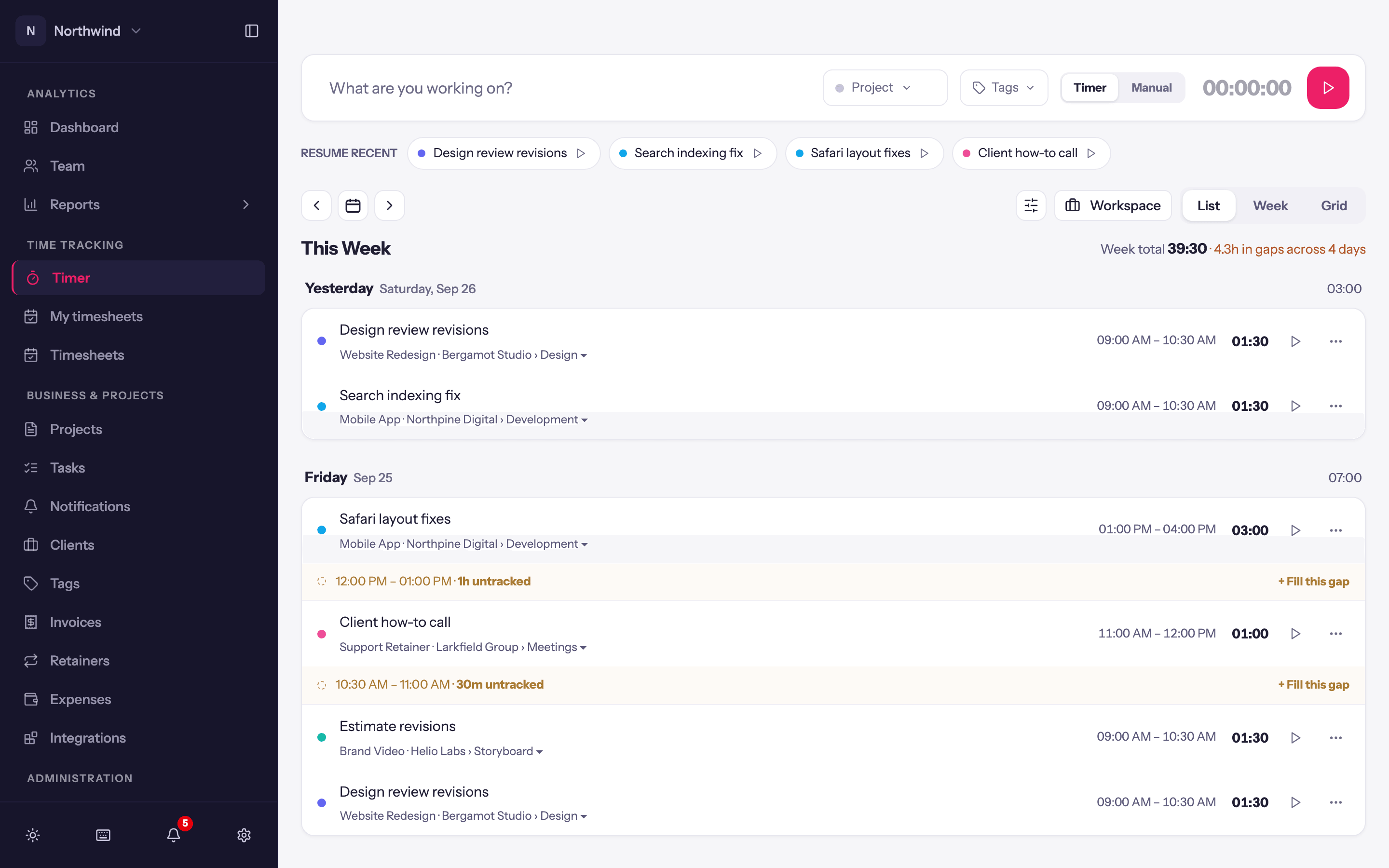
1. Run a timer
Type what you are doing in What are you working on?. Type @ to pick a project (or a task inside one) without leaving the keyboard, and # to add a tag. Or use the Project and Tags buttons.
Make sure the toggle is on Timer, then press the Start button (or ⌘ ⇧ S on a Mac, Ctrl Shift S on Windows).
Work. The clock keeps running across pages, and in the desktop app if you have it. Click the running time to adjust the start if you began late.
Press Stop. The entry is saved and appears in today's list.
If you started a timer by mistake, the small Discard timer button next to Stop throws it away without saving.
2. Add time you already worked
Switch the toggle to Manual. The bar changes to a date, start and end times (or just a duration in a duration-only workspace) and an Add entry button. Fill it in and press Enter or click Add entry.
The bar remembers whether you last used Timer or Manual.
3. Ask your AI assistant
If you work in Claude or another MCP client, connect the Quanta MCP server and ask it to log time for you, like "Two hours on the Acme homepage this morning". See Log time from Claude.
Fixing an entry
Every part of an entry row is editable in place: click the description, the project, the tags, the times or the duration, change it, and it saves when you click away. The menu at the end of a row offers Duplicate entry, Delete entry, and Edit date & times. See Editing entries.
What next
- Pick the view that suits you, list, week or grid: Tracking Time.
- Get the menu bar timer: Desktop app.
- Learn the shortcuts: Keyboard shortcuts.