Invite your team
Send invitations, pick a role for each person and share the link if the email does not arrive.
People join a workspace by invitation. Each invite carries a role, so the person lands with the right access the moment they accept.
Send an invitation
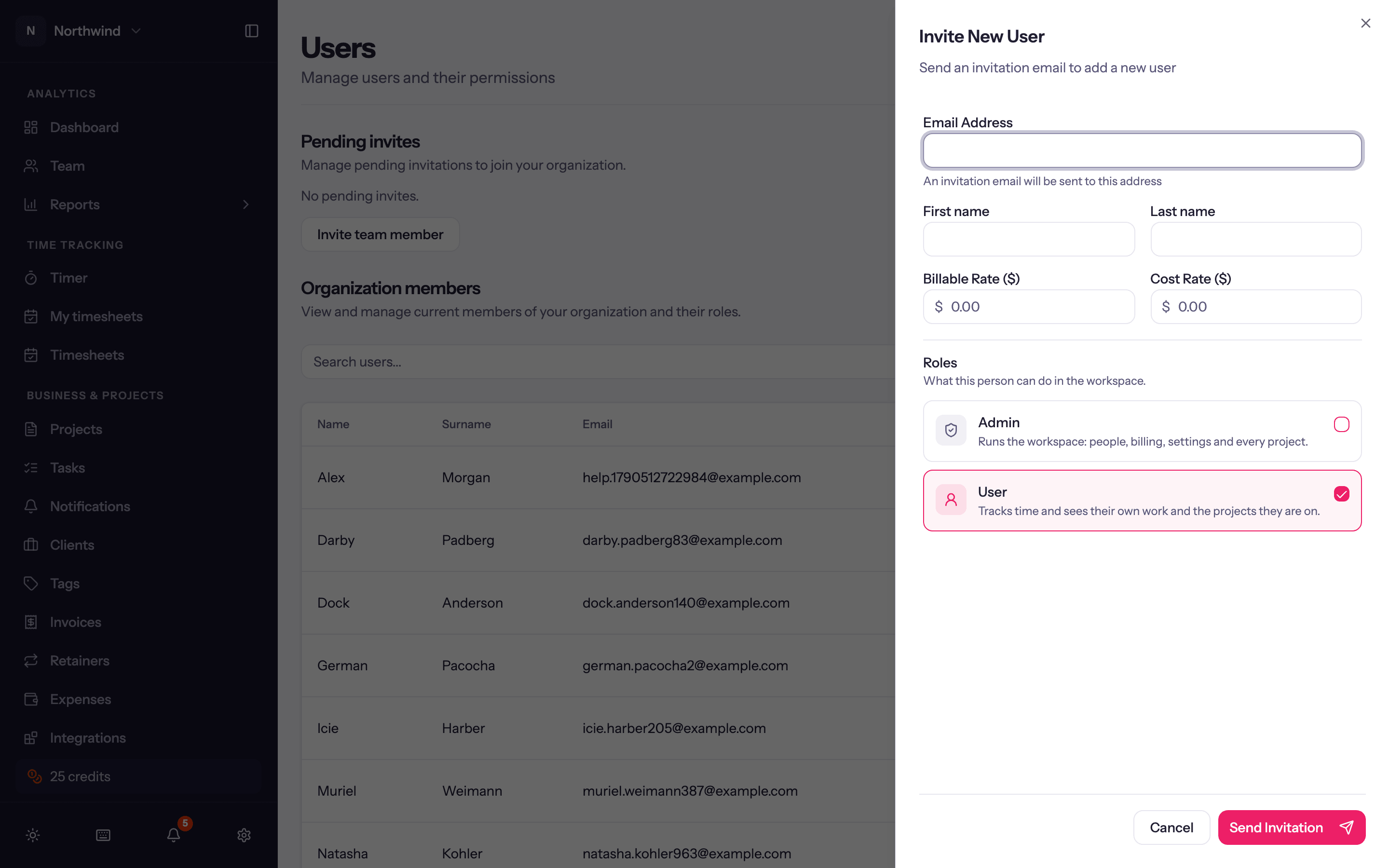
Open Administration → Users. The Pending invites section at the top has an Invite team member button.
Enter the Email Address, and optionally their First name and Last name so their entries and timesheets are labelled properly before they have signed in.
Under User Roles, tick the role(s) they should have. User is the everyday role (track time, see the projects they are on). Admin runs the workspace. See Roles and permissions.
Optionally set a Billable Rate and a Cost Rate for this person; these become their default rates on every project. If weekly timesheets are on, Timesheets start picks the first week they are expected to submit.
Click Send Invitation. An invitation email goes out, and the sheet shows an Invite link you can Copy link and send yourself, over chat for example.
If the address already has a Quanta account (say, from another workspace), no email is sent; share the invite link and they join this workspace with their existing login.
While they decide
Every unanswered invitation is listed under Pending invites on the Users page, with who sent it and when. From there you can Resend invitation, Edit invitation email if you typed it wrong, or Revoke invitation.
Once accepted, the person appears under Organization members. See Managing users for deactivating people and changing roles.
Plan limits
The Individual plan includes one user. Inviting a second person prompts you to upgrade: Team covers up to 50 people and Business covers 51 to 100, each at one flat price. See Subscription and billing.