Branded exports
Export the Detailed, Summary, Budget and Uninvoiced reports as a PDF, Excel or CSV file, with or without your logo, a title, a note, the period and totals.
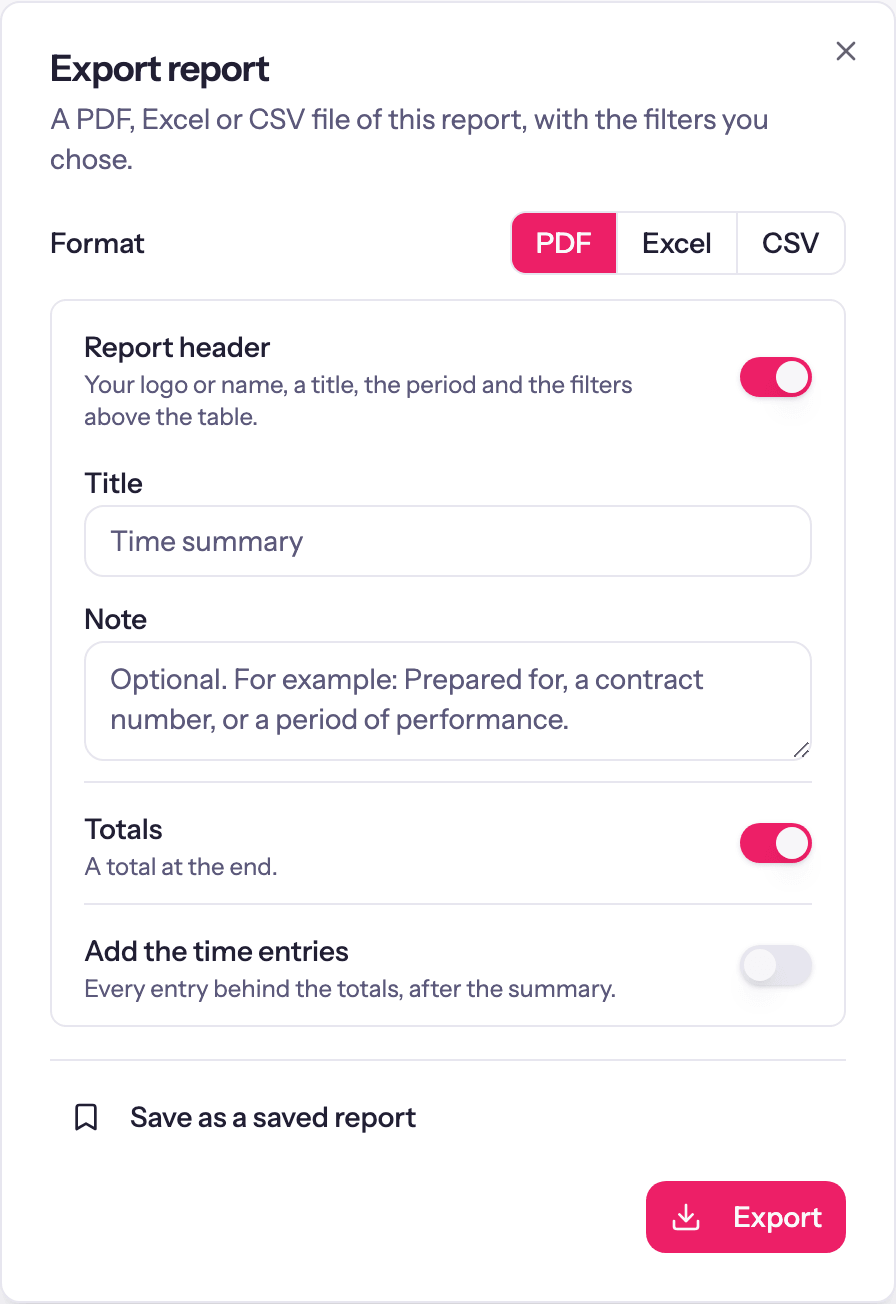
Export on a report makes a PDF, an Excel file or a CSV file. You choose what goes in it besides the table: a header with your workspace's logo and name, a title and a note, the period and the filters you chose; and the totals. The file is a copy of what you see: it holds only the data your own access allows. Every plan has branded exports.
Which reports
The Detailed report, the Summary report, the Budget report and the Uninvoiced report each export as PDF, Excel or CSV.
Export a report
Open the report, set its dates and filters, and click Export.
Choose PDF, Excel or CSV under Format.
Turn the Report header and Totals on or off. With the header on, fill in Title and Note, or leave them as they are.
Click Export. The file downloads.
File type, header and totals
The three are separate choices, so any combination works: a PDF with everything, an Excel file with your header but no totals, or a plain CSV for another tool.
- Report header: the block above the table. In a PDF or Excel file it has your logo, the workspace name and address, the title, the period, the filters, the note and a Generated line. In a CSV it is the same text as the first few lines, without the logo.
- Totals: a total at the end. On a report that groups its rows (the Uninvoiced report, or the Detailed report grouped by client and project), each group gets a subtotal too. The Budget report has no totals, so it has no Totals switch.
Choosing a file type starts it with that type's usual setting: a PDF has the header and totals on, and Excel and CSV have them off, as the plain data they always were. Switch either one to change it. The dialog remembers the file, header, totals, title and note you used last for each report, in this browser.
Title and note
- Title is the heading under your logo. Leave it blank and the report's own name is used: Detailed time report, Time summary, Budget report or Ready to invoice for the Uninvoiced report. The field shows that name as its placeholder. Up to 200 characters.
- Note is printed in a box under the period. Use it for something like who the report is prepared for, a contract number or the period of performance. Up to 2,000 characters.
What the header shows
From the top down:
- Your logo, the workspace name and the Billing Address, from Workspace Settings → Invoicing (see Invoice settings). The Invoicing tab is shown only while invoicing is on for the workspace, under General → Features.
- The Title, then the period: a range such as March 1, 2026 to March 31, 2026, All time, or As of October 18, 2026 on the Budget and Uninvoiced reports, which show the state of things on the day they are made. Dates use the workspace's date format, and these examples show the default style.
- The filters you chose, one line each for clients, projects, people, tasks, tags, billable or invoiced, currencies and any search text. A client or project you cannot see prints as (not visible to you).
- Your Note, if you wrote one.
- A line that reads Generated with the date, the time and your name.
Then the tables. A report with nothing in it says Nothing to show for this period.
A PDF is printed on A4, and every page is numbered. A table with many columns prints landscape.
Hours and durations
In a PDF or Excel file, durations follow your Duration Format under User Settings → Time Formats: hours and minutes (6:30) or decimal (6.50). A CSV always has decimal hours. The figures are worked out the same way as on screen. On the Detailed report, totals use exact durations, so the rows may not add up to them exactly. A PDF or Excel file with totals says so under the table, and so does a CSV with the header on.
Detailed report
The Detailed report's dialog is called Choose export columns. Tick the columns to include, then:
- Group by client and project: off, the entries are one list in date order. On, there is a heading for each client and project, and the client and project columns are left out because the headings name them.
- Split name exports first and last name as separate columns, in any file type.
- Rounding applies the workspace's rounding rule to the durations.
Its Export button confirms the choice; Reset to defaults restores the standard columns.
Summary report
The export dialog has one extra switch: Add the time entries, every entry behind the totals, after the summary. In a PDF and a CSV the entries follow the summary under their own heading, and in Excel they get their own sheet.
Excel and CSV files
An Excel file has one sheet per section of the report, with the column row frozen. With the header off, the table starts on the first row. Amounts and durations are numbers, so you can total or filter them.
A CSV is UTF-8 with the columns on the first line when the header is off. Amounts are plain numbers, without a currency symbol. A report with more than one table (the Summary report with its time entries, or a Budget report with both money and hours budgets) has each table under its heading, with a blank line between them. Text that starts with =, +, - or @ gets an apostrophe in front, so a spreadsheet opens it as text instead of running it as a formula.
Save the settings
Once a report has its filters, file type, header and totals right, choose Save as a saved report at the bottom of the dialog. The saved report reopens the same view later, and can be sent on a schedule. See Saved reports.
Who can export
Anyone who can open a report can export it, and sees only the data their access allows, as on the screen. The Detailed report also needs the permission to export it. A file, once downloaded, can be passed on by whoever has it, so check the note and the filters before sending it to a client.
Uninvoiced report
Billable time, approved expenses and project fees that are not yet on an invoice, per client, with a Create Invoice button on every row.
Saved reports
Keep a report's filters, file, header and period as a saved report, reopen it from any report, and have Quanta make it and email it on a schedule, after you review it or on its own.