Track Expenses and Mileage in Quanta
Log project expenses and mileage, attach receipts, mark them billable, and pull them straight onto client invoices — without leaving Quanta.
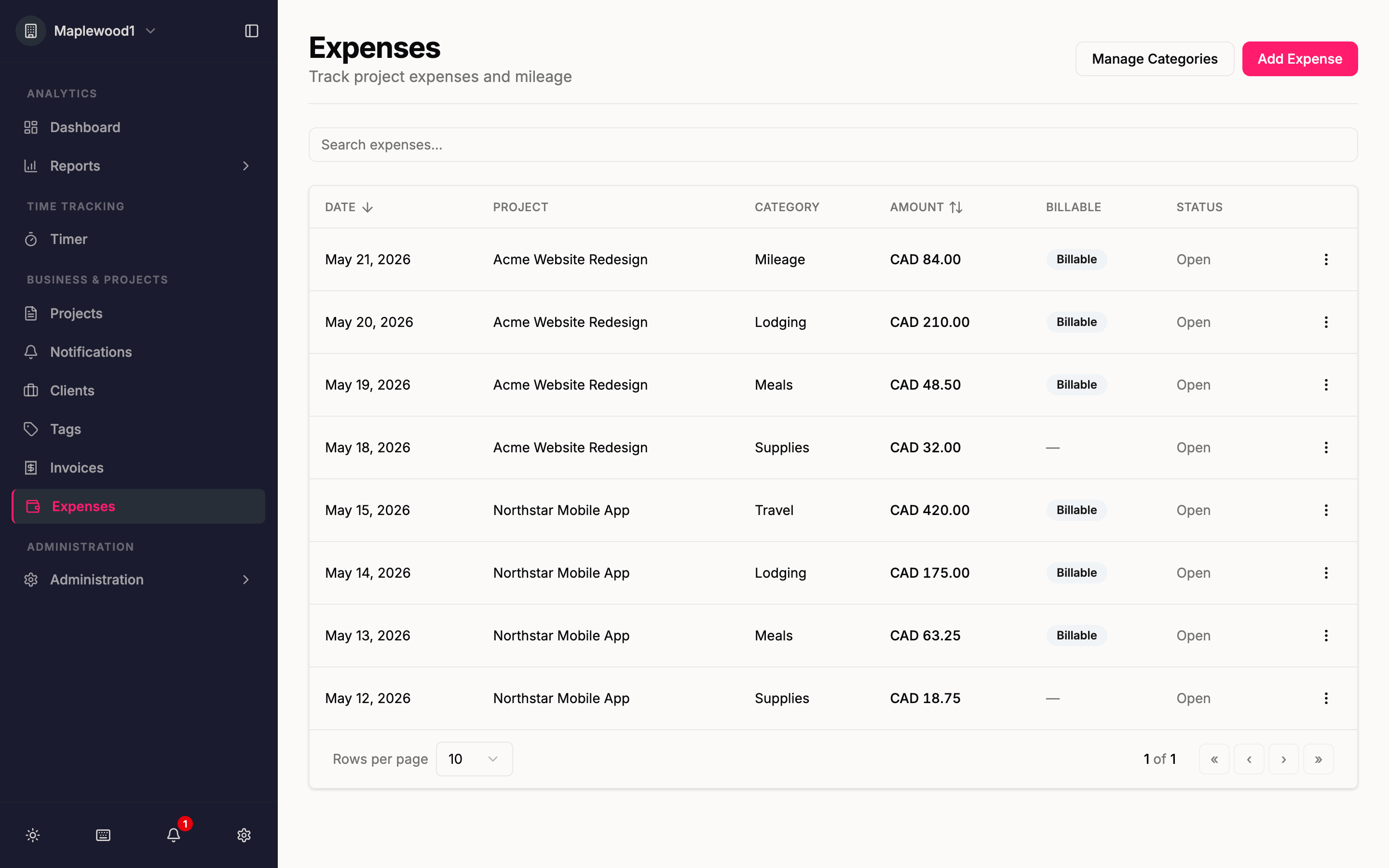
Billable work isn't only hours. There's the drive to a client site, the hotel for an on-site week, the software license you bought for a project. Until now Quanta tracked your time beautifully but left those costs in a spreadsheet. Not anymore — Quanta now tracks expenses and mileage, keeps the receipts, and bills them back to your clients alongside your time.
Categories you control
Expenses are organized by category, managed under Expenses → Manage Categories. Every new workspace starts with a sensible default set — Lodging, Meals, Mileage, Supplies, Travel, and Other — so you can start logging immediately.
There are two kinds of category:
- Flat — a typed dollar amount (Meals, Lodging, Supplies…).
- Unit-based — an amount calculated from a quantity times a rate. This is how Mileage works: set a rate like
0.70 per mileonce, and every mileage expense is computed for you.
You can add your own categories, edit the rates, and deactivate ones you don't use — deactivated categories stay on historical expenses but drop out of the picker when logging new ones.
Logging an expense
Anyone on your team can log an expense against a project they work on. Pick the project and category, set the date, and add an optional note. For a flat category you type the amount; for mileage, you just enter the distance and Quanta multiplies it by the category's rate.
Flip the Billable toggle if the cost should be passed on to the client, and attach a receipt — JPG, PNG, or PDF up to 10 MB. Receipts are stored securely and can be downloaded later from the expense list.
Billable, and ready to invoice
Every expense shows up on the Expenses page with its amount in the project's currency, whether it's billable, and whether it's already been invoiced.
When you build a client invoice, click Import Expenses to pull in that client's billable, not-yet-invoiced expenses as line items — right next to the time entries you're already billing. No copying numbers between tools, no forgotten reimbursements.
A few details that matter
- Per-project control. Expenses are on by default for every project, but you can turn them off for a specific project with the Allow Expenses toggle in the project settings.
- The right people see the right things. Team members manage their own expenses; project leads and admins see every expense logged against a project.
- Mileage rates are snapshotted. The amount is locked in at the rate in effect when you logged it, so changing a rate later never rewrites past expenses.
That's it — expenses and mileage, tracked where your projects and invoices already live. Open the Expenses tab and log your first one.