What clients see
How workspace, client and project settings combine to decide what each client sees in the portal.
Visibility flows down three levels. The workspace defaults are the maximum. A client can hide more than the workspace allows but never expose a category the workspace turned off, and a project can narrow its client's settings again.
On a client
Open the client and go to its Client portal tab.
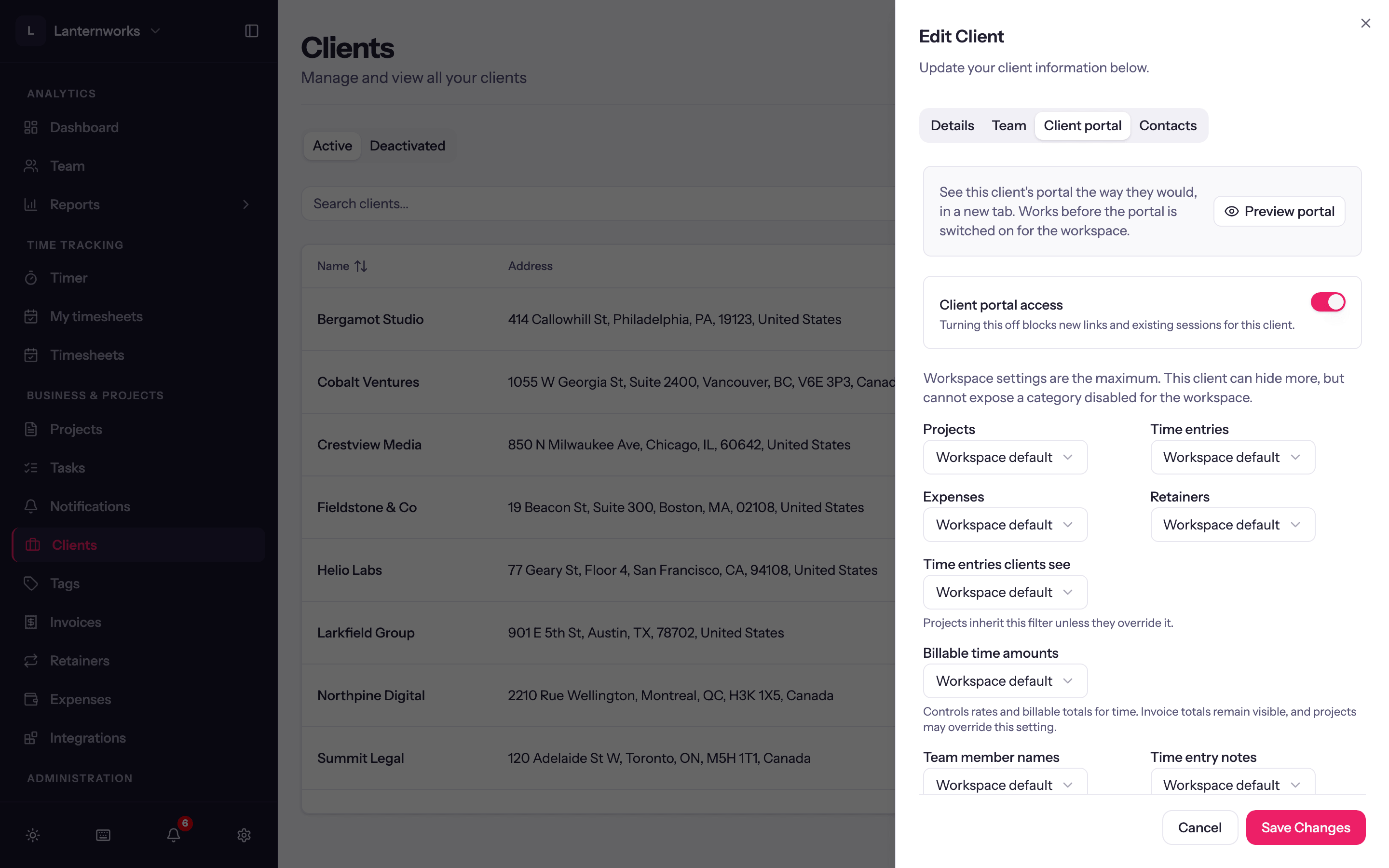
- Client portal access: off blocks new sign-in links and ends existing sessions for this client.
- Grouped under Activity (Projects, Time entries, Included time, Expenses, Retainers), Details (Team member names, Time entry notes, Expense breakdown) and Financials (Billable amounts, Budget): each starts at Workspace default, or can show or hide for this client. Included time picks which entries count: approved, invoiced or all.
Online payment for the client is on its Details tab: Allow this client to pay invoices online. It is on by default.
On a project
Open the project, click Edit, and go to the Client Portal tab.
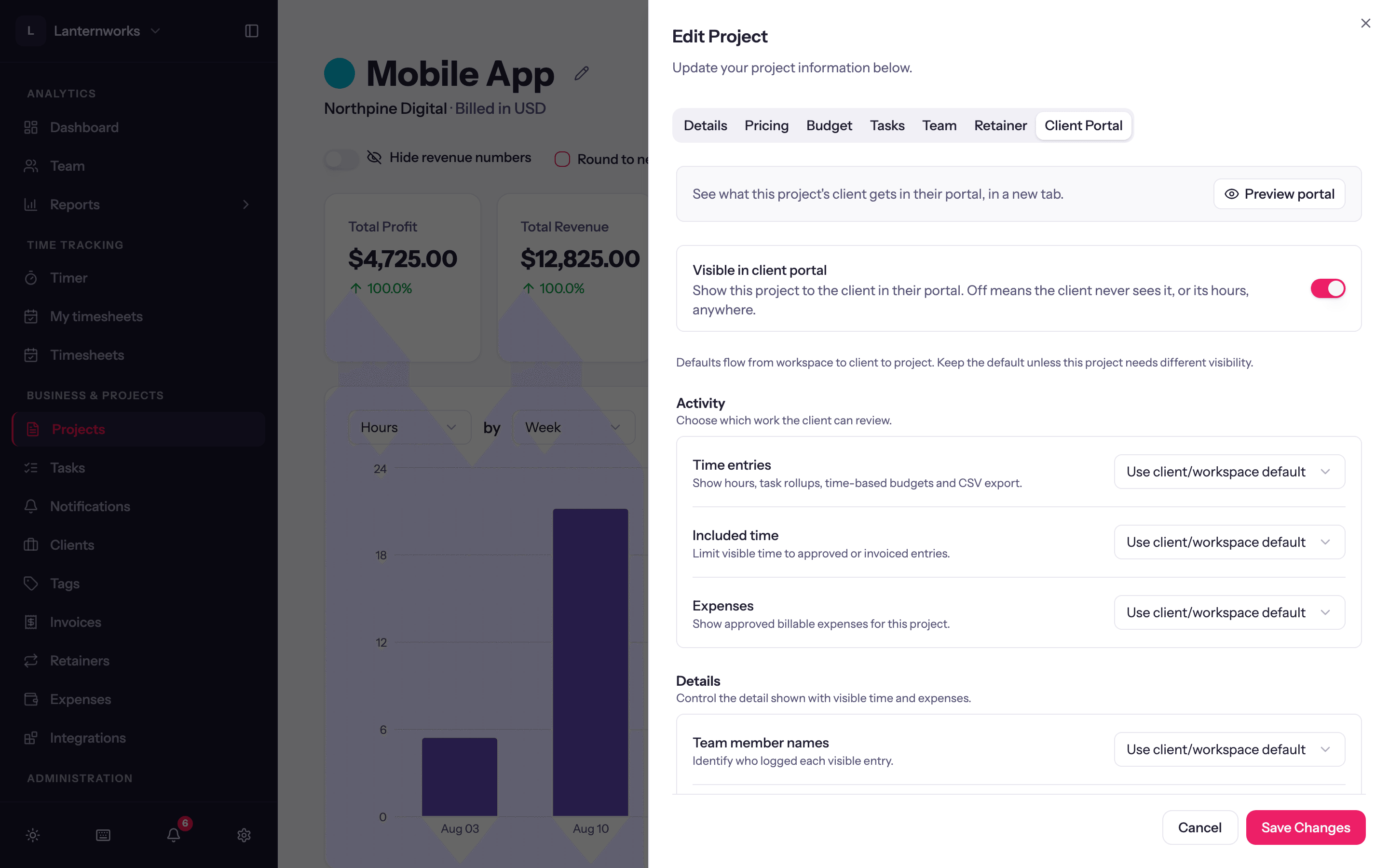
- Visible in client portal: off means the client never sees this project, or its hours, anywhere.
- Activity: Time entries, Included time (approved, invoiced or all entries) and Expenses.
- Details: Team member names, Time entry notes and Expense breakdown.
- Financials: Billable amounts (Show amounts or Hours only) and Budget. Budget progress only counts the entries this client can see.
Every setting starts at Use client/workspace default.
In the portal
A client lands on their projects, with any invoices awaiting payment at the top. A client with one project goes straight to it. Each project shows whichever apply: retainer usage this period, budget used, fixed fee billed and time logged, then hours by task, expenses and recent time entries. View all time entries opens the full shared history as a table they can sort, filter, search and download as CSV.
Invoices are always visible, even when projects or time are hidden. Each one shows its totals, each tax on its own line, payment history and a PDF. A retainer invoice also shows the retainer: its price, what's included, this period's usage and its other invoices.
Totals, budget bars, CSV downloads and PDFs all follow the same visibility as the page, so nothing hidden on screen leaks through an export.