How Time Tracking Works in Quanta
A complete guide to tracking time in Quanta — from one-click timers and manual entries to AI-powered logging and weekly views.
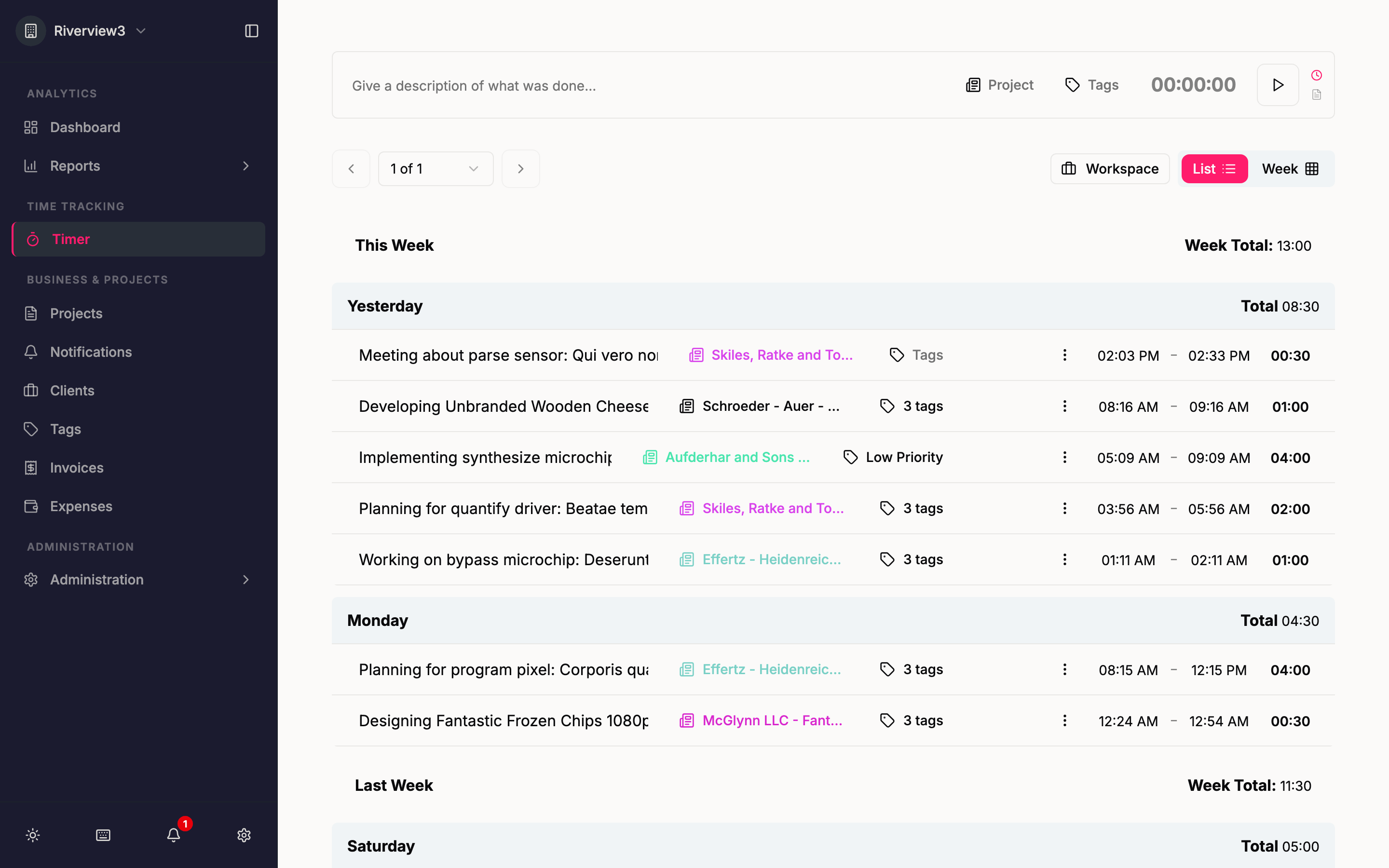
Time tracking shouldn't be complicated. That's why we built Quanta to give you multiple ways to log your hours — so you can pick whichever fits your workflow and get back to doing actual work.
Here's how it all works.
Start a Timer or Log Manually
Quanta gives you two core ways to track time:
Timer mode — Click play when you start working, pause when you stop. A live counter shows your elapsed time in hours, minutes, and seconds. It's the simplest way to track if you like logging in real time.
Manual entry — Prefer to log hours after the fact? Enter a start and end time, or just type a duration. This works well if you batch your time entries at the end of the day or week.
Both modes let you assign entries to a client, project, and task, and tag them for easy filtering later.
Weekly View for Bulk Entry
If you're the type who fills in a timesheet at the end of the week, the weekly view is for you. It shows a grid of your projects broken down by day, so you can quickly fill in hours across the entire week in one sitting.
No more creating entries one at a time — just type the hours into each cell and you're done.
Tell AI What You Worked On
This is one of our favorite features. Instead of filling out forms, just describe your work in plain English:
Designed the new checkout flow for Greenfield, 2 hours starting at 10am
Quanta's AI parses your description and automatically creates the time entry — project, duration, start time, and tags all filled in. It even works with voice dictation, so you can literally tell Quanta what you did.
Every plan includes 25 AI credits per month to get you started.
Organize with Projects, Clients, and Tags
Every time entry in Quanta can be linked to:
- A client — The person or company you're doing the work for
- A project — The specific engagement or body of work
- A task — A more granular breakdown within a project
- Tags — Color-coded labels for categorizing entries (design, development, meetings, etc.)
This structure makes it easy to pull reports later and see exactly where your time went.
Track Project Budgets
Set hour or dollar budgets on any project. Quanta tracks your progress in real time and alerts you when you're approaching the limit. You can configure budgets to reset on a recurring schedule — weekly, monthly, or per-project.
No more surprise overruns.
Reports and Exports
Once your time is tracked, Quanta gives you detailed and summary reports that you can filter by date range, client, project, task, or tag. Need to send a report to a client or import data into your accounting tool? Export to CSV anytime.
Invoicing Built In
Turn tracked time directly into invoices. Select the entries you want to bill, generate an invoice, and send it to your client — all without leaving Quanta. No need for a separate invoicing tool.
Team Collaboration
Invite your team and assign roles with granular permissions. Managers can see team-wide reports. Individual contributors see their own time. Everyone tracks against the same set of projects and clients.
And here's the part that matters most: Quanta charges a flat $40/month for teams of up to 50 people, $199/month for teams of 51 to 100, or $10/month if you work solo. No per-seat fees. A 10-person team on most competitors would pay $100-$120/month. On Quanta, it's $40.
Why We Built It This Way
Most time trackers charge per user because they can, not because they need to. The infrastructure for logging hours against projects doesn't scale with headcount in a way that justifies per-seat pricing.
We built Quanta to be the essentials done well — no feature bloat designed to justify expensive tiers, no surveillance tools, no complexity. Just a clean, fast way to track time, manage projects, and invoice clients.
Start tracking for free — no credit card required.